We are ready to help
Which Apps Are Using Your Internet? Find and Block Background Connections in Windows and Linux
You can see which programs connect to the internet without installing anything paid: Windows already ships with Resource Monitor, a per-app Data usage counter, netstat and PowerShell, and Windows Defender Firewall can block any app from going online. On Linux, ss, nethogs and ufw cover the same ground. This guide goes from the quickest checks to the more advanced ones.
Why gamers should care: a cloud drive syncing gigabytes or a launcher pulling a patch in the background competes with your game for bandwidth. Find the culprit first, then decide what to block.
Quick tool map
| Task | Windows | Linux |
|---|---|---|
| See live connections | Resource Monitor (resmon) | ss -tupn |
| Usage per app over time | Settings, Data usage | nethogs (live) |
| Catch short-lived connections | netstat -abno 5, TCPView | watch with ss |
| Identify an IP address | Resolve-DnsName, whois | dig -x, whois |
| Block an app from the network | Windows Defender Firewall | OpenSnitch; ufw filters ports and addresses |
Step 1. Check live connections in Resource Monitor
- Press Win+R, type
resmonand hit Enter. - Open the Network tab and expand TCP Connections.
- In Processes with Network Activity, tick the program you care about. Everything below filters down to that process.
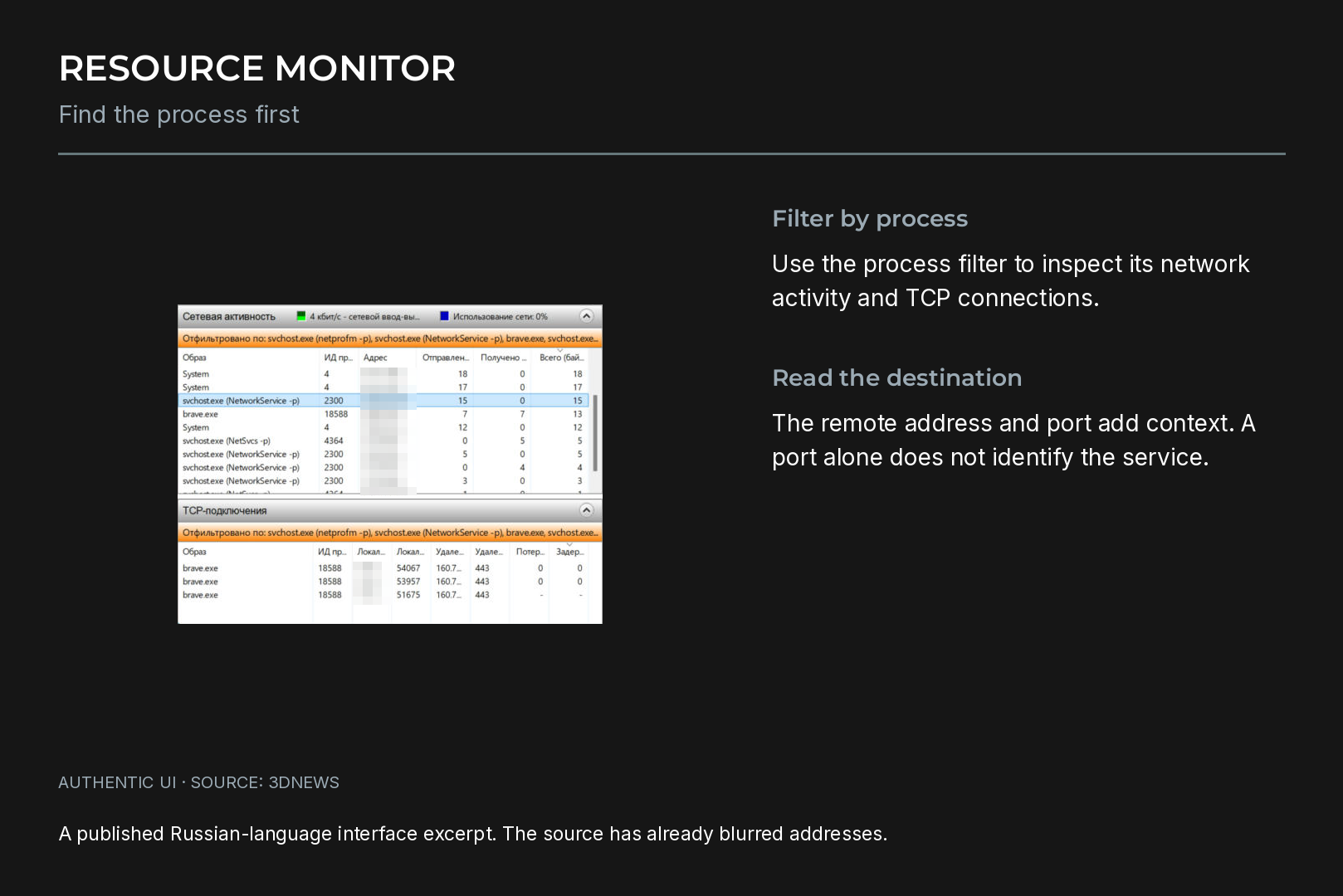
The Image column, the program name, matters most. Remote Address and Remote Port show where it connected. Ports rarely help: nearly everything uses 443 (HTTPS), so a browser and a telemetry service look identical. You may also spot 80 (HTTP) and 53 (DNS).
If you run a VPN, its client can flood the list with dozens of connections to its own server. Tick only the processes you want to inspect. Resource Monitor looks the same in Windows 10.
Step 2. Find out which service hides behind svchost.exe
svchost.exe shows up constantly because it hosts Windows services: updates, time sync, Delivery Optimization and many more. The name alone tells you nothing.
- Note the number in the PID column.
- Run
tasklist /svc /fi "PID eq 1234"in Command Prompt, using your PID. - Look up the returned service names in
services.msc, which includes a description for each.
Resource Monitor also gives a hint in brackets after the name, for example svchost.exe (NetworkService -p).
Step 3. See which app used the most data
Resource Monitor only shows the present moment. For history, use the Windows counter:
- Windows 11: Settings, Network & internet, Data usage (also reachable from Advanced network settings).
- Windows 10: Settings, Network & Internet, Data usage.
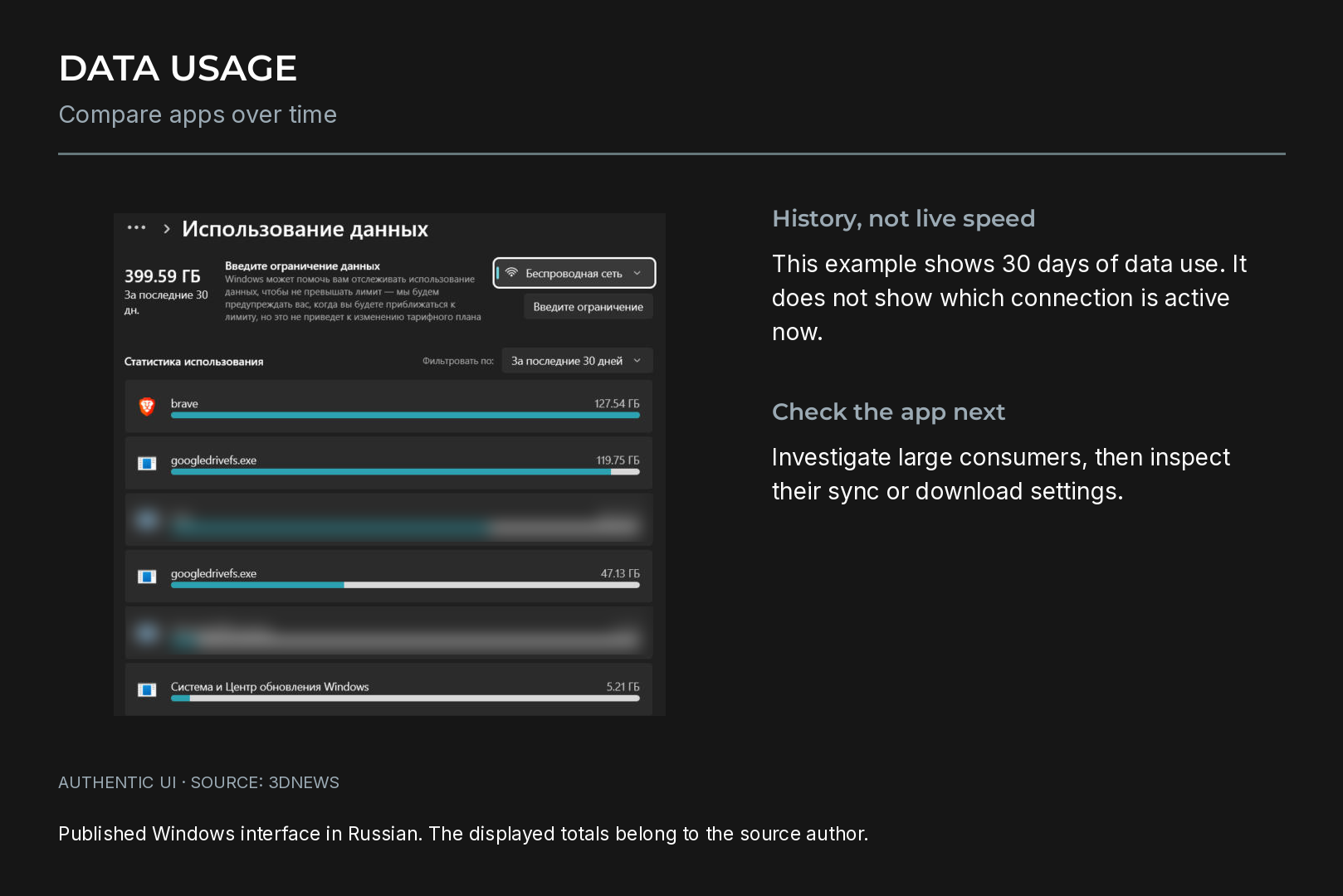
Apps are sorted by volume, and you can switch between the last 24 hours, 7 days or 30 days. Figures are tracked separately per network, such as Wi-Fi and Ethernet. The numbers are rough and not broken down by connection, but they are enough to spot an outlier. If a cloud sync client that starts with Windows has used more than your browser, start there: most such apps let you pause syncing or cap upload and download speed.
Step 4. Work out who owns an address
Resource Monitor shows numeric addresses. A reverse DNS lookup in PowerShell gives the host name:
Resolve-DnsName 140.82.112.4 -Type PTRIf nothing comes back, which can happen with a VPN, retry with a public DNS server by adding -Server 1.1.1.1. Classic nslookup works too.
Watch out for a common trap. Many results point to content delivery networks such as akamaitechnologies.com or cloudfront.net, and Google servers appear as 1e100.net. These networks serve thousands of companies, so the address tells you where files are hosted, not which service requested them. Identify the program first and treat the address as a detail. Any whois service, such as the RIPE NCC database, shows who owns an IP block.
You can also work backwards. ipconfig /displaydns prints the DNS cache, a list of names your PC looked up recently. In PowerShell it comes out as a table:
Get-DnsClientCache | Select-Object Entry, DataThat list also contains every site you visited, so do not share it publicly.
Step 5. Catch connections that come and go
Some connections last a few seconds and slip past Resource Monitor. Three ways to catch them:
netstat. Open Command Prompt as administrator and run netstat -abno 5. The list refreshes every 5 seconds; stop it with Ctrl+C. The -b switch shows the program name and needs elevated rights.
PowerShell. Established connections with process names:
Get-NetTCPConnection -State Established | Select-Object RemoteAddress, RemotePort, @{n='Process'; e={(Get-Process -Id $_.OwningProcess).ProcessName}} | Sort-Object ProcessTCPView. A Microsoft Sysinternals utility that runs without installation. It lists every TCP and UDP endpoint with its owning process and service, refreshing once a second by default. New endpoints turn green, removed ones red and changed ones yellow, and you can close an established connection from the right-click menu. The download also includes Tcpvcon, a command-line version.
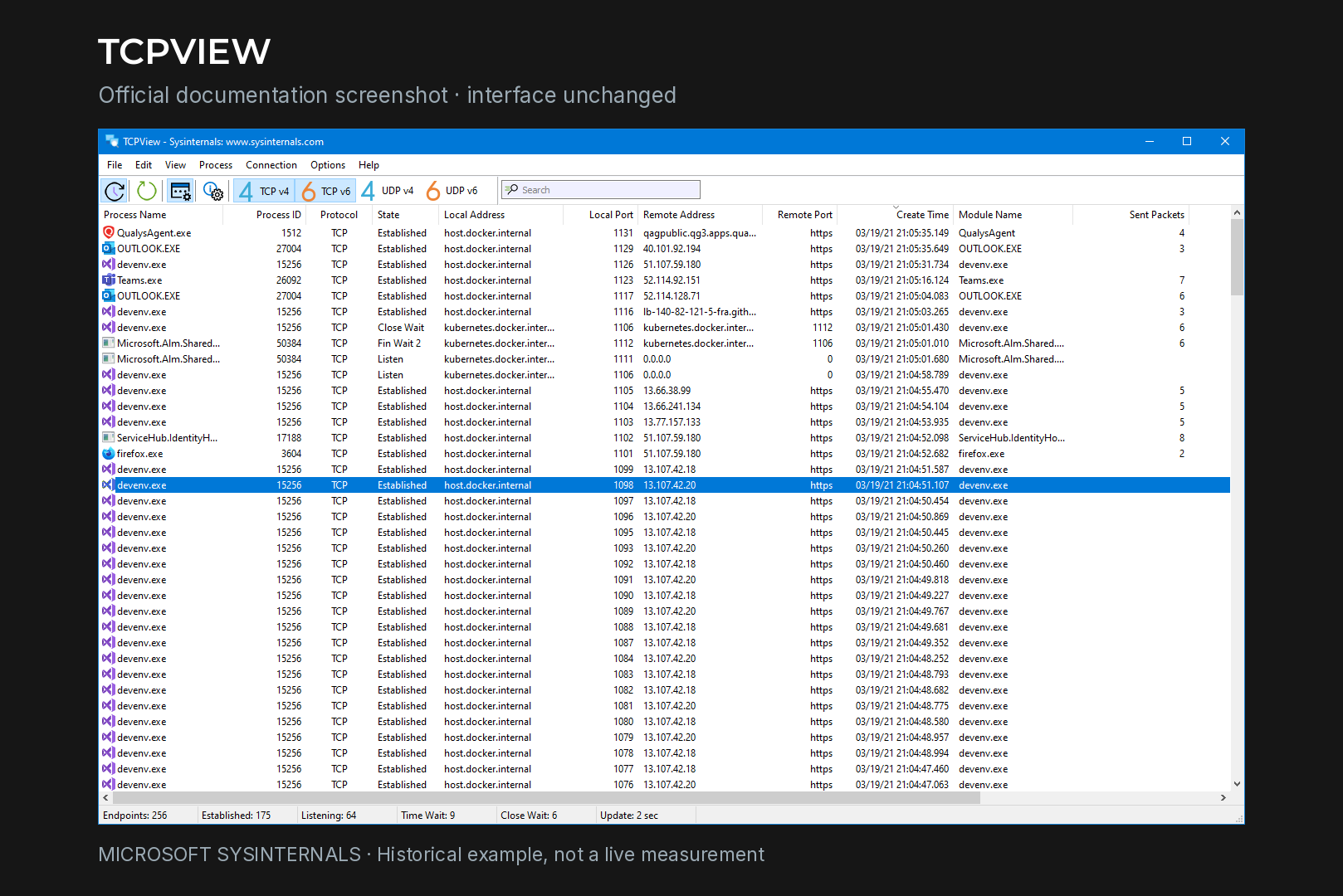
Resource Monitor is enough for most people. Reach for TCPView when a connection flashes up and disappears before you can see who owns it.
Step 6. Turn features off inside the app first
A firewall block is a blunt tool and can break features in odd ways. Check the app's own settings before you reach for it:
- Browsers. Keep updates and safe browsing protection on. Diagnostic data and new tab news feeds can be switched off in the privacy settings: Privacy, search, and services in Edge, Privacy & Security in Firefox.
- Cloud drives. Pause syncing or cap transfer speed while you play.
- Messengers keep a permanent connection to their servers so messages arrive instantly. Nothing to switch off here.
- Game launchers. Steam's Downloads settings let you block downloads during gameplay and schedule an update window.
Step 7. Block an app with Windows Defender Firewall
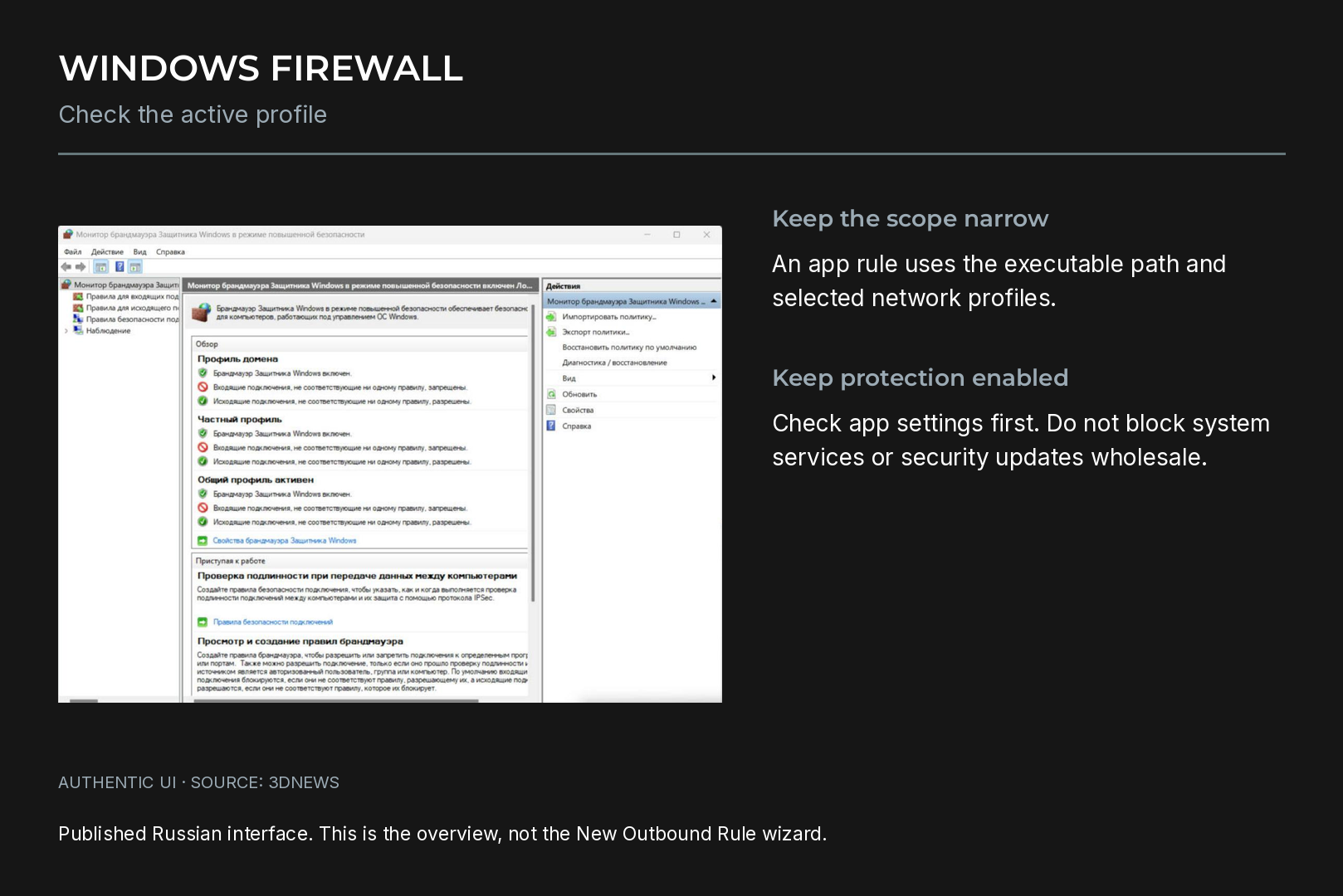
By default, Windows Defender Firewall allows all outbound connections unless a rule blocks them. So all you need is a block rule for one program.
Using the interface:
- Press Win+R and run
wf.msc. - Select Outbound Rules on the left, then New Rule on the right.
- Choose Program and browse to its .exe file.
- Choose Block the connection and pick the network profiles.
- Give the rule a clear name so you can find it later.
Using PowerShell (run as administrator):
New-NetFirewallRule -DisplayName "Block MyApp" -Direction Outbound -Program "C:\Program Files\MyApp\myapp.exe" -Action BlockSwitch the rule off with Disable-NetFirewallRule -DisplayName "Block MyApp" or delete it with Remove-NetFirewallRule -DisplayName "Block MyApp". If something stops working after you add rules, check this list first.
What not to block
- svchost.exe as a whole. Windows Update, time sync and other system services go with it.
- Anti-cheat and game launchers. Many online games will not start or will not let you join a match without them.
- Browser and antivirus updates. An outdated browser is a far bigger risk than one that regularly fetches patches.
Once background apps are under control, take the next step with our guide to optimising Windows for performance.
Doing the same on Linux
Live connections. ss -tupn lists TCP (-t) and UDP (-u) sockets with their processes (-p) and without name resolution (-n). Add -l to include listening ports. Use sudo to see processes owned by other users.
Usage per process. nethogs shows live bandwidth for each program and is available in most distribution repositories.
Blocking. On Ubuntu, ufw is disabled after installation; its defaults deny incoming and allow outgoing traffic. It filters by ports and addresses rather than by program, for example sudo ufw deny out to 203.0.113.10. For per-app rules there is OpenSnitch, which asks for permission the first time a program tries to go online, much like the classic personal firewalls on Windows.
The short version
Start with Resource Monitor and the Data usage counter: together they find the bandwidth hog in most cases. Fix it in the app's own settings where you can, and save firewall rules for the cases where you cannot, leaving system services, anti-cheat and updates alone.
Recommended

 Arabic
 English