We are ready to help
Choosing a GPU for 3D and Video Work: Start With Your Software, Not the Spec Sheet
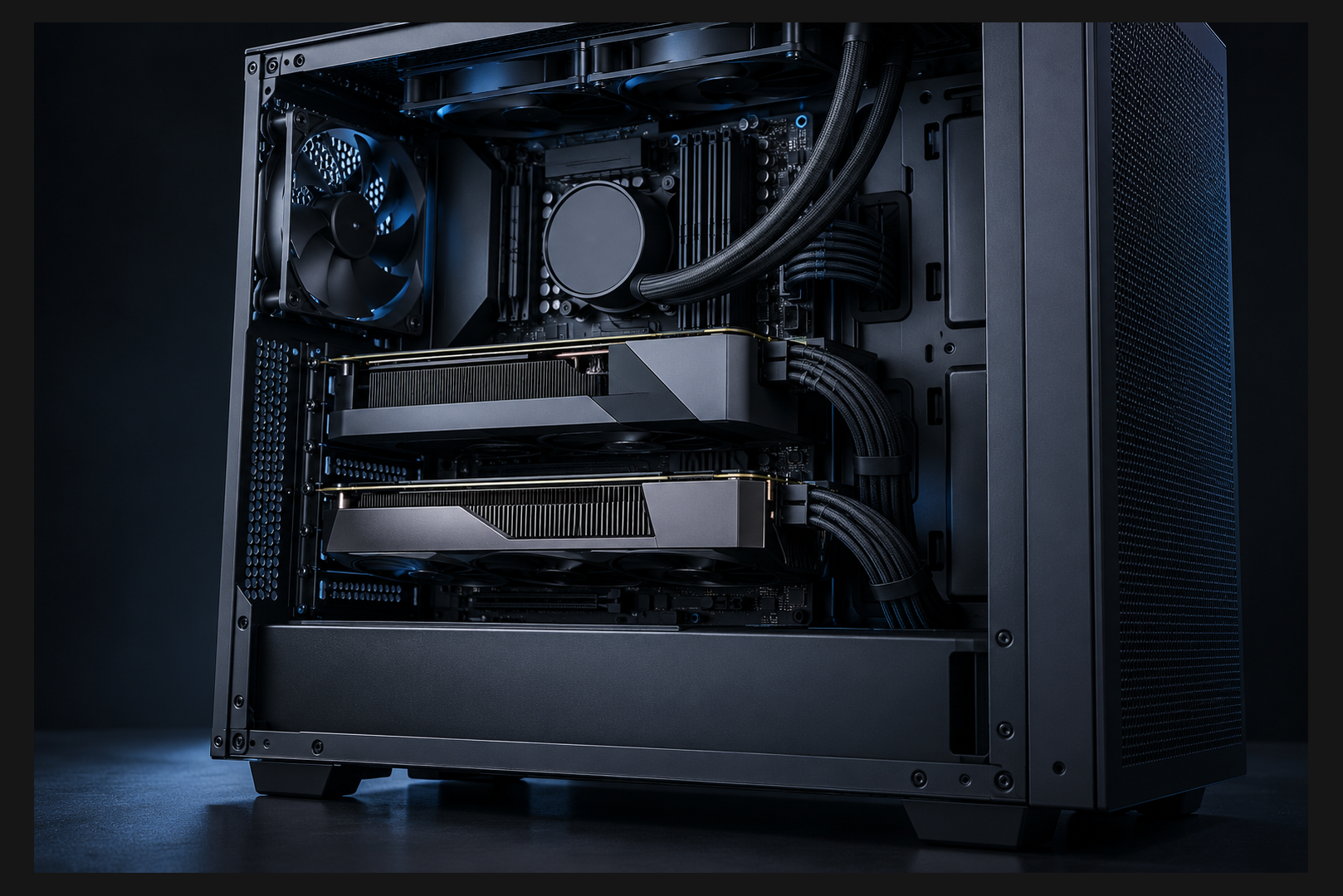
The right workstation GPU depends on three things: whether your render engine supports it, whether your projects fit in its memory, and whether it can hardware-decode your camera footage. Arnold renders on the GPU only with NVIDIA, Blender Cycles runs on both NVIDIA and AMD, and editing speed often comes down to the video decoder rather than raw compute.
Quick picks by workload
| Workload | What matters most | What to check |
|---|---|---|
| Blender Cycles rendering | GPU compute and VRAM | OptiX (NVIDIA) or HIP (AMD), memory for your scenes |
| Arnold GPU rendering | Compatibility | NVIDIA only, current driver |
| V-Ray GPU in 3ds Max | Compatibility and VRAM | NVIDIA (CUDA, RTX) or AMD via HIP from V-Ray 7 Update 3 |
| Corona | CPU | GPU handles viewport and denoising |
| Editing in Premiere Pro and DaVinci Resolve | Decode and encode hardware | Codec support, number of NVDEC and NVENC units |
| Color grading and effects | Compute and VRAM | Memory for resolution and node count |
| Photoshop and Lightroom | CPU and AI tools | GPU matters for AI features, basic edits run fine on mid-range cards |
Current GPUs compared
GeForce figures come from NVIDIA's official comparison page. Professional card figures come from vendor pages and launch coverage.
| GPU | VRAM | Bus | NVENC | NVDEC | Best fit |
|---|---|---|---|---|---|
| GeForce RTX 5060 Ti 16GB | 16GB GDDR7 | 128-bit | 1 | 1 | 1080p and 4K editing, light scenes |
| GeForce RTX 5070 | 12GB GDDR7 | 192-bit | 1 | 1 | Editing, modeling, smaller scenes |
| GeForce RTX 5070 Ti | 16GB GDDR7 | 256-bit | 2 | 1 | All-round work card |
| GeForce RTX 5080 | 16GB GDDR7 | 256-bit | 2 | 2 | Multicam editing, mid-size renders |
| GeForce RTX 5090 | 32GB GDDR7 | 512-bit | 3 | 2 | Heavy scenes, 8K, GPU rendering |
| Radeon AI PRO R9700 | 32GB GDDR6 | 256-bit | n/a | n/a | Projects that outgrow 16GB, AI workloads |
| RTX PRO 6000 Blackwell | 96GB GDDR7 with ECC | 512-bit | n/a | n/a | Huge scenes, simulations, local AI models |
Two details stand out. The RTX 5060 Ti 16GB carries more memory than the RTX 5070, which can matter more than speed when a scene will not fit in 12GB. And the RTX 5070 Ti and RTX 5080 share the same 16GB; what separates them is compute and the RTX 5080's second decoder.
Step 1: Confirm your render engine supports the card
The most common mistake is buying a card that runs the viewport perfectly but cannot do the final render.
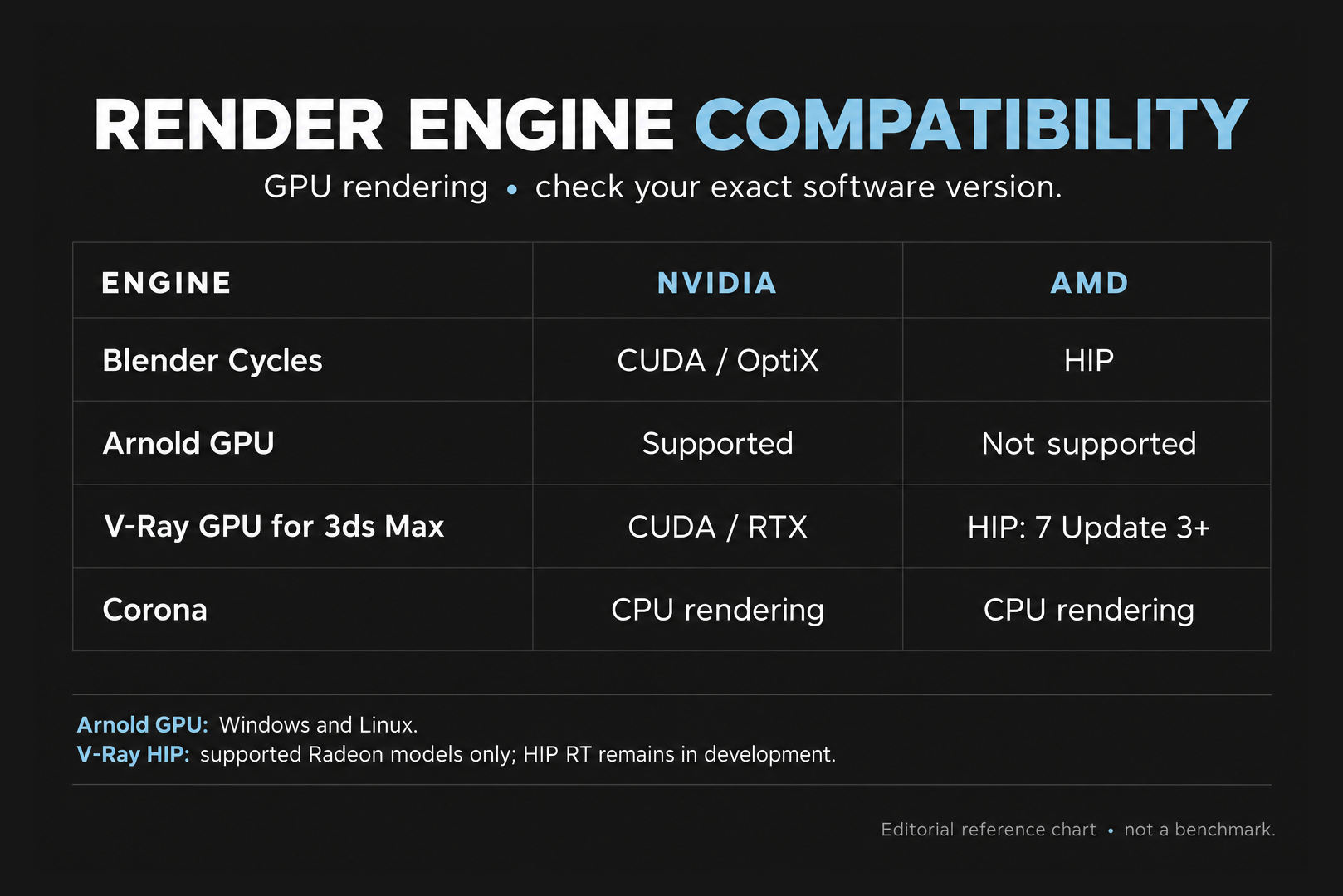
| Engine | NVIDIA | AMD | Notes |
|---|---|---|---|
| Blender Cycles | CUDA and OptiX | HIP, RDNA1 and newer | OptiX uses RT cores on RTX cards, needs driver 575 or newer |
| Arnold GPU | Yes, Maxwell and newer | No | Windows and Linux only, minimum driver 582.16 on Windows |
| V-Ray GPU (3ds Max) | CUDA and RTX | HIP from V-Ray 7 Update 3 | HIP RT hardware ray tracing still in progress |
| Corona | Viewport, denoising | Viewport | Main rendering runs on the CPU |
Blender. Cycles supports CUDA and OptiX on NVIDIA, HIP on AMD and oneAPI on Intel Arc. On RTX cards, OptiX is the better choice because it uses dedicated ray tracing hardware. Two settings need to be right: select OptiX and tick your GPU under Preferences > System > Cycles Render Devices, then set Device to GPU Compute in the scene properties. Skip the second step and Blender keeps rendering on the CPU.
Arnold. Autodesk's system requirements state that GPU rendering needs an NVIDIA card and runs on Windows and Linux. A Radeon can drive the Maya viewport but will not render final frames in Arnold GPU. Autodesk also warns that drivers below the listed minimum are unsupported and can crash, so update the driver after installing a new card.
V-Ray. In April 2026 Chaos brought AMD GPU rendering back to V-Ray GPU for 3ds Max through HIP. That widens the choice, but hardware ray tracing on AMD is still being finished, so test your own scene before committing to a Radeon for V-Ray.
Mixed pipelines. If your studio uses both Cycles and Arnold, NVIDIA covers both while AMD covers only Cycles. That usually settles the brand question before any benchmark does.
Step 2: Size VRAM to your scenes, not your file size
There is no universal number. Geometry, textures and render buffers all take memory, and in editing so do high-resolution frames and effects. A project file's size on disk says little about how much GPU memory it will use.
A practical way to estimate:
- Open your heaviest typical scene or timeline with production settings.
- Render or play it back and watch peak VRAM use in a monitoring tool (Windows Task Manager, nvidia-smi or your engine's statistics).
- Add headroom for growth: more objects, higher-resolution textures, extra effects.
- If the peak is close to 12GB, look at 16GB cards; if it is close to 16GB, look at 32GB models.
What happens when memory runs out? The Blender manual explains that Cycles automatically falls back to system memory when the GPU fills up. Rendering slows down but usually stays faster than CPU rendering. If the scene does not fit at all, you get an Out of memory error. V-Ray GPU has a separate option to keep textures in system RAM, but it covers textures only. Do not assume one engine's behavior applies to another.
The reverse also holds: more memory does not make rendering faster by itself. A 32GB card with lower compute can be slower than a 16GB card when both have enough memory. Treat VRAM as the entry ticket and compare speed separately.
Step 3: For editing, check your codec, not just "4K support"
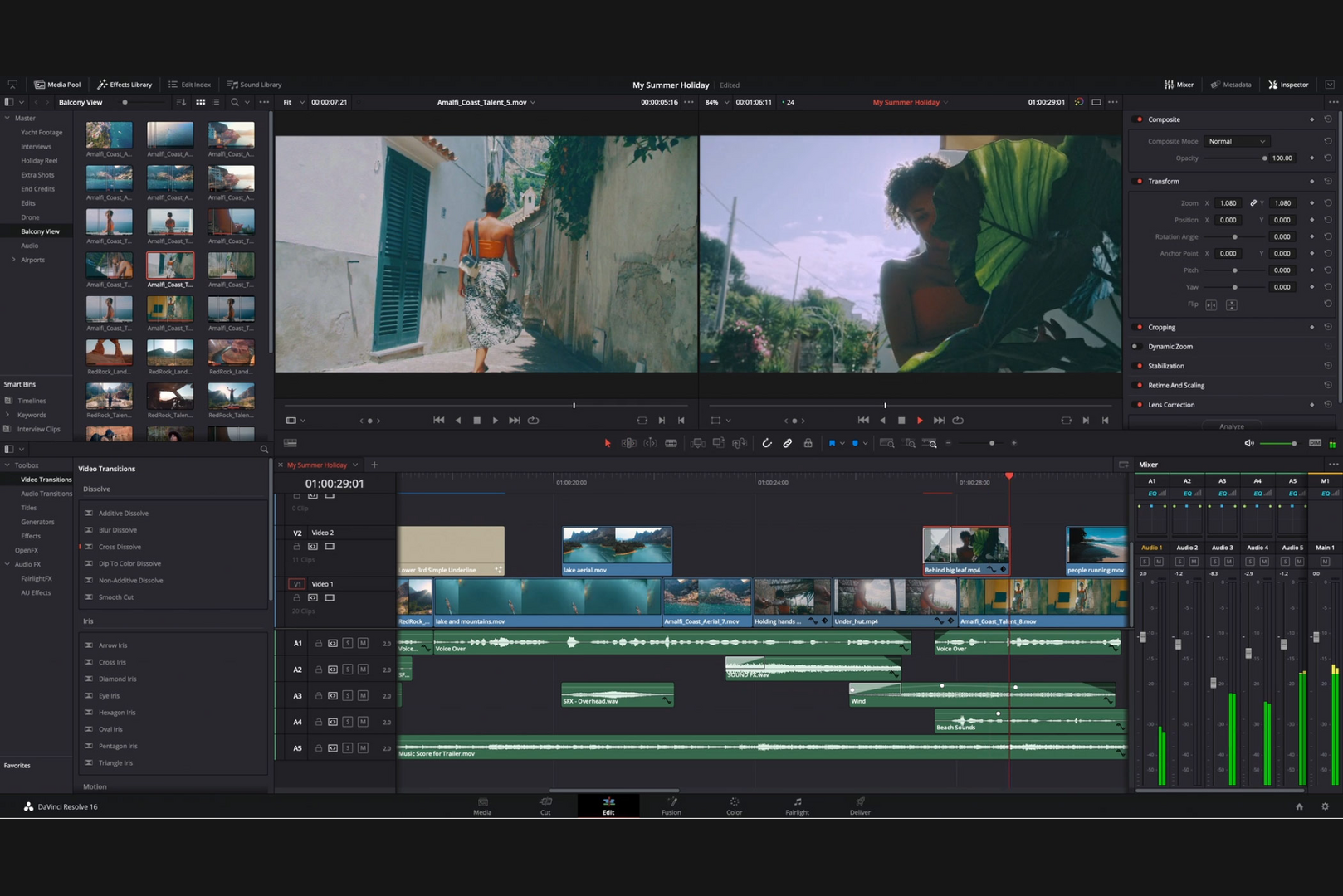
In editing the GPU handles three separate jobs: decoding source footage during playback, processing effects and color, and encoding on export. Playback decoding is usually the bottleneck.
Codec and chroma subsampling. Many mirrorless cameras record 10-bit 4:2:2 H.264 and HEVC. On PCs, this footage often used to fall back to the CPU and stutter on the timeline. NVIDIA's Blackwell GPUs (GeForce RTX 50 and RTX PRO) added dedicated hardware for 4:2:2 encode and decode. According to NVIDIA, DaVinci Resolve uses it for both, while Premiere Pro supported decoding at the time. Support depends on the app version, so test with your own clips.
Decoder and encoder count. When several 4K or 8K streams play at once (multicam, picture in picture), a second NVDEC unit makes a real difference. The RTX 5080 and RTX 5090 each have two; the RTX 5070 Ti and below have one. NVIDIA says the RTX 5080 and RTX 5090 can ingest up to 20 streams of 4K30 or 5 streams of 8K30 at once. For export, NVENC count matters: three on the RTX 5090, two on the RTX 5080 and RTX 5070 Ti.
Effects and After Effects. GPU-accelerated effects do not speed up the whole application. After Effects Multi-Frame Rendering processes several frames in parallel, so CPU core count and system RAM matter as much as the GPU. For motion design, choose the GPU together with the CPU instead of relying on a 3D benchmark.
Step 4: GeForce or RTX PRO?
For most freelancers and small studios, GeForce RTX covers everything: same architecture, CUDA and RT cores, and support in every major engine. The professional line earns its premium in a few specific cases:
- More than 32GB of memory. The RTX PRO 6000 Blackwell has 96GB of GDDR7, a capacity GeForce does not offer. That matters for huge scenes, simulations and local AI models.
- ECC. Error-correcting memory on the RTX PRO 6000 guards against rare faults during long renders, where one corrupted frame is costly.
- Certification and client requirements. Some engineering packages and corporate policies require a certified professional card and driver.
- Dense multi-GPU setups. The dual-slot RTX PRO 6000 Workstation Edition is easier to stack, but it draws up to 600W, so plan power and cooling accordingly.
The Radeon AI PRO R9700, with 32GB of GDDR6 and 300W board power, makes sense when a project needs memory, the engine supports HIP and Arnold is not part of the pipeline.
Pre-purchase checklist
- List every application and engine where you render or compute on the GPU and check them against the compatibility table.
- Measure peak VRAM on a typical heavy project and add headroom.
- For video, identify your footage codec and subsampling (for example 10-bit 4:2:2 HEVC) and confirm hardware decoding in your app version.
- Count simultaneous streams: multicam work benefits from a second NVDEC.
- Check CPU and RAM, which matter more than the GPU for Corona, After Effects and photo work.
- Size the power supply and cooling for the card's power draw.
- Update the driver to the version your engine requires (Arnold and Blender OptiX both list minimums).
Bottom line
Engine support, memory fit and codec decoding decide the right workstation GPU. For mixed 3D and editing work in 2026, the GeForce RTX 5070 Ti and RTX 5080 are the most versatile options, the RTX 5090 with 32GB suits heavy scenes and 8K, and RTX PRO belongs where 96GB, ECC or certification is required.
The GPU is only part of the system. Our guide Workstation 2026: Threadripper 9000 and heavy geometry workloads covers matching the CPU and memory, and Upgrading a Workstation or Server for New Tasks: AI and Rendering explains how to extend an existing machine. To spec a system around your own applications, use the HYPERPC configurator.
Recommended

 Arabic
 English