We are ready to help
How to increase FPS in Deadlock: graphics settings and launch options
To improve FPS in Deadlock, start by testing Low shadows and fog, disabling SSAO, bloom and MBOIT, and trying FSR 1.5x or DLSS. Compare DirectX 11 with the current renderer and, where appropriate, cap the frame rate slightly below the monitor's refresh rate. This is a starting point for testing, not a guaranteed prescription for every PC. Players reported performance problems following the City Never Sleeps update of 29 September 2026, but the cause depends on the system and game build.
A player on the official Deadlock forum reported CPU busy time of 7.7 ms and GPU busy time of 3.6 ms with a Ryzen 9 5900X and Radeon RX 7800 XT at Low settings. This is a single user's observation, not our benchmark. These different busy-time measurements cannot simply be converted into a percentage of GPU idle time. Start with measurement and diagnosis, then change settings, and investigate other limits when graphics reductions stop helping.
In brief: what to test
| Change | What it can do |
|---|---|
| Low shadows and fog | Reduce rendering load; no universal percentage gain is established |
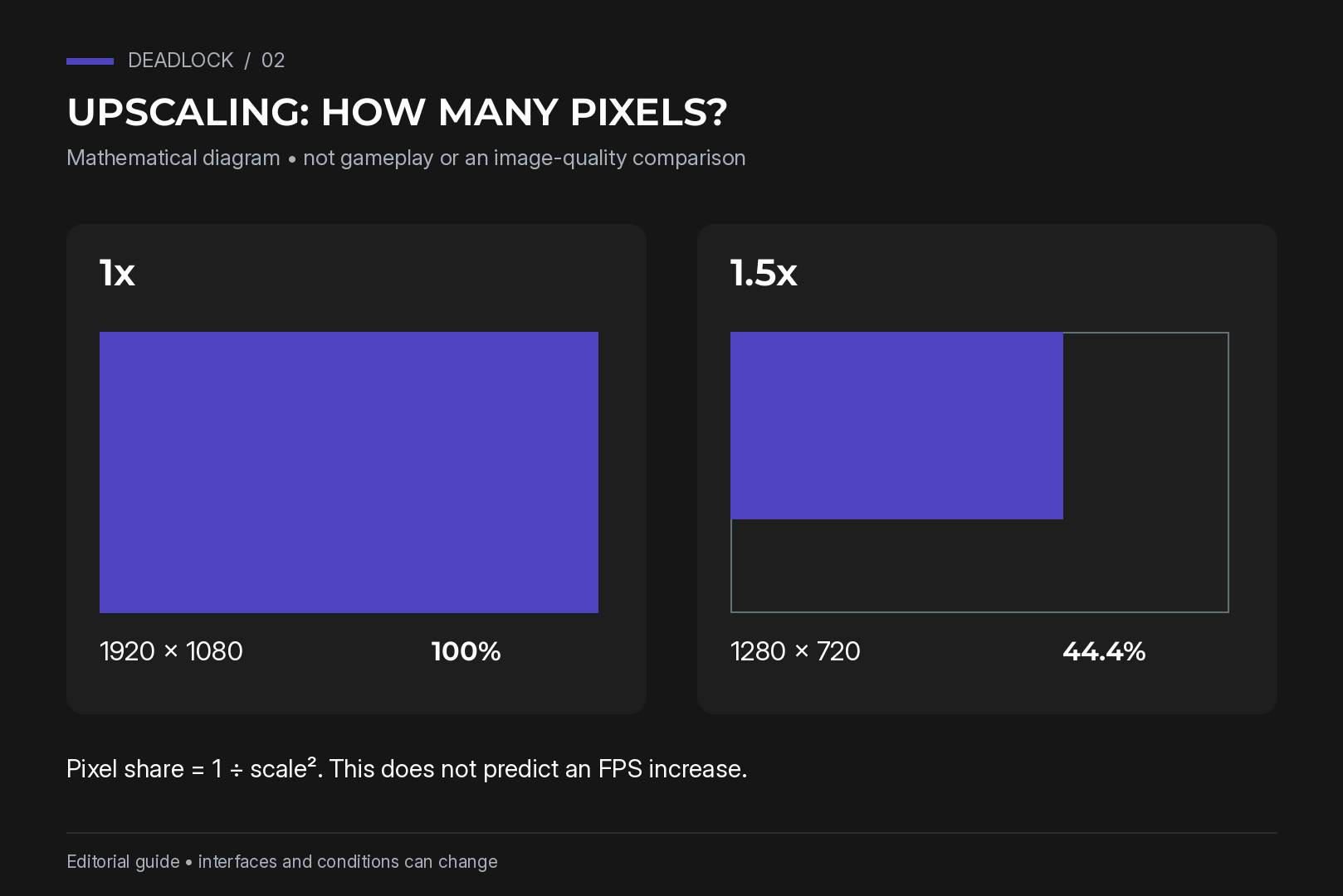
| FSR 1.5x or DLSS | At a 1.5x linear scale, 1080p output uses about 44% as many internal pixels |
| Disable SSAO, bloom, MBOIT and Area lights | Reduce some visual effects and associated workload |
| Compare the -dx11 renderer | One Radeon user's test recorded approximately 117 FPS on DX11 versus 99 on Vulkan, not a universal ranking |
| Set an appropriate frame-rate cap | May make frame delivery more consistent and reduce power consumption |
| Verify files; reset shader cache only if needed | Verification can repair damaged files; cache resets can initially cause compilation stutter |
Why FPS falls in six-versus-six fights
Dense Deadlock scenes can become CPU-limited. Abilities, creeps, projectiles and game simulation contribute to CPU work while visual effects also load the GPU. The source article quoted players reporting drops from over 144 FPS to below 50 in team fights on systems mentioning RTX 5070 Ti, Radeon RX 9070 XT and Ryzen 9 9900X hardware. It also quoted a Ryzen 9 9950X3D and RTX 5080 user reporting around 220–240 FPS falling to approximately 60 at minimum settings. Other reports concerned opening the scoreboard with Tab or looking towards the centre of the map. These are anecdotal reports, not controlled comparisons of those components.
The original cited the City Never Sleeps changelog for a newer Source 2 engine version and rendering improvements. It described complaints about longer loading times, from 15–20 seconds to as much as three minutes, and said that the patches it had reviewed through 8 October did not include a separate performance fix. Treat that as the original article's historical account, not proof that nothing has changed by 21 October 2026 or when you read this.
The practical conclusion is narrower: reducing graphics helps while rendering is the limit. If another component or a frame cap is the limit, moving another graphics slider left may make little difference.
Step 1. Enable telemetry and establish a baseline
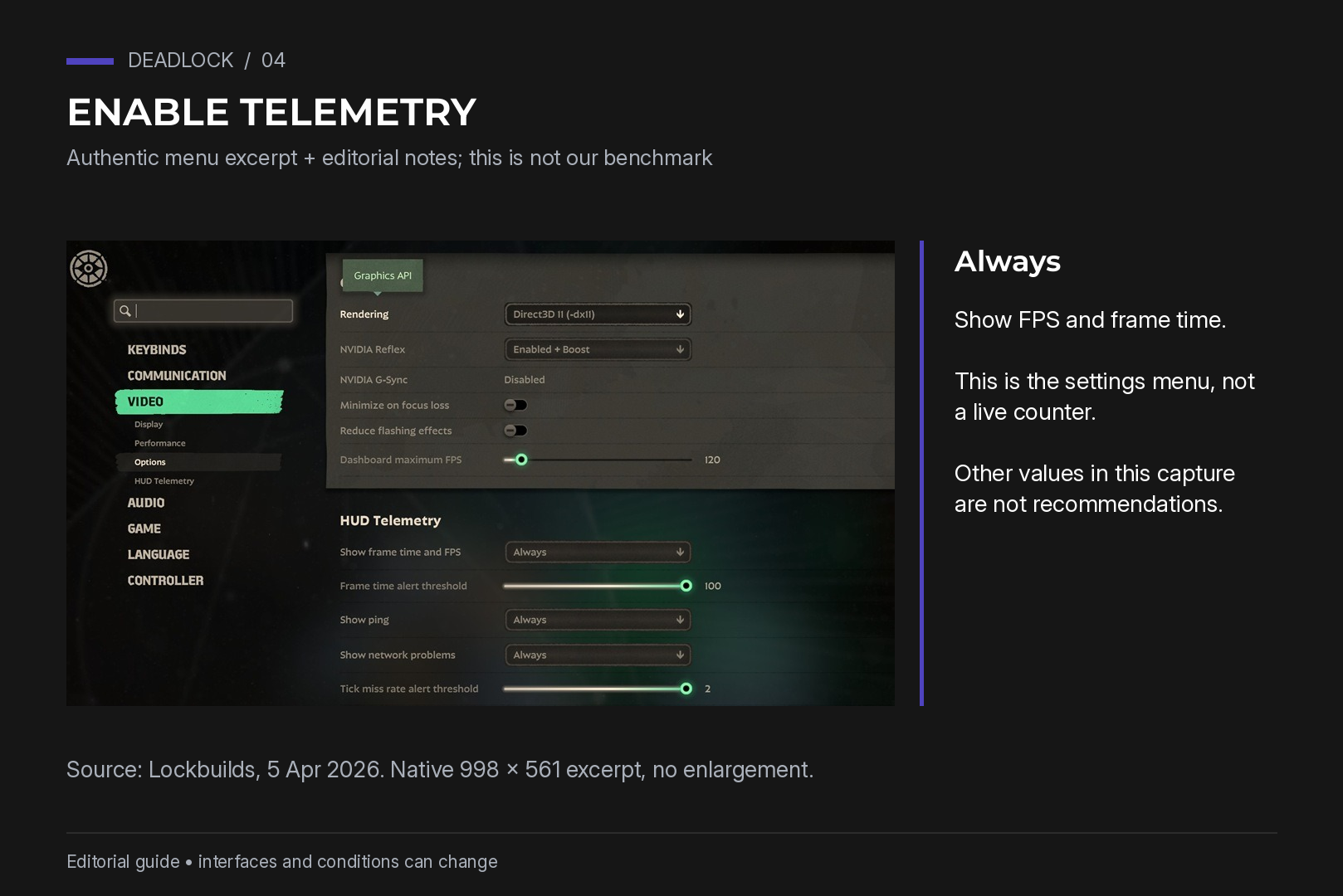
Find the game's HUD telemetry settings and enable FPS and frame-time information. Valve's Source 2 Telemetry HUD documentation covers Deadlock and Counter-Strike 2; menu placement may differ between builds. Use the same location, camera direction and test conditions in a sandbox or bot session. Change one setting at a time so you can identify what helped.
Frame time often reveals problems that an average FPS figure hides. A steady 144 FPS corresponds mathematically to approximately 6.9 ms per frame. Spikes to 20 ms or more can be noticeable even if the average looks healthy. A sandbox test is useful for repeatability but is not a substitute for checking an actual busy match. The original links to this FPS measurement guide for more on averages and 1% lows.
Step 2. Adjust graphics settings
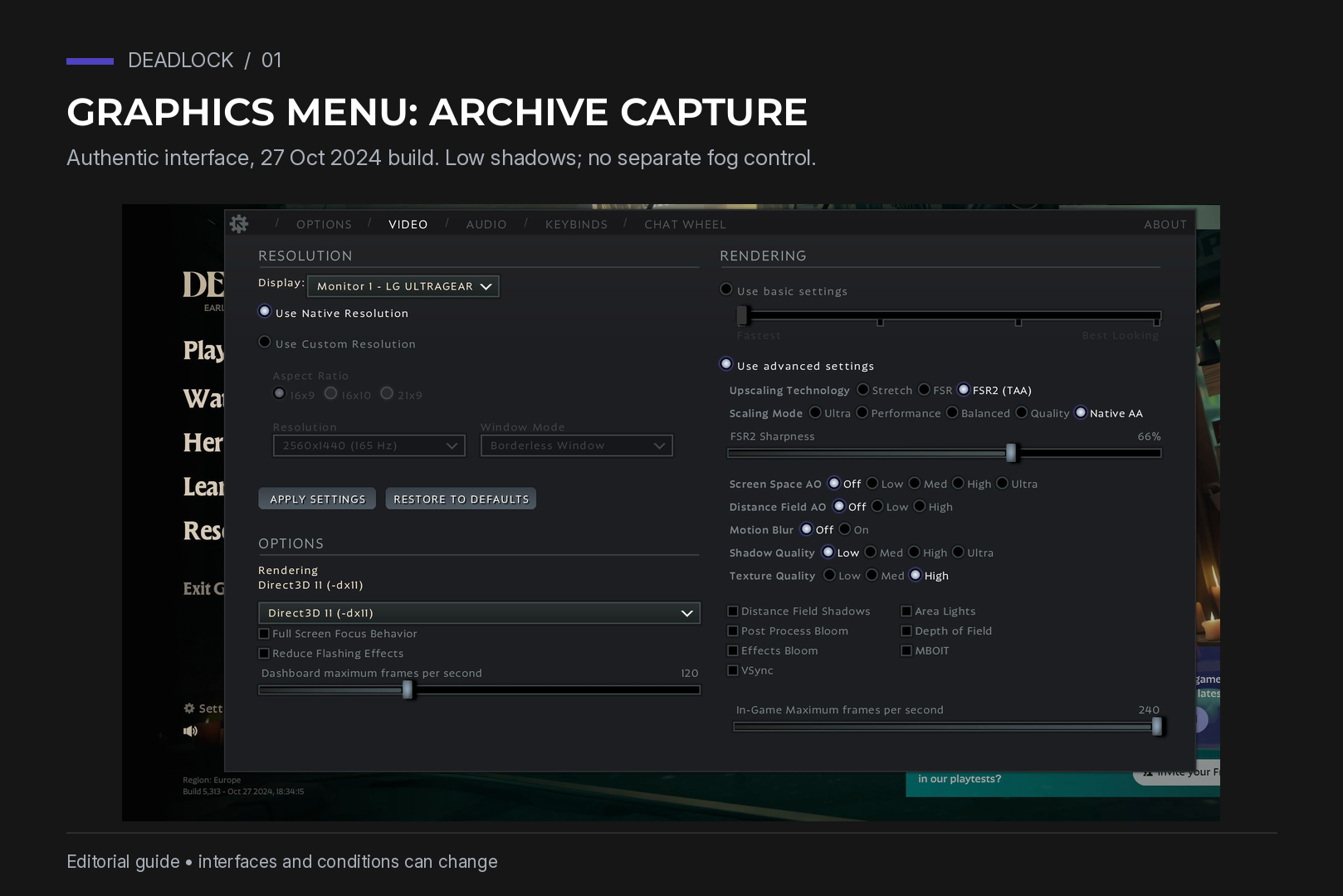
Treat the following as a test profile. Names and available options can change with the game build.
| Setting | Starting point | Reason or caveat |
|---|---|---|
| Window mode | Compare fullscreen and borderless | A universal FPS penalty for borderless is not established |
| Resolution | Monitor's native output resolution | Reduce internal rendering with an upscaler if needed |
| Upscaling | FSR 1.5x or DLSS on compatible RTX hardware | Compare both performance and image quality |
| Shadow quality | Low; Medium if there is headroom | Test the gain in the same scene rather than assuming a fixed percentage |
| Fog quality | Low | A useful early setting to compare |
| Screen space AO | Off | Reduces additional shading; assess visual readability |
| Texture quality | Medium, then High if VRAM allows | 8 GB is not a guarantee; watch memory pressure and stutter |
| Post process bloom and Effects bloom | Off | Reduces bright bloom around effects |
| Area lights | Off | Reduces an additional lighting option |
| MBOIT | Off | Compare the cost and appearance of transparent effects |
| Distance Field Shadows | Off | Removes an additional shadow feature |
| Displacement Mapping | Off | Trades surface detail for a lighter profile |
| Depth of field | Off | Avoids background blur if you prefer competitive clarity |
| Reduce Flashing Effects | On | Reduces flashes during busy fights |
| VSync | Configure alongside VRR and your tearing preference | A frame cap is not a replacement for VSync |
| NVIDIA Reflex | Enabled to start | Test Boost separately |
Reflex Boost can maintain higher GPU clocks and increase power consumption. Its effect on FPS and latency depends on the workload. Start with Enabled rather than assuming that Boost is always better or always worse.
FSR or DLSS?
An upscaler reconstructs the output image from a lower internal resolution. The following is a geometric calculation for the four scale factors in the source article, not a benchmark or a guarantee that every build exposes these labels.
| Linear scale | Approximate internal resolution for 1080p output | Share of native pixels |
|---|---|---|
| 1x | 1920 × 1080 | 100% |
| 1.5x | 1280 × 720 | 44.4% |
| 1.7x | 1129 × 635 | About 34.6% |
| 2x | 960 × 540 | 25% |
One-quarter of the pixels does not mean four times the FPS. CPU simulation and other overheads do not shrink in proportion to internal resolution. Start with 1.5x and test 1.7x only if rendering remains the relevant limit and the loss of detail is acceptable.
DLSS requires compatible GeForce RTX hardware. Where a native-resolution DLAA mode is offered, it provides anti-aliasing without lowering the input resolution. FSR support depends on the implemented version and game build; do not generalise every FSR version's hardware requirements. Compare the options your game actually offers.
If your version offers Stretch, test it separately. Stretching does not recover lost detail, and neither sharper output nor a particular performance improvement should be promised without a comparison.
Step 3. Review launch options
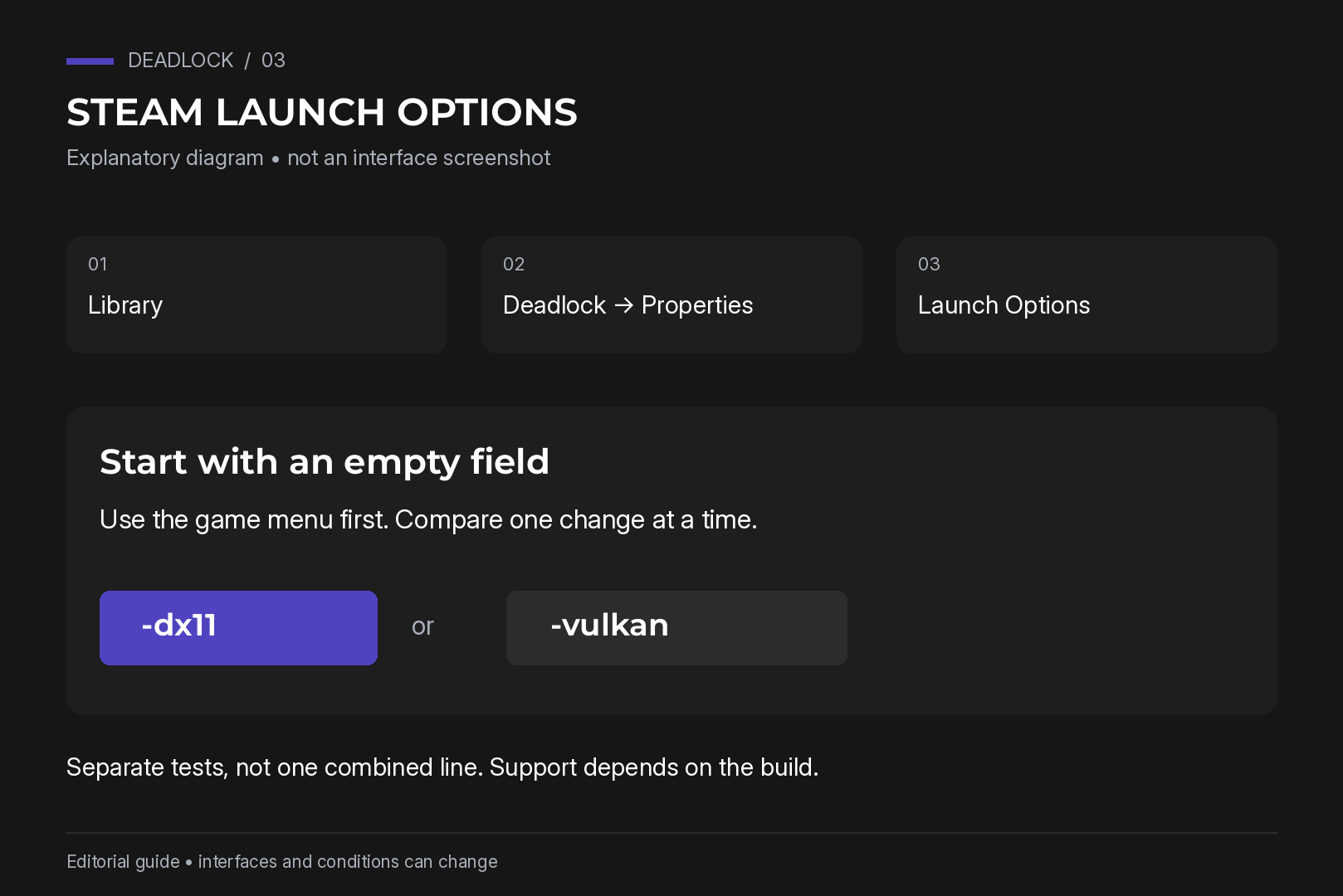
Open Steam → Library → right-click Deadlock → Properties → Launch Options. Start with an empty field and use the game's menu controls first. To compare renderers, test -dx11 or -vulkan separately, never both at once.
| Option | Intended purpose in guides | Recommendation |
|---|---|---|
| -dx11 | Select DirectX 11 | Use for a controlled renderer comparison if supported |
| -vulkan | Select Vulkan | Compare performance and stability on the same system |
| -novid | Skip an introductory video | Current Deadlock support and benefit are not verified; not part of the baseline |
| -fullscreen | Request fullscreen | Prefer the menu; current behaviour is not independently verified |
| -preload | Preload resources | Do not recommend by default; support and benefit are not verified |
| -forcenovsync | Force VSync off | Do not use as a universal fix; configure the menu and driver deliberately |
| -m_rawinput 1 | Request raw mouse input | Current support is not verified and it is not an established FPS optimisation |
| -nojoy | Disable controller processing | No established Deadlock FPS benefit; omit by default |
| -high | Raise process priority | Avoid as a general recommendation; can affect system responsiveness |
| -threads N | Specify a thread count | No documented universal Deadlock benefit; allow automatic scheduling |
| -noassert | Suppress internal assertions | Not an established performance tweak; omit |
| -console | Enable the developer console | Only if needed and supported by the current build |
| -dev | Developer mode | Not a performance recommendation or necessary substitute for normal settings |
| +exec autoexec.cfg | Load a personal configuration | Use only commands checked against the current build |
Guides disagree about DX11 and Vulkan. The RX 7800 XT user reported around 117 FPS on DX11 and 99 on Vulkan at the same location. Their system used a Ryzen 9 5900X, 32 GB DDR4-3200, Windows 11 build 26200, driver 32.0.31041.1004, 2560 × 1440 output and FSR3 1.5x with Low settings. That is one dated comparison, not a reason to rank renderers universally.
The -high flag changes scheduling priority; it is not a safe universal optimisation. The age of an autoexec file does not determine whether it works: the specific commands and build do. The source's claim that exactly 13 variables were removed was not independently established from primary release notes. Unsupported commands can simply be ignored.
You may encounter a chain such as -novid -high -nojoy -threads 8 +exec autoexec.cfg. Copying it without understanding each option is not a useful baseline. The original referred to a community variable list indicating automatic thread-pool selection. There is no demonstrated gain from forcing a particular thread count or adding -noassert here.
Console commands and autoexec.cfg
The source describes enabling Dev command console in settings, or using -console, and opening it with F7. Check the current key binding and whether the command is recognised in your build. The following retains the source's reference values, which are a community snapshot rather than guaranteed defaults.
| Command example | Purpose | Default quoted by the source | Suggested use |
|---|---|---|---|
| fps_max 237 | In-game frame cap; 0 means uncapped | 120 | 237 is an example for 240 Hz, not a universal target |
| fps_max_ui 60 | Interface/dashboard frame cap | 0 | Try 60 if supported |
| cl_showfps 1 | FPS display; the source lists additional modes | 0 | Use the recognised display mode for measurement |
| cl_hud_telemetry_frametime_show 2 | Frame-time telemetry: never/poor/always in the source | 1 | Check current help; use always-visible telemetry for tests |
| r_low_latency 1 | Low-latency feature control | 1 | Prefer the in-game Reflex/Anti-Lag control and confirm hardware support |
| citadel_display_new_player_recommendations 0 | Hide new-player hero recommendations | true | Optional interface preference, not an FPS fix |
Do not assume that every installation is capped at 120 FPS. Check the current in-game value, dashboard cap and driver limit. The 237 FPS example is intended for a 240 Hz display.
If you choose to use a configuration, the source places autoexec.cfg under Deadlock\game\citadel\cfg. Add one recognised command per line. Its example is:
fps_max 237
fps_max_ui 60
cl_hud_telemetry_frametime_show 2
r_low_latency 1
Then add +exec autoexec.cfg to Launch Options. Keep a backup and test that each command is supported. The source's variable snapshot did not list cl_forcepreload or citadel_unit_status_use_new; do not retain an old command merely because a downloaded config includes it.
Step 4. Set a suitable frame cap
With variable refresh rate, try a cap below the top of the display's range, such as 141 FPS for 144 Hz or 237 for 240 Hz. Three FPS is an example margin, not a universal rule. A cap can reduce power and heat, but running uncapped does not automatically mean the hardware will throttle. A separate dashboard/menu cap of 60 can avoid unnecessary rendering between matches.
With G-Sync or FreeSync, keep the frame rate within the usable VRR range where practical. Configure VSync separately according to your driver/display setup and tearing preference. A cap alone does not guarantee tear-free output. The original links to a G-Sync and VRR guide.
A January 2025 forum experiment proposed -noreflex, an NVIDIA driver cap and Ultra Low Latency mode. Its author reported steadier 0.1% lows while replies raised latency concerns. This historical user experiment does not establish a universal choice between smoothness and responsiveness. Keep the game's low-latency feature as the baseline unless your own repeatable test supports a change. NVIDIA confirmed Deadlock Reflex support in February 2025 and advertised up to 45% lower latency under its test conditions; that is not a universal improvement or an FPS claim.
Step 5. Review the graphics driver
For NVIDIA, use a Deadlock-specific profile rather than unnecessarily changing every application's settings:
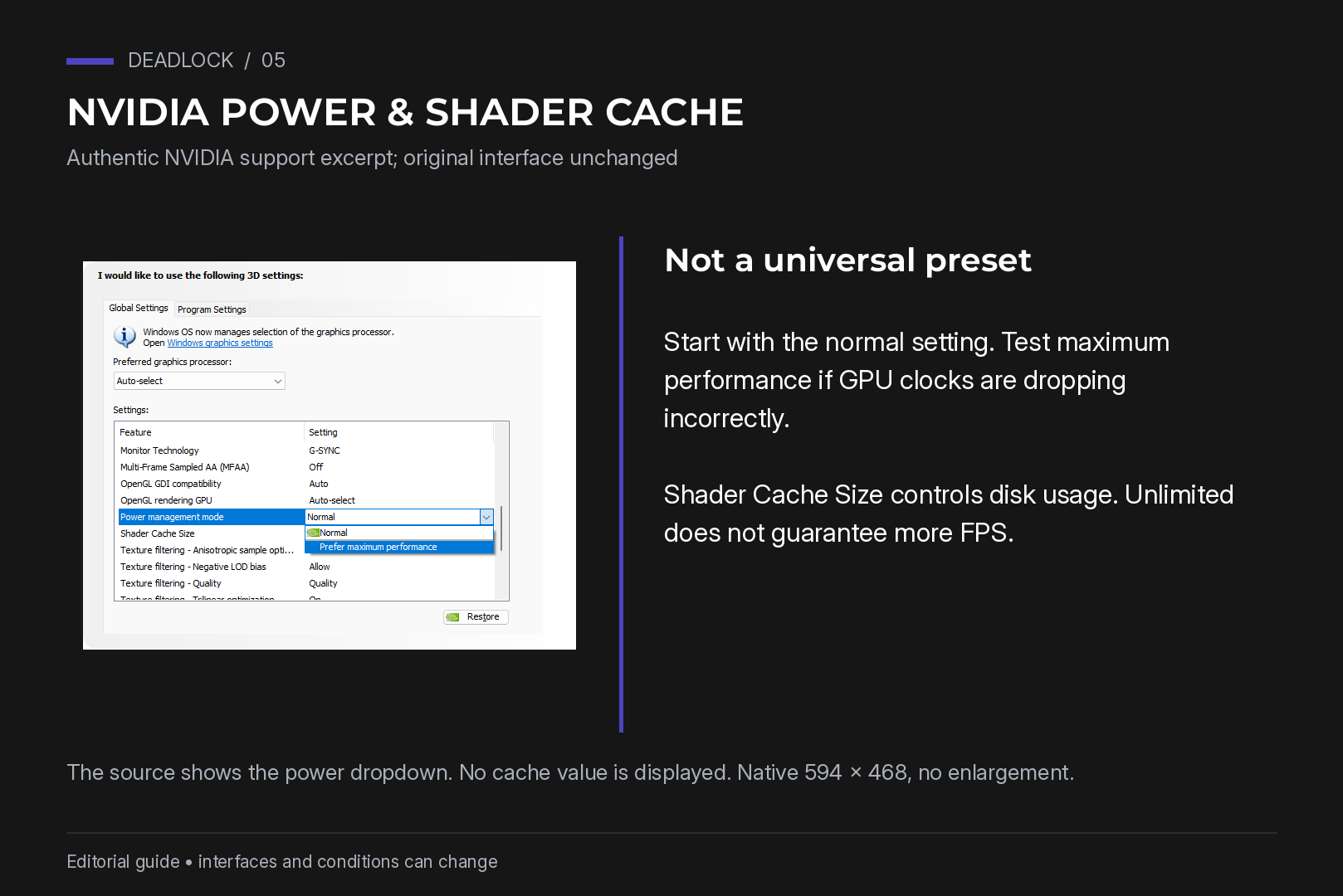
- Power management: start with the normal setting. Test Prefer maximum performance if GPU clocks are dropping incorrectly. It may increase power consumption.
- Shader cache size: start with the default or a size appropriate to available disk space. Unlimited is not a guaranteed FPS improvement.
- Low latency: start with the game's Reflex setting when available. Test driver Ultra separately if not using Reflex, without assuming higher FPS.
- Texture filtering: retain normal quality unless a measured improvement justifies the visual trade-off of a performance preset.
- Threaded optimisation: leave Auto. This OpenGL control should not be presented as an acceleration switch for Deadlock's DX11/Vulkan renderers.
For AMD Software: Adrenalin Edition:
- Use Reset Shader Cache only when troubleshooting a relevant problem, not automatically after every patch.
- Use the game's Anti-Lag 2 control if it is offered and supported by your GPU and driver.
Install a suitable current official driver. A routine update is normally the starting point. Clean installation or DDU is a troubleshooting measure, not a mandatory performance step. The original's DDU guide, is optional background if a driver problem requires it.
Step 6. If performance drops after an update
First verify that the problem is repeatable, then use a reversible troubleshooting sequence.
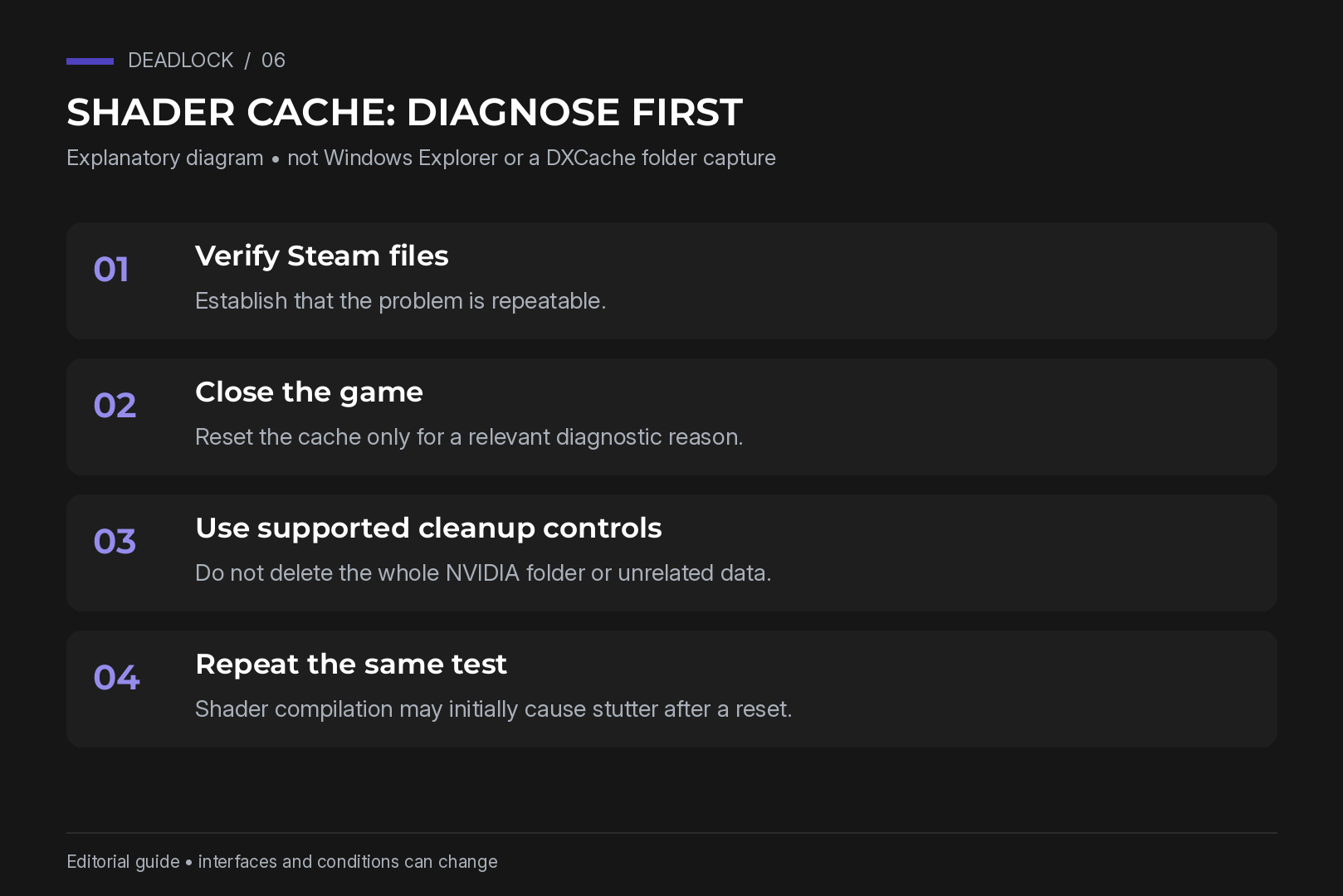
- Verify the game's installed files in Steam. This can restore changed or damaged installation files, including an altered gameinfo.gi. Steam's official instructions use Properties → Installed Files → Verify integrity of game files.
- Consider a shader-cache reset only if appropriate. Prefer Windows' supported DirectX Shader Cache cleanup or AMD Software's reset control. The NVIDIA DXCache location can vary by driver version; %LOCALAPPDATA%\NVIDIA\DXCache is a location cited by the source, not a universal guarantee. GLCache relates to OpenGL. Do not delete the whole NVIDIA folder or unrelated data. Close the game and associated applications first. Steam's steamapps\shadercache\1422450 is also not a universal cause of stutter. The first runs after clearing a cache may stutter while shaders rebuild; see the source's shader explainer.
- Test overlays individually. Discord, Steam, NVIDIA App, Xbox Game Bar, RTSS and MSI Afterburner can be disabled for a comparison, then restored one at a time. Do not assume each is responsible.
- Inspect background CPU activity. If Antimalware Service Executable is busy, investigate scheduling and the actual workload rather than disabling protection. Do not remove security updates for FPS.
- If relevant, compare one session with G-Sync disabled and restore your preference afterwards. A single test is not proof of a general VRR problem.
Low-end PCs and gaming laptops
If the earlier steps leave FPS too low, there are still a few useful tests:
- Try 70–80% internal rendering or FSR 1.7x if the game exposes those controls. Assess readability, especially at a distance.
- Lower textures if VRAM pressure at Medium produces stutter. Texture quality is not exclusively a memory issue, and its performance cost depends on the workload.
- Check Windows Game Mode. Choose the power mode with temperature and fan noise in mind; a High or Ultimate Performance plan does not guarantee more frames.
- Disable unwanted background recording in Xbox Game Bar if it is active, then compare.
- Windows Enhance pointer precision changes cursor acceleration, not FPS. Whether it affects aiming depends on the game's input path.
- Close unnecessary browser tabs and background applications.
- Play with the laptop connected to its correct power adapter. Battery operation often imposes lower power limits. Keep cooling unobstructed; do not assume a particular room temperature from the user's country.
The original includes further general FPS troubleshooting.
Myths: downloaded configs and changing language
“Replacing gameinfo.gi increases FPS.” Some optimisation packs replace the installation's gameinfo.gi. The source reports matchmaking problems associated with modified files and obsolete variables after updates. Do not treat that as a supported optimisation. If matchmaking fails after file changes, restore the installation through Steam's verification process rather than layering on another third-party pack.
“Switching the game to English increases FPS.” The source does not provide a controlled test establishing a useful improvement. Language should be a usability choice. If you investigate the claim, compare identical conditions rather than treating an impression as evidence.
“Everything on Low gives the highest FPS.” It can help while rendering is the limit. If a CPU, frame cap or other bottleneck dominates, Low and Medium may perform similarly while Low looks worse.
When graphics settings stop helping
If GPU utilisation is below full load and reducing render resolution adds almost no FPS, investigate CPU work, frame caps, memory, drivers and temperatures. Low GPU utilisation alone does not identify one definitive cause. In the 5900X user's report, restricting the game to one CPU chiplet changed performance by about 2%, which the author considered run-to-run noise. It does not prove that every scheduling issue has been excluded or that single-core speed is the sole problem.
A faster CPU and more cache can help a confirmed CPU-limited workload, but buying new hardware is not the only answer. Check patches, memory configuration, background tasks and cooling first. The original links to a Ryzen 7 9800X3D review, as background rather than a promise of a Deadlock result.
Frequently asked questions
-
Which Steam launch options should I use?
Start without additional flags. Compare -dx11 and -vulkan individually when diagnosing rendering or stability. Use +exec autoexec.cfg only for a configuration whose commands are supported by the current build. Do not copy a long “FPS boost” chain without testing it.
-
Is DX11 or Vulkan better?
It depends on the system and build. DX11 was 18 FPS faster in one published user test, not all configurations. Compare the same scene, frame times and stability on your own PC.
-
Should I choose FSR or DLSS?
On compatible GeForce RTX hardware, compare DLSS with the available FSR mode, including image quality. On other hardware, use the supported options exposed by the game. Do not generalise the requirements of every FSR version.
-
Which settings matter most?
Shadows, fog, internal rendering resolution and costly effects are useful candidates to test first. Texture settings become especially relevant under VRAM pressure, but there is no fixed ranking or percentage gain for all PCs.
-
What are Deadlock's system requirements?
At the editorial check on 21 October 2026, the official Steam page still lists a 64-bit processor and operating system with detailed requirements marked TBD. Do not turn that into invented minimum CPU, GPU or memory specifications.
Recommended

 Arabic
  English