We are ready to help you
How to Reset a Forgotten Windows 10 or 11 Password: All Methods
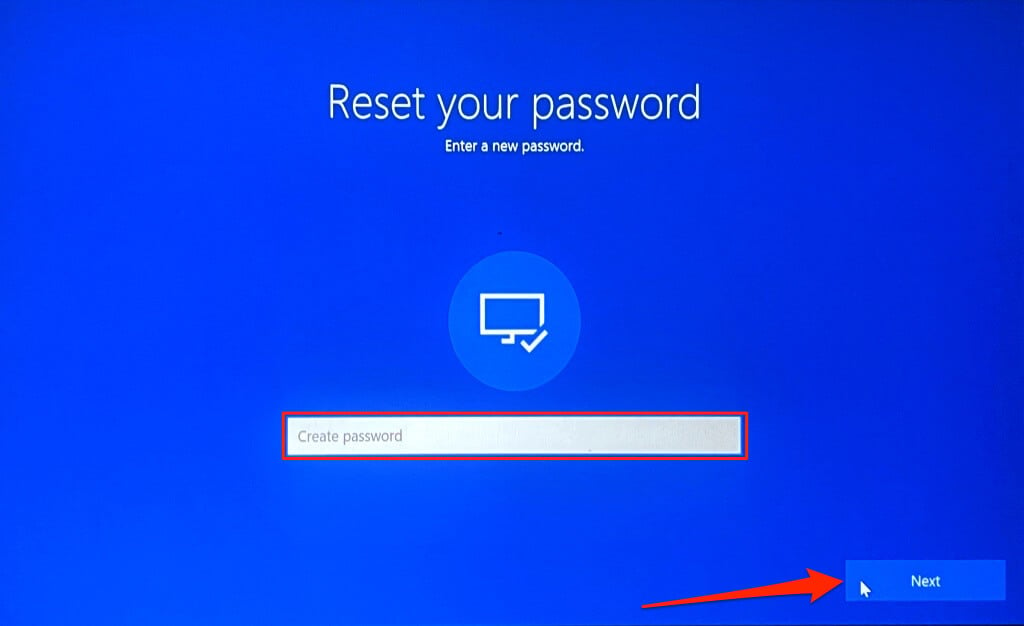
Forgot your computer password? Do not panic. Your data has not disappeared, and in most cases access can be restored in 5–15 minutes. The key is to identify the account type first, because the methods are fundamentally different. Pay special attention to the safety of personal information and system partitions so the reset procedure does not harm your operating system.
Two account types:
- Microsoft account — the login screen shows an email address, for example user@gmail.com. The password is stored on Microsoft servers. In Windows 11 Home, this type of profile is enforced during first setup, so most users of modern laptops have exactly this type.
- Local account — only the username is shown, for example Admin. The password is stored only on your PC.
Once you identify the type, go to the relevant section.
Method #1 — Microsoft Account (the Fastest)
Use this if you sign in with a Microsoft account. The entire process is performed from any other device: a phone, tablet, or another PC. This is the safest method because it avoids the risk of accidentally damaging system files.
- On another device, open a browser and go to the official reset page: account.live.com/password/reset
- Enter the email address or phone number linked to the account, then click “Next”.
- Choose how to receive the code: SMS or backup email.
- Enter the verification code you received.
- Set a new password.
Important detail: after you change the password online, the computer does not know about it yet. Make sure the login screen shows a Wi-Fi or Ethernet icon; the device must be connected to the internet. Restart the computer, specifically restart it rather than turning it off and on, then enter the new password. Windows will verify it over the network and let you into the system.
Method #2 — Security Questions (for a Local Account)
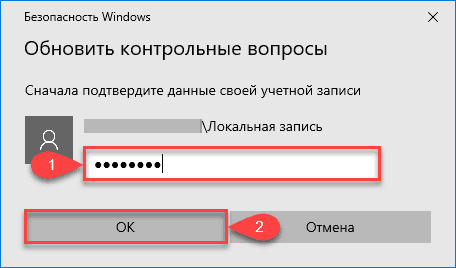
Works only for local accounts and only if you configured security questions when creating the account. The method is built directly into Windows and is safe for your data.
- On the lock screen enter any incorrect password.
- A “Reset password” link will appear under the input field; click it.
- The system will ask three security questions one by one.
- Enter the answers exactly as you set them, including case, spaces, and wording.
- If the answers are correct, Windows will immediately let you set a new password.
No internet connection is required. If the questions were not configured or the answers do not match, move on to the next method. Keep in mind that when resetting a password this way, as with any other method, you may lose access to files encrypted with the built-in EFS encryption.
Method #3 — Password Reset Disk
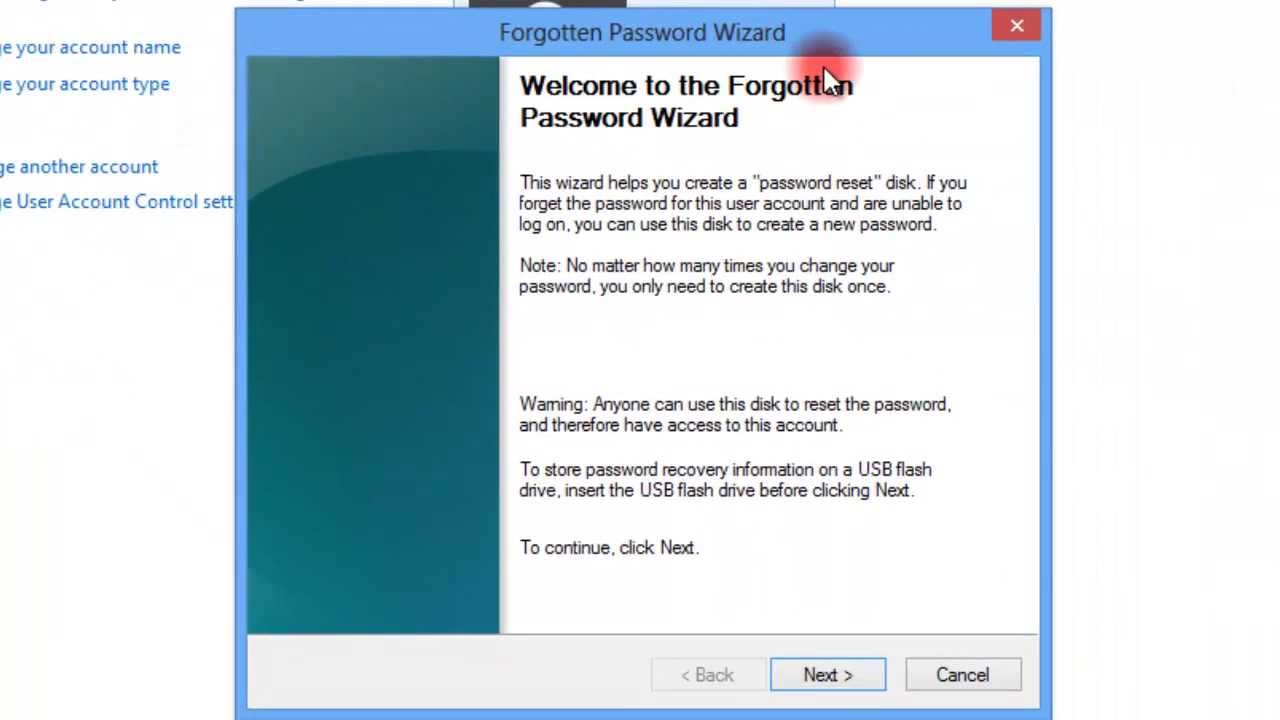
This is the “official” Windows tool for local accounts — a USB drive containing the file userkey.psw, which must have been created in advance through the “Forgotten Password Wizard” found via Start menu search. This is fully legitimate built-in functionality.
If you have such a USB drive:
- On the login screen, enter an incorrect password.
- The “Reset password” link will appear; click it.
- Plug in the USB drive; the wizard will find the key automatically.
- Set a new password.
The USB drive works even if you changed your password ten times after creating it. Most users do not have one, so the alternatives are below.
Method #4 — Reset via Command Prompt (for Advanced Users)
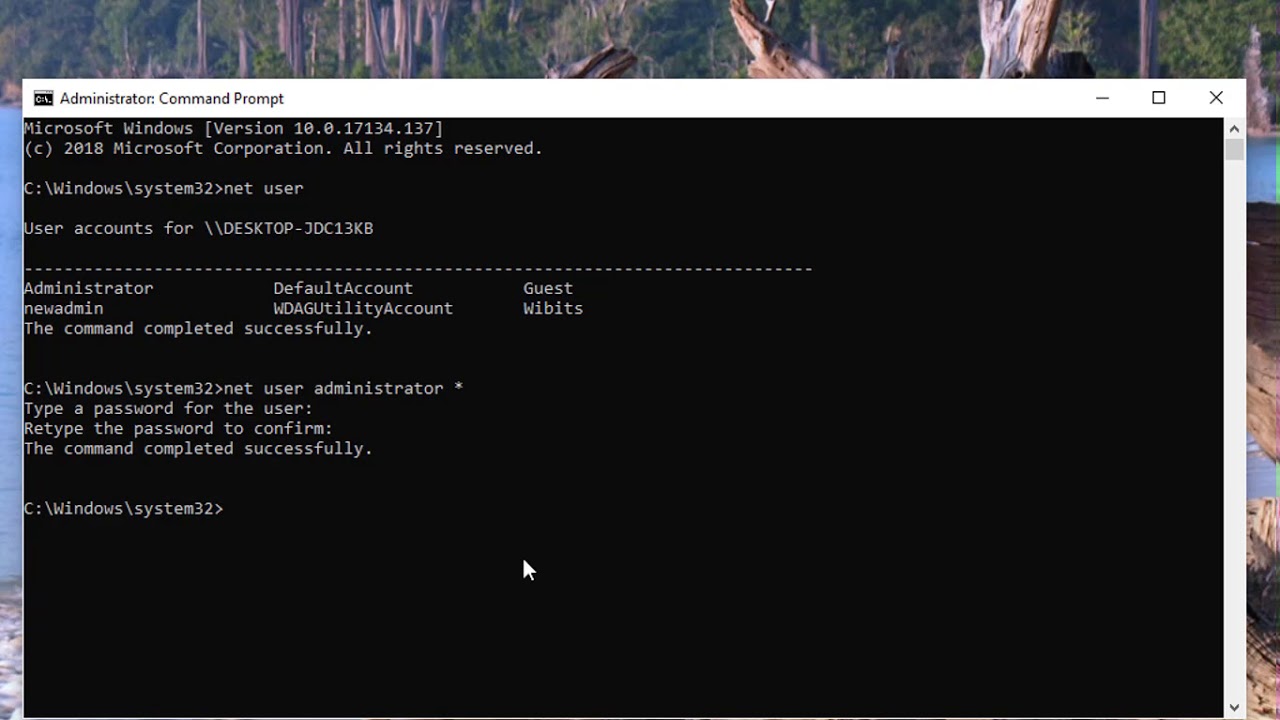
Suitable for a local accountwhen the standard methods did not work. You will need a bootable USB drive with Windows (8 GB, created with the Media Creation Tool on another PC).
Disclaimer: This method requires booting from external media and editing system files. Follow the instructions strictly so you do not damage the operating system. If BitLocker is enabled on the computer, this method will not work because the drive is locked. If EFS encryption was used for individual files, those files will become permanently inaccessible after a forced password reset because the encryption key is tied to the old password.
Preparation and Opening Command Prompt
- Insert the bootable USB drive into the powered-off PC.
- Turn on the computer and press the Boot Menu key, usually F12, Esc, F10 or F8 — it depends on the manufacturer.
- Select the USB drive in the list and press Enter.
- On the language selection screen, press Shift + F10 — this will open Command Prompt.
If Shift + F10 does not work, choose “System Restore” → “Troubleshoot” → “Advanced options” → “Command Prompt”.
Resetting the Password by Replacing utilman.exe
- In Command Prompt identify the drive letter that contains Windows:
diskpart
list volume
exit
Find the Windows partition by size; in the recovery environment, the drive letter may differ from the usual C:.
- Replace the “Ease of Access” utility with Command Prompt (substitute the correct drive letter):
move c:\windows\system32\utilman.exe c:\windows\system32\utilman2.exe
copy c:\windows\system32\cmd.exe c:\windows\system32\utilman.exe
- Restart without the USB drive:
wpeutil reboot
- On the lock screen click the “Ease of Access” icon in the lower-right corner; this will open Command Prompt.
- Find the exact username:
net users
- Set a new password:
net user "UserName" "NewPassword"
- Sign in with the new password.
- Be sure to restore the original file — boot from the USB drive again and run:
move c:\windows\system32\utilman2.exe c:\windows\system32\utilman.exe
Do not skip this step: the replaced file is a critical security vulnerability on your computer.
Method #5 — Third-Party Software (Live CD)
If Command Prompt seems too difficult, use specialized utilities. They do the same thing through a convenient graphical interface. Use only trusted and legal software to avoid infecting the system with malware.
| Program | Price | Pros | Cons |
|---|---|---|---|
| Hiren's BootCD PE | Free | Best free option, NTPWEdit | Requires a bootable USB drive |
| Lazesoft Recover My Password | Free (home use) | Simple wizard, creates the USB drive itself | Sometimes does not detect NVMe SSDs |
| DISM++ | Free | Included in many WinPE builds | Requires WinPE media |
Hiren's BootCD PE — Step by Step:
- On a working PC, download the ISO from the official website hirensbootcd.org and write it to a USB drive using Rufus.
- Boot from the USB drive.
- Open: “Start” → Security → Passwords → NTPWEdit.
- The utility will find the SAM file; select the required user.
- Click “Change password”, enter a new password, or leave it blank to remove it.
- Click “Save changes” and restart.
Important: When resetting a password with third-party software, files encrypted with EFS encryptionwill become inaccessible. This does not apply to BitLocker — if BitLocker is enabled, the utilities simply will not see the encrypted drive until the key is entered.
If Nothing Helped
The only situation where all the methods above are powerless is enabled and locked BitLocker. When booting from a USB drive, the system will ask for the 48-digit recovery key. You can find it in your account Microsoft: account.microsoft.com → “Devices” → “Recovery keys”.
If the key cannot be found, the only remaining option is to reset Windows to factory settings, with the loss of some programs:
- Boot from the Windows USB drive.
- Choose “System Restore” → “Troubleshoot” → “Reset this PC”.
- Choose “Keep my files” — personal data from folders such as Documents, Photos, and others will remain, but installed software will be removed.
- Follow the wizard instructions.
How Not to Forget Your Password Again
Set Up Windows Hello
Instead of a complex password, use alternative sign-in methods; they are more convenient and more reliable from a cybersecurity standpoint:
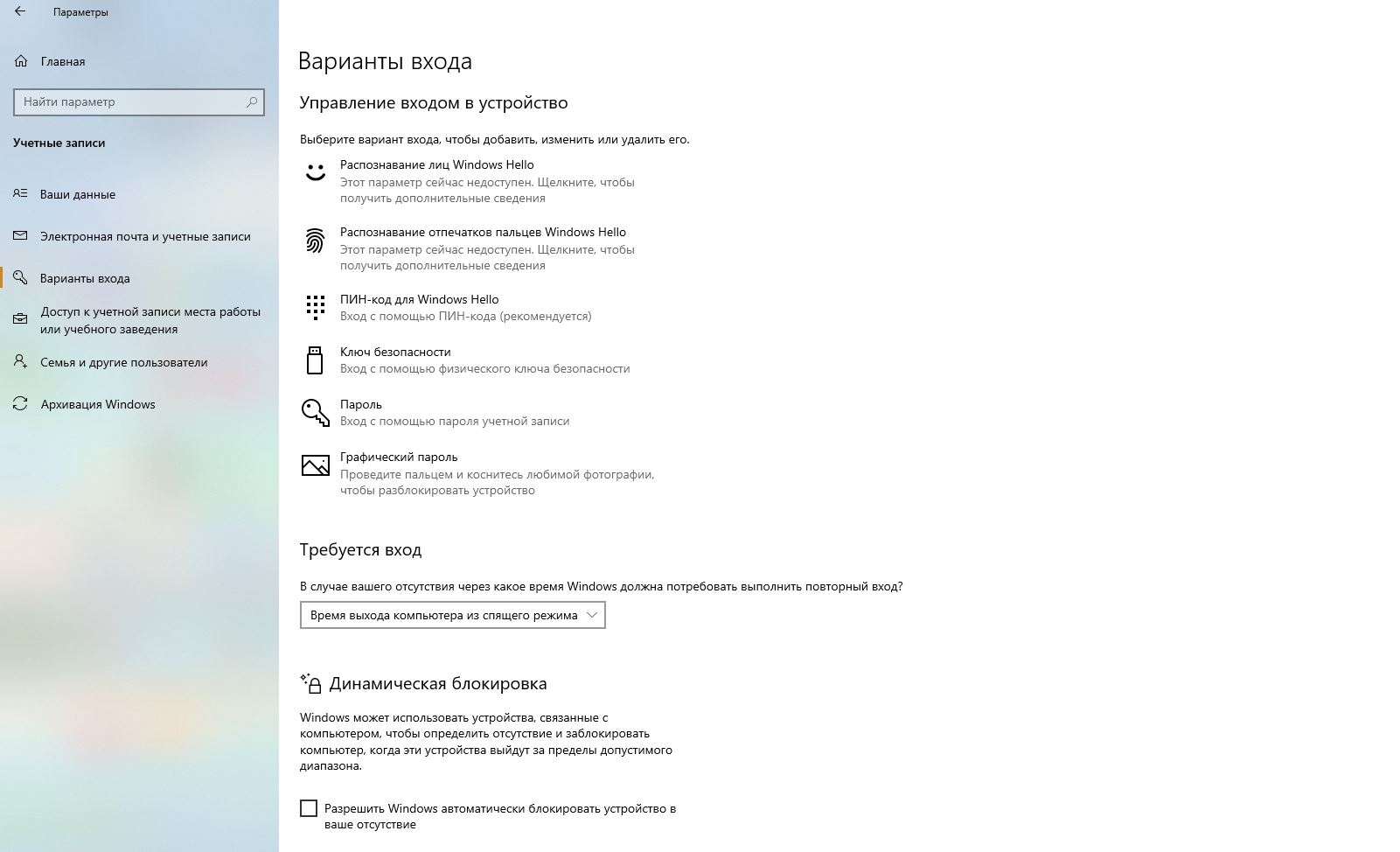
- PIN code — tied to a specific PC and easier to remember. Setup: “Settings” → “Accounts” → “Sign-in options” → “PIN (Windows Hello)”.
- Fingerprint / face recognition — instant sign-in. Requires compatible hardware.
Password Manager
If you have many passwords, store them in a manager: KeePass (free, local), Bitwarden (free, cloud-based), or 1Password (paid). The main thing is not to forget the master password.
Create a Password Reset Disk Right Now
While you still have access to the system, it will take 5 minutes:
- Insert a USB drive.
- In Start search, type “Create a password reset disk”.
- Follow the wizard; the file will be written to the USB drive: userkey.psw.
- Label the USB drive and store it in a safe place.
Ready-Built PCs If You Need a New Computer
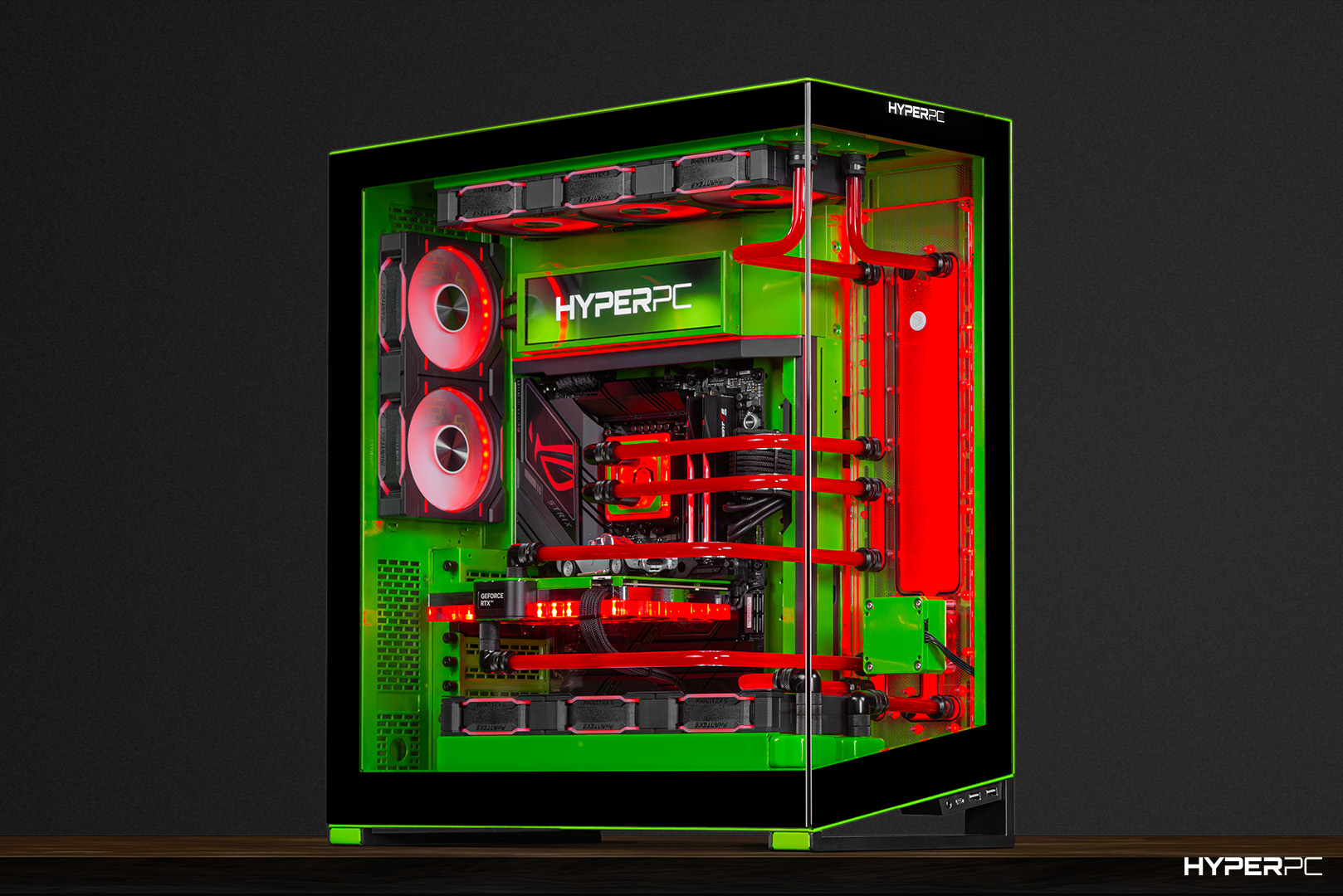
If your PC is outdated and the password situation was the last straw, take a look at ready-built solutions from HYPERPC:
- For everyday tasks and study: GAMING and PLAY 3 MAX are balanced configurations at an affordable price.
- For professional work and gaming: LUMEN 5 and PLAY 1 PRO are powerful builds with current RTX 5070 graphics cards.
- Flagship configurations: PLAY 1 ULTRA and LUMEN 7 offer top-tier specifications for the most demanding tasks.
Recommended

 Arabic
  English