What Laptop Does an Engineering Student Need? A Spec Guide Based on CAD and MATLAB Requirements
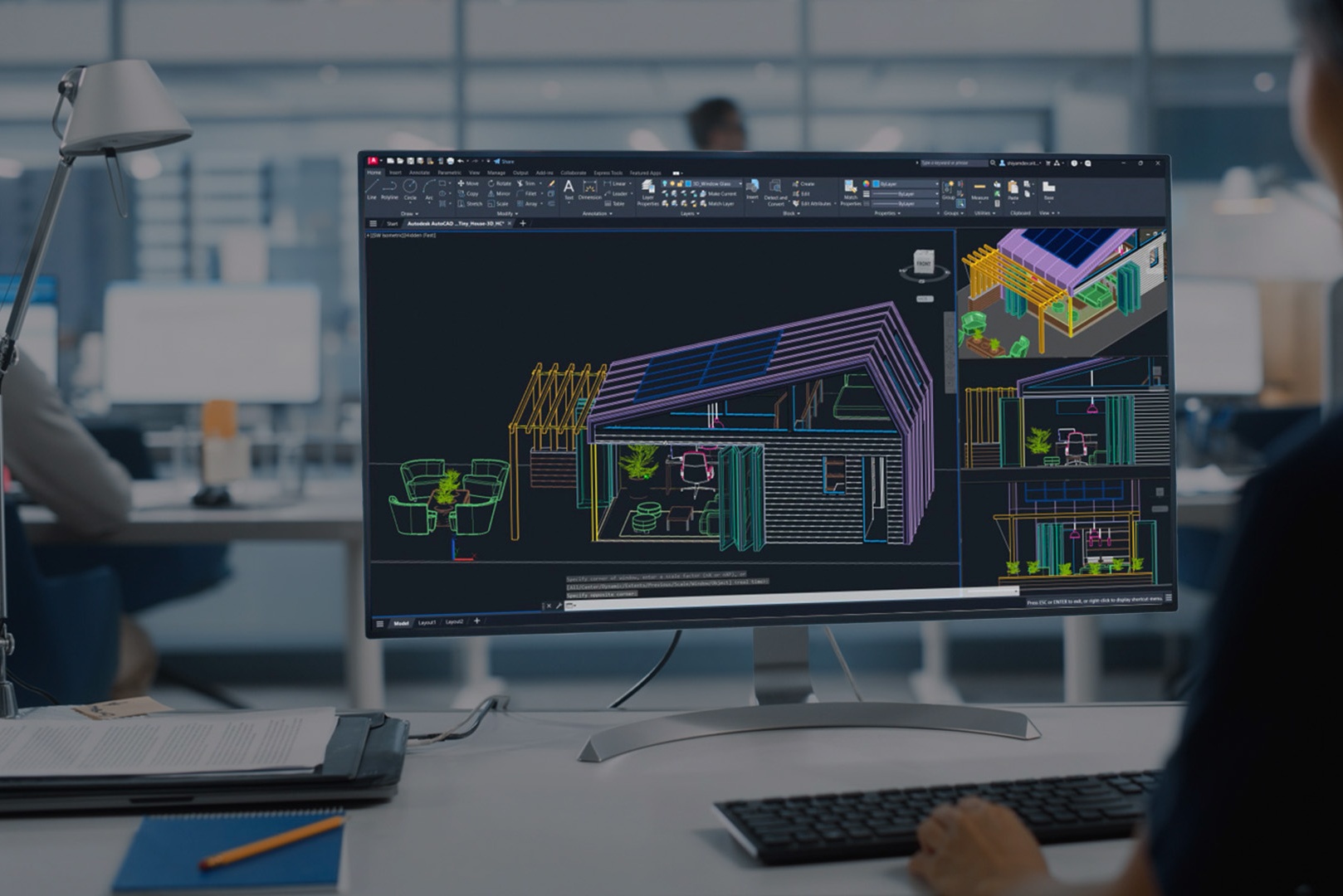
The right engineering laptop is defined by your course software, not by a best-of list. In short: choose an Intel or AMD x86 processor, at least 16 GB of RAM (32 GB if you will use SolidWorks, AutoCAD or Fusion for 3D work), an SSD, and a dedicated GPU with 8 GB of memory for 3D modeling. Here is where those numbers come from.
What the software asks for
These are the official minimum and recommended requirements published by the developers of four programs that appear in most engineering curricula.
| Software | Processor | RAM (minimum / recommended) | Graphics | Platform notes |
|---|---|---|---|---|
| SolidWorks 2026 | x86-64 only (Intel 64 or AMD64) | 16 GB / 32 GB | Check the developer's tested hardware list | Windows only, no native macOS version |
| AutoCAD 2026 | 8 logical cores at 2.5–2.9 GHz / 3+ GHz base, 4+ GHz turbo | 8 GB / 32 GB | 2 GB, DirectX 11 / 8 GB, DirectX 12 | 32 GB RAM and a 12 GB GPU for large 3D datasets |
| Autodesk Fusion | x86-64, 8+ performance cores recommended | 32 GB+ recommended | DirectX 11 capable | Native on Apple silicon; runs on Windows on Arm via emulation, not yet certified |
| MATLAB R2026b | x86-64, 4 logical cores with AVX2 recommended | 8 GB / 16 GB | WebGL 2.0 GPU with 2 GB recommended | Runs on Snapdragon X through Prism emulation with some features unsupported |
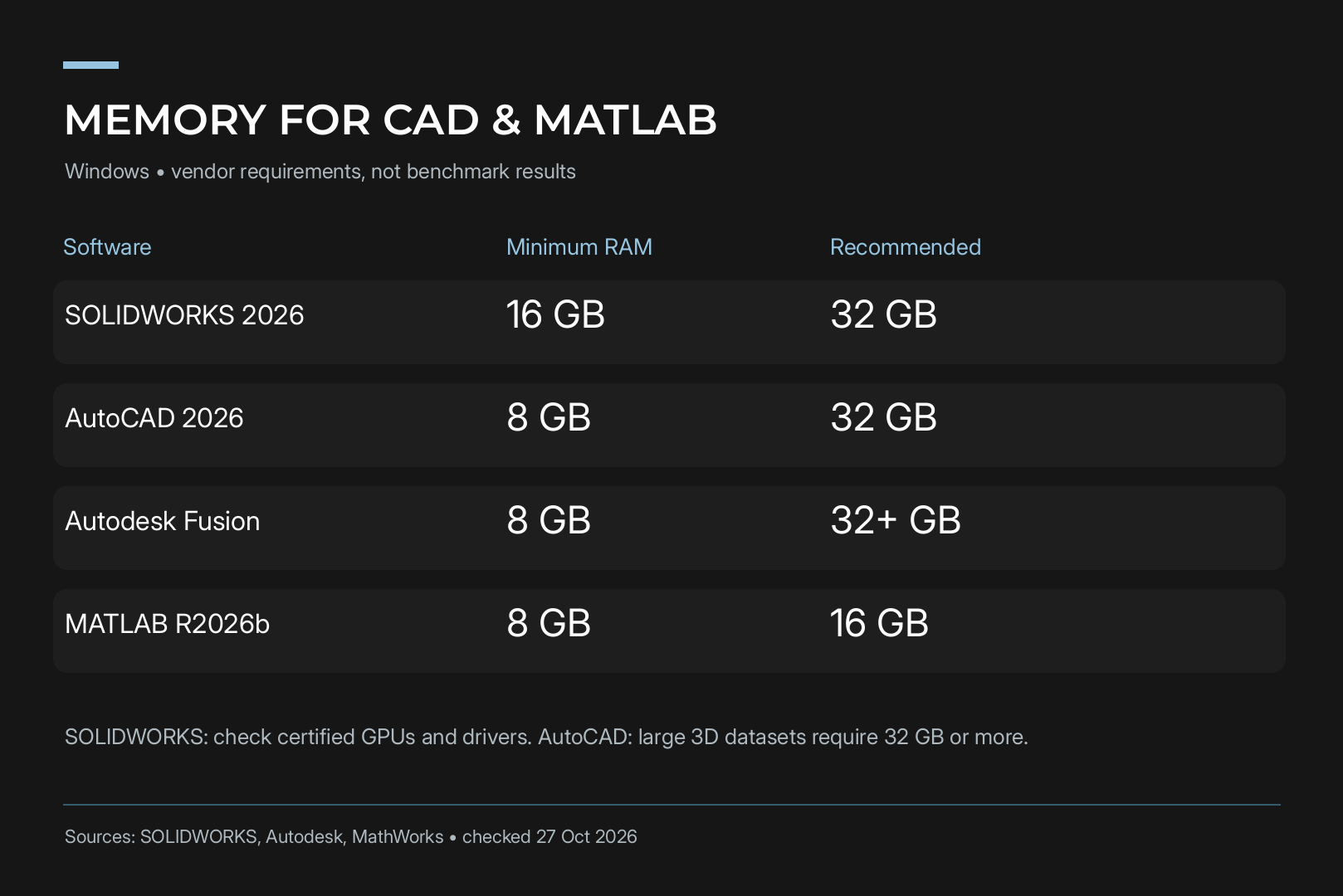
Two things stand out. SolidWorks is the strictest about platform, since it needs x86 and Windows. AutoCAD with its specialized toolsets is the hungriest for memory: Autodesk lists 16 GB as the baseline and 32 GB as the recommendation for Map 3D, Electrical, Architecture and MEP, along with 20 GB or more of disk space.
Decision 1: x86 or Arm
Settle this first, because it is the most expensive mistake to undo. Laptops with Snapdragon X chips and MacBooks with Apple silicon are quiet and have long battery life, but engineering software support on them comes with conditions.
- SolidWorks requires an x86-64 processor. There is no native macOS version, and the only official Mac tool is the eDrawings viewer. Running SolidWorks under virtualization on Apple silicon is not a supported setup.
- Autodesk Fusion runs natively on Apple silicon Macs. On Windows on Arm it runs through Prism emulation, but Autodesk says that configuration has not completed certification.
- MATLAB also runs on Snapdragon X via Prism emulation, and MathWorks notes that some capabilities are not supported there.
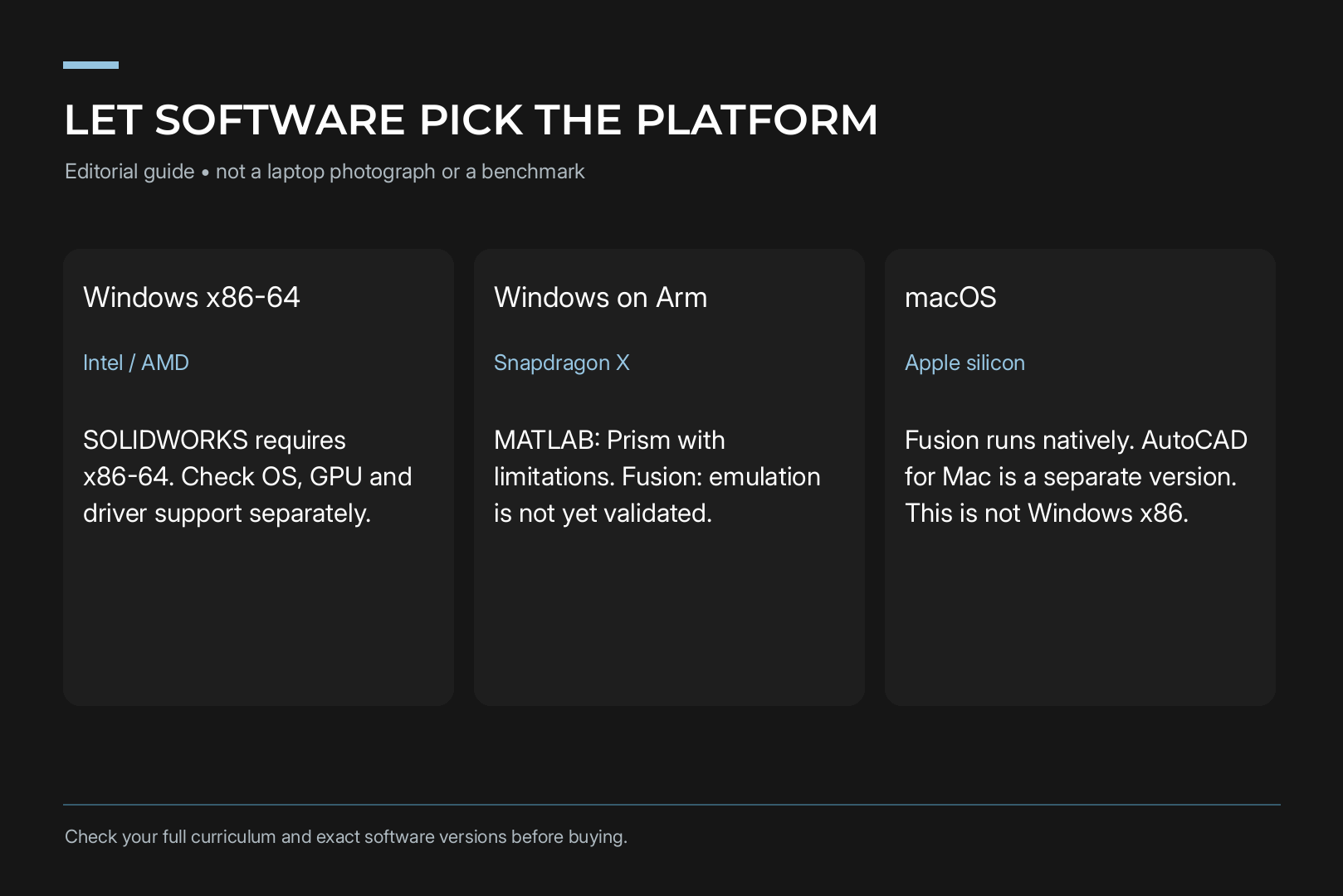
If SolidWorks is on your course list, or you do not yet know what later years will require, buy an Intel Core or AMD Ryzen laptop running Windows. An Arm machine or a Mac makes sense when your studies are mostly code, cloud tools and documents.
Decision 2: how much memory
SolidWorks lists 16 GB as the minimum and recommends 32 GB. AutoCAD 2026 starts at 8 GB but recommends 32 GB, and for large datasets, point clouds and 3D modeling Autodesk asks for “32 GB RAM or more”. Fusion also recommends 32 GB or more, while MATLAB is lighter at 8 GB minimum and 16 GB recommended.
Our advice is simple. Choose 32 GB if any 3D CAD program is on your list, and treat 16 GB as the floor for everything else. Check whether the memory is soldered to the motherboard. Many thin laptops cannot be upgraded later, so the amount you buy is the amount you keep.
Decision 3: integrated or dedicated graphics
Integrated graphics are fine for coding, MATLAB and 2D drafting. MATLAB recommends a GPU with WebGL 2.0 support and 2 GB of memory, and the AutoCAD 2026 baseline is a 2 GB DirectX 11 GPU, both of which modern integrated graphics can meet.
For 3D modeling, plan on a dedicated GPU. AutoCAD 2026 recommends 8 GB of video memory, 106 GB/s of bandwidth and DirectX 12 support, and its Fast visual styles need DirectX 12 with Feature Level 12_0. For large models and point clouds at 4K, Autodesk points to a workstation-class card with 12 GB of memory.
SolidWorks users should also check the developer's support pages to confirm their chosen graphics card is on the tested hardware list. It matters most for final-year projects with large assemblies of parts, where the GPU sets how smoothly you can rotate and section the model.
Decision 4: processor speed and cores
Look at how the recommendations are worded. AutoCAD's basic tier asks for 8 logical cores, but its recommended tier talks about clock speed: 3 GHz base and 4 GHz turbo or higher. Fusion recommends 8 or more performance cores. When two laptops have the same core count, the one with higher clocks and a less restricted power limit is usually the better CAD machine, while more cores help with rendering, simulation and compiling code.
MATLAB recommends a processor with AVX2 support and warns that a future release will require it. Current Intel Core and AMD Ryzen chips support AVX2, but check this carefully if you are buying a used laptop.
Decision 5: storage, screen and battery
Storage. Autodesk and MathWorks both recommend an SSD. A full MATLAB installation with all products takes about 25 GB, and AutoCAD with specialized toolsets takes 20 GB or more. Add Windows, project files and libraries, and 1 TB is a sensible size.
Screen. A 16:10 display at 1920x1200 or higher gives you more vertical space for the feature tree and tool panels. A matte finish is easier to work with under lecture hall lighting.
Battery and weight. There is no way around the trade-off. A powerful GPU and CPU add weight and shorten battery life. If your days are spent in lectures and your modeling happens in the evening, a lighter laptop plus a desktop at home is often the better plan.
Suggested specs by field
| Field | Typical software | Starting point |
|---|---|---|
| Computer, electrical and applied math | IDEs, MATLAB, circuit simulators | x86 or Arm, 16 GB RAM, integrated graphics, 512 GB–1 TB SSD |
| Mechanical and mechatronics | SolidWorks, AutoCAD, Fusion | x86, 32 GB RAM, dedicated 8 GB GPU, 1 TB SSD |
| Civil and architecture | AutoCAD with toolsets, large models | x86, 32 GB RAM or more, 8–12 GB GPU, external monitor |
When a laptop is not enough
A laptop covers coursework. Later years often bring stress analysis, flow simulation and rendering for a final project, and mobile CPUs and GPUs run with tighter power and cooling limits than desktop parts, so long jobs take longer.
Many students settle on a light laptop for campus and a desktop for heavy work. If your models are already pushing your hardware, read our guide to workstations for heavy geometry in 2026, and our comparison of desktops and laptops if you are still choosing a format. You can also spec a desktop around your exact software in the HYPERPC configurator.
Three common first-year mistakes
Buying for the first semester. Early courses rarely need more than a browser and a word processor, so almost any thin laptop seems fine. 3D modeling and simulation tend to arrive later, and the laptop has to last for the whole degree.
Choosing a Mac or Arm laptop without checking the software. A fast, quiet machine is little help if a required program needs x86 and Windows. The workarounds, from virtual machines to remote access to a campus lab, cost time when deadlines are close, and for SolidWorks on a Mac they are not supported.
Saving on soldered memory. You cannot swap the CPU or GPU in a laptop, and in many thin models you cannot add RAM either. The 16 GB that feels like plenty today can become the bottleneck in a large model two years from now.
Pre-purchase checklist
- Get the full software list for every year of your course, not just the first semester.
- If SolidWorks is on it, rule out Arm and Mac.
- 16 GB of RAM minimum, 32 GB for 3D work, and check whether it can be upgraded.
- A dedicated GPU with 8 GB for 3D modeling.
- A 1 TB SSD.
- A 16:10 matte screen.
- HDMI or USB-C with display output for an external monitor.
Recommended

 Arabic
 English