We are ready to help
Cities: Skylines 2: Why FPS Drops in a Large City and What to Change
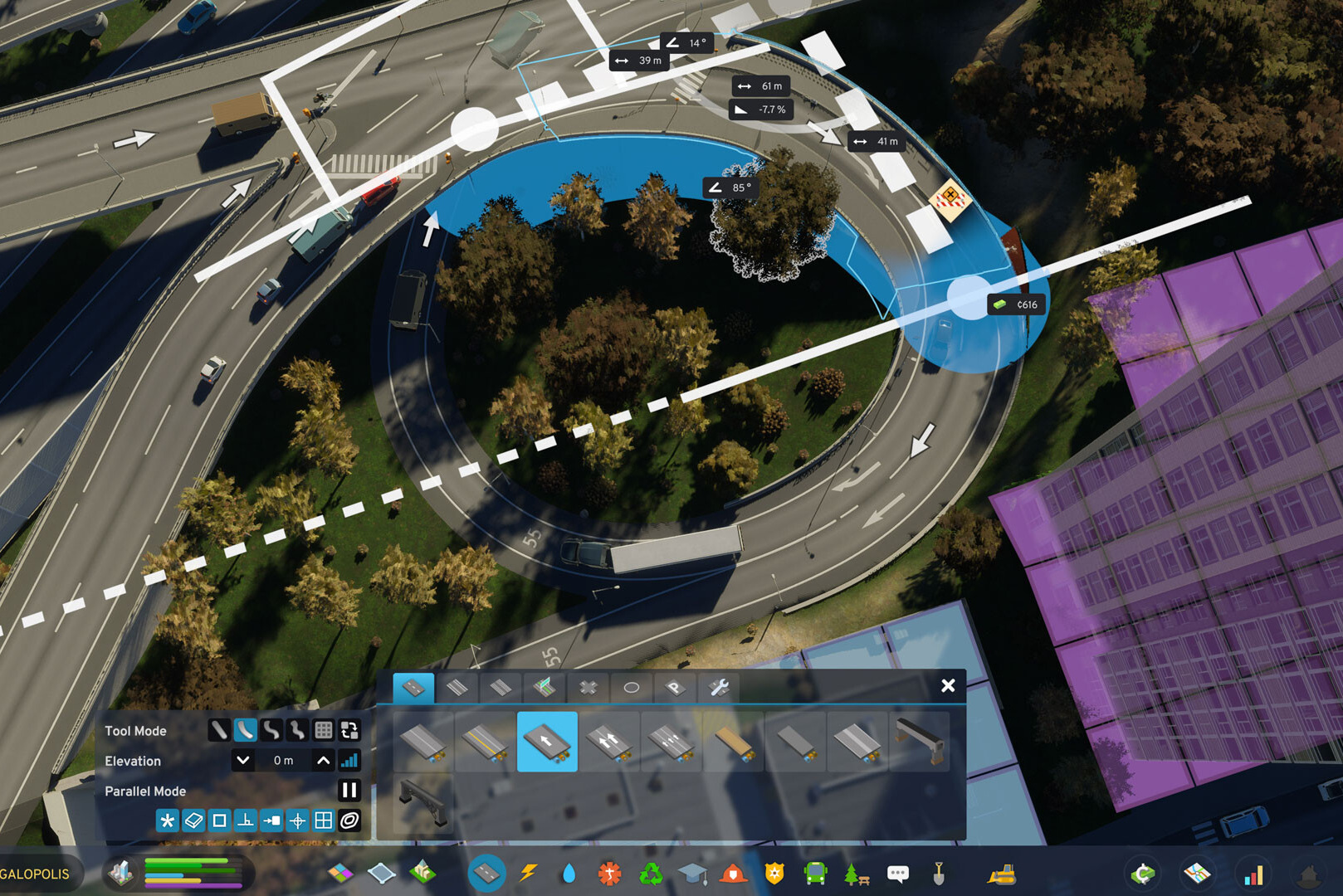
In Cities: Skylines 2, performance depends less on graphics than on city size. A new city on an empty map runs smoothly, but by the time it reaches around one hundred thousand residents, the same computer slows down and reducing graphics settings helps less and less. This is not a bug in a particular driver version, but a consequence of how the simulation works.
Below, we explain why this happens, how to identify your system's bottleneck in a minute, which settings actually help, and when a processor upgrade becomes unavoidable.
Why FPS Drops as the City Grows
The main reason is agent-based simulation. Cities: Skylines 2 models every resident individually: each has a daily routine, job, vehicle, and route calculated in real time. The first game worked differently and aggregated traffic and population.
The consequences are:
- The load grows almost linearly with the population. More residents mean more routes, more vehicles, and more calculations during every simulation tick.
- The processor is the bottleneck. Pathfinding, resident simulation, and object level-of-detail calculations run on the CPU and scale with the city.
- The graphics card stops being decisive. At launch in 2023, even the RTX 4090 could not maintain 60 FPS in large cities, and the GPU was not the cause.
A series of optimization updates from Colossal Order in 2024–2025 noticeably improved performance, and in 2026 the developers published a detailed performance analysis and announced a built-in benchmark tool. However, the architecture remains unchanged: a large city creates a CPU load that graphics settings cannot remove.
How to Identify Your System's Bottleneck
The check takes one minute and immediately shows whether changing the settings will help.
- Pause the game in a large city and observe the frame rate.
- Resume the game at normal speed, then switch to maximum simulation speed.
How to interpret the result:
- If FPS is high while paused but drops sharply when the simulation resumes, the system is CPU-bound. Graphics settings will have little effect; core count, clock speed, and processor cache are what matter.
- If FPS remains low even while paused, the bottleneck is the graphics card or VRAM. In this case, graphics settings have the greatest effect.
- Stuttering while moving the camera, rather than consistently low FPS, points to asset streaming and therefore storage, VRAM, or system memory.
Another sign of a CPU bottleneck is graphics card utilization well below 90 percent while FPS is low.
Settings That Help
The official Paradox guide and community experience agree on the same set of changes, ordered from the greatest effect to the smallest.
| Setting | What to do | Impact |
|---|---|---|
| Depth of field | Off | Noticeable performance gain; barely visible from the gameplay camera |
| Volumetric lighting and clouds | Off or Minimum | One of the most demanding effects |
| Global illumination | Low | Heavy load on the graphics card |
| Level of detail | Low or medium | Reduces both GPU and CPU load |
| Shadows | Medium | Significant gain in densely built areas |
| Motion blur | Off | Small performance gain; cleaner image |
| Dynamic resolution | As needed | Helps when GPU-bound; ineffective when CPU-bound |
| Texture quality | Based on VRAM capacity | No FPS cost while the textures fit in memory |
Level of detail deserves special attention: it is one of the few settings that also reduces CPU load because object detail levels are calculated on the CPU. If the system is CPU-bound, this is the first setting to try.
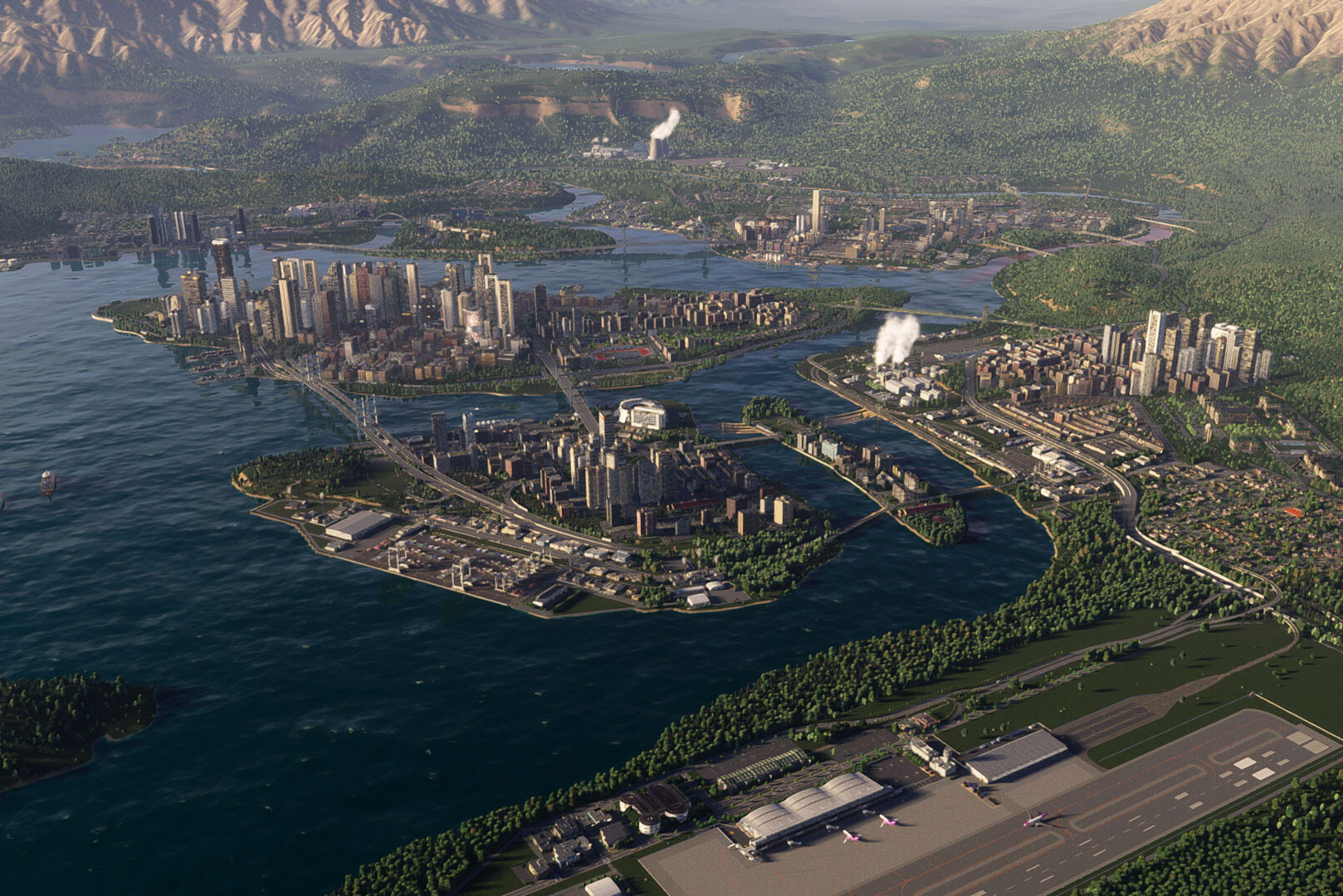
What Helps Beyond Graphics Settings
Because the simulation creates the main load, changes to the city and the game itself can help.
- Use a lower simulation speed. Maximum speed increases CPU load, and the difference between normal and maximum speed is noticeable in a large city.
- Monitor the transport network. Traffic jams trigger more route recalculations. A well-designed network with public transport reduces the pathfinding load.
- Be careful with mods. Some add calculations to every simulation tick. If FPS dropped after installing a mod, start by disabling it.
- Keep the game on an NVMe SSD. Assets stream noticeably faster while moving the camera, reducing stuttering.
- Close background applications. The simulation uses many threads, and competition for processor cores becomes apparent immediately.
What Hardware Does a Large City Need?
The requirements are unusual: unlike most games, a large city places the greatest load on the processor and system memory.
- The processor is the key component. Both core count and clock speed matter. Processors with a larger L3 cache traditionally perform well in simulation games that repeatedly access data for many objects.
- System memory: 32 GB for a large city. While 16 GB is enough at the start, memory runs out as the city grows and mods accumulate, causing paging to the system drive.
- Choose the graphics card according to resolution. An RTX 4070- or RTX 5070-class GPU is sufficient for 1440p. A faster card will not improve performance in a large city if the system is CPU-bound.
- Storage: NVMe. It affects asset streaming and save-game loading times.
This leads to a practical upgrade rule: if the pause test revealed a CPU bottleneck, a new graphics card will not solve the problem. Whether upgrading the processor on your platform is worthwhile or a new machine offers better value in dirhams is explained in upgrade or a new computer: the AED calculation.
Common Mistakes
- Reducing graphics settings when the system is CPU-bound. FPS barely increases, while image quality becomes worse.
- Buying a graphics card specifically for a large city. If FPS is high while paused, the graphics card is not the bottleneck.
- Running at maximum simulation speed all the time. In a large city, this directly multiplies CPU load.
- Sticking with 16 GB of memory when using mods in a large city. Paging causes stuttering that graphics settings cannot fix.
- Judging performance on an empty map. The real load appears once the city reaches tens of thousands of residents.
Recommended PCs
Frequently Asked Questions We have prepared the answers.
-
Why Does Cities: Skylines 2 Slow Down in a Large City?
Because the game simulates every resident individually, including their routine, job, vehicle, and route. CPU load from pathfinding and simulation grows almost linearly with the population, so FPS drops as the city expands regardless of graphics settings.
-
Which is more important in Cities: Skylines 2: the processor or the graphics card?
For a large city, the processor matters most. Pathfinding, resident simulation, and level-of-detail calculations run on the CPU. The graphics card determines performance in a small city and at high resolutions, but a large city is almost always CPU-bound.
-
How Can I Tell If the System Is CPU-Bound?
Pause the game in a large city. If FPS is high while paused but drops sharply when the simulation resumes, the system is CPU-bound. Another sign is graphics card utilization well below 90 percent while FPS is low.
-
Which settings raise framerates in Cities: Skylines 2?
Disable depth of field, volumetric lighting, and motion blur; set global illumination to Low, level of detail to Low or Medium, and shadows to Medium. If the system is CPU-bound, try level of detail first because it also reduces CPU load.
-
How much memory does Cities: Skylines 2 need?
A large city with mods needs 32 GB. While 16 GB is enough at the start, memory runs out as the population and asset count grow, causing stuttering from paging.
-
Does Lowering Simulation Speed Help?
Yes. Maximum simulation speed increases the number of calculations per unit of time and directly increases CPU load. In a large city, switching from maximum to normal speed noticeably improves smoothness.
-
Have the updates improved the performance of Cities: Skylines 2?
Yes. A series of optimization patches in 2024–2025 significantly improved performance compared with the 2023 release, and in 2026 the developers published a detailed performance analysis and announced a built-in benchmark. However, the simulation architecture remains unchanged, and a large city still places a heavy load on the CPU.
-
Can a Mod Reduce FPS?
Yes. Some mods add calculations to every simulation tick. If FPS dropped after installing a mod, start by disabling it. Be especially careful with mods that change traffic and resident behavior.
-
Will a New Graphics Card Help in a Large City?
Only if the system is GPU-bound, meaning FPS remains low even while paused. If FPS is high while paused but drops when the simulation is running, a new graphics card will make almost no difference; a more powerful processor is needed.
-
Do I need an SSD for Cities: Skylines 2?
Yes, preferably an NVMe SSD. Storage affects asset streaming while moving the camera and the loading time of large saves. Stuttering while navigating the city is noticeably worse on a hard drive.

 Arabic
  English