We are ready to help
PC for Premiere Pro: Smooth 4K Editing
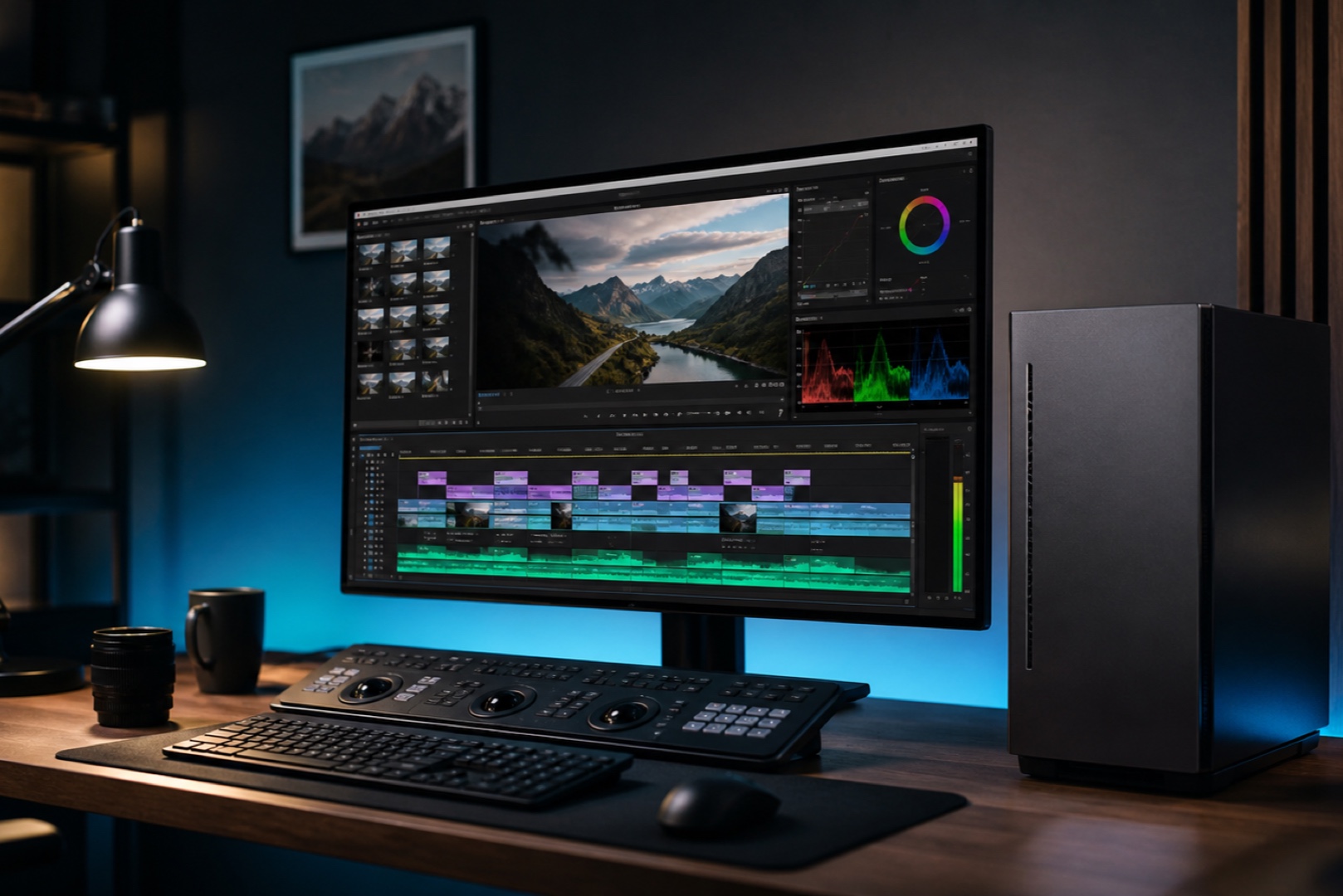
Premiere Pro is a demanding application that requires a balanced system rather than a single powerful component. The hardware determines how responsive the timeline feels, how quickly effects are rendered, and how long it takes to export the finished video. This is especially noticeable at 4K and higher resolutions. Below, we explain how Premiere uses the processor, graphics card, memory, and storage, and suggest configurations for different resolutions.
Priorities
- Premiere uses both the processor and the graphics card: the processor keeps the timeline responsive, while the graphics card accelerates effects, colour grading, and export.
- Hardware encoding (NVIDIA NVENC and Intel Quick Sync) accelerates H.264 and H.265 exports. Independent tests show that hardware acceleration can make exports 2–4 times faster, depending on the source codec.
- RAM is critical for 4K: Adobe recommends at least 32 GB, while 64 GB is the professional standard for demanding projects and workflows involving After Effects.
- A fast NVMe SSD and proxy editing eliminate most slowdowns. A slow drive becomes a bottleneck even with a powerful processor.
How Premiere Uses Hardware
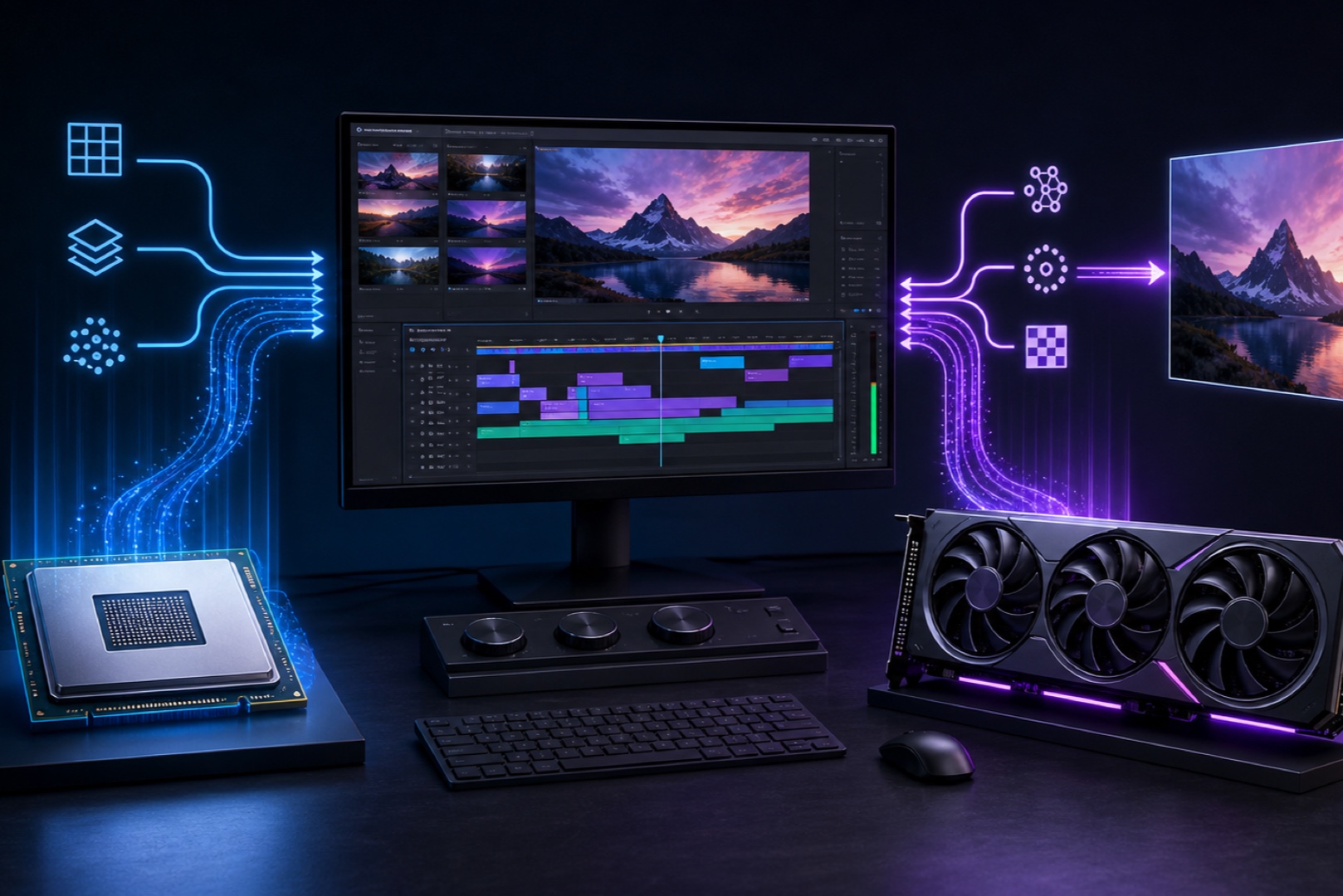
Premiere Pro relies on both the processor and the graphics card, and both are important. The processor is responsible for overall responsiveness, including timeline scrubbing, decoding source footage, and handling a large number of tracks. The graphics card accelerates effects, transitions, and colour grading: NVIDIA CUDA and AMD OpenCL speed up tools such as Lumetri Color, blur, and compositing. Another advantage of modern systems is hardware encoding: NVIDIA NVENC and Intel Quick Sync handle H.264 and H.265 encoding. Independent tests show that hardware acceleration can make exports 2–4 times faster, depending on the source codec, saving hours for editors who deliver videos frequently.
Processor and RAM
For Premiere, a processor should combine high clock speeds with a sufficient core count: more cores help with rendering and multi-track projects, while clock speed keeps the interface responsive. RAM also plays a key role: the more tracks and effects you use, and the higher the resolution, the more memory you need. Adobe recommends at least 32 GB for smooth 4K editing, while 64 GB has become standard for demanding projects and workflows involving After Effects. Timeline performance depends on the combination of processor, memory, and storage speed, while a well-designed proxy workflow using lighter copies of demanding source files makes 4K and 8K editing smooth even without top-tier hardware.
Graphics Card and Codecs
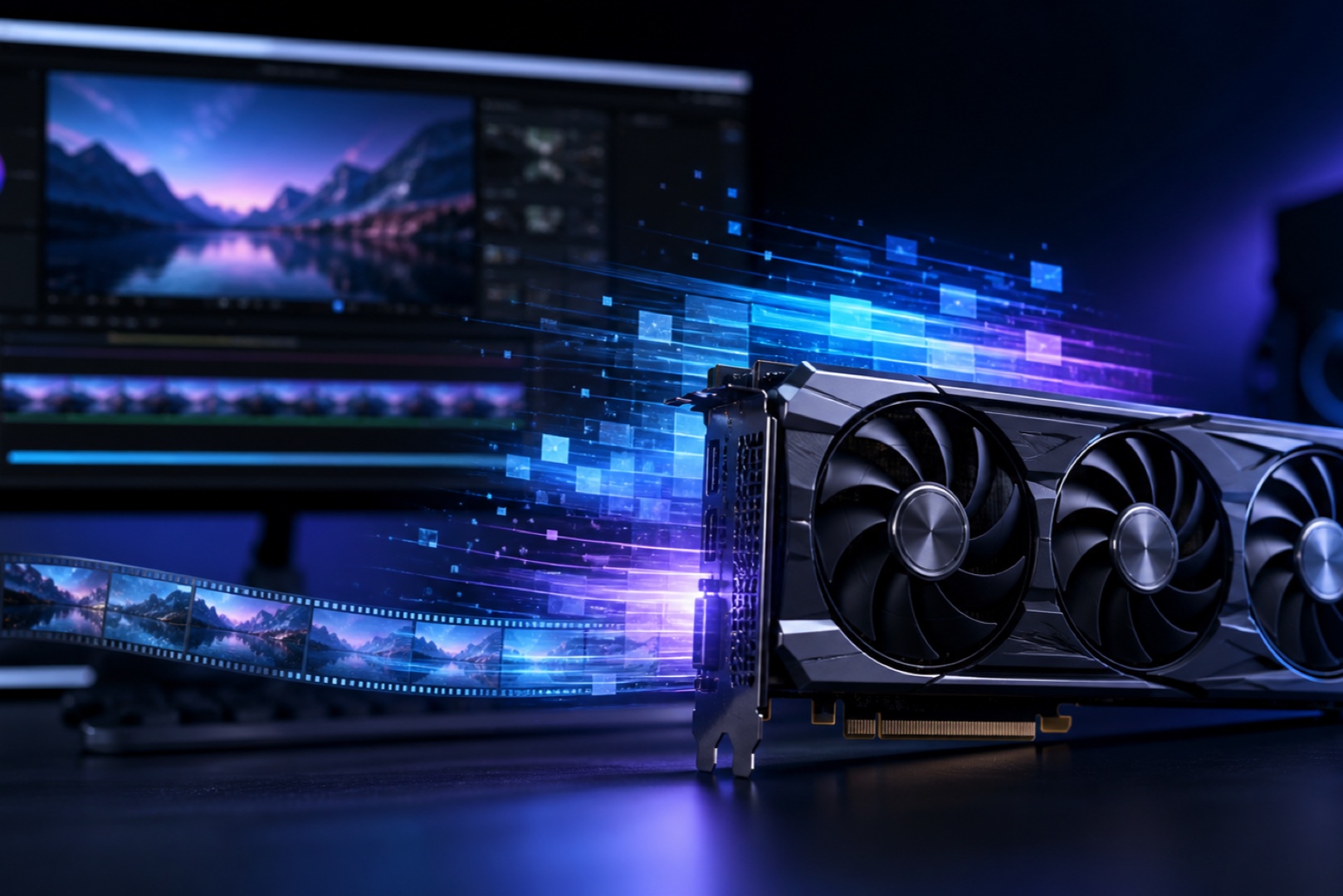
In Premiere, the graphics card accelerates effects and some export tasks: the more complex the colour grading, transitions, and compositing, the more noticeable the benefit of a powerful GPU. A graphics card with at least 6 GB of VRAM is recommended for 4K, while demanding projects benefit from more. NVENC is particularly valuable during export: when delivering a video in H.264 or H.265, the hardware encoder handles the task, freeing the processor and significantly speeding up output. When choosing a graphics card for editing, make sure it supports hardware encoding for the required formats. Up-to-date drivers also affect preview stability and performance.
Storage and Workflow
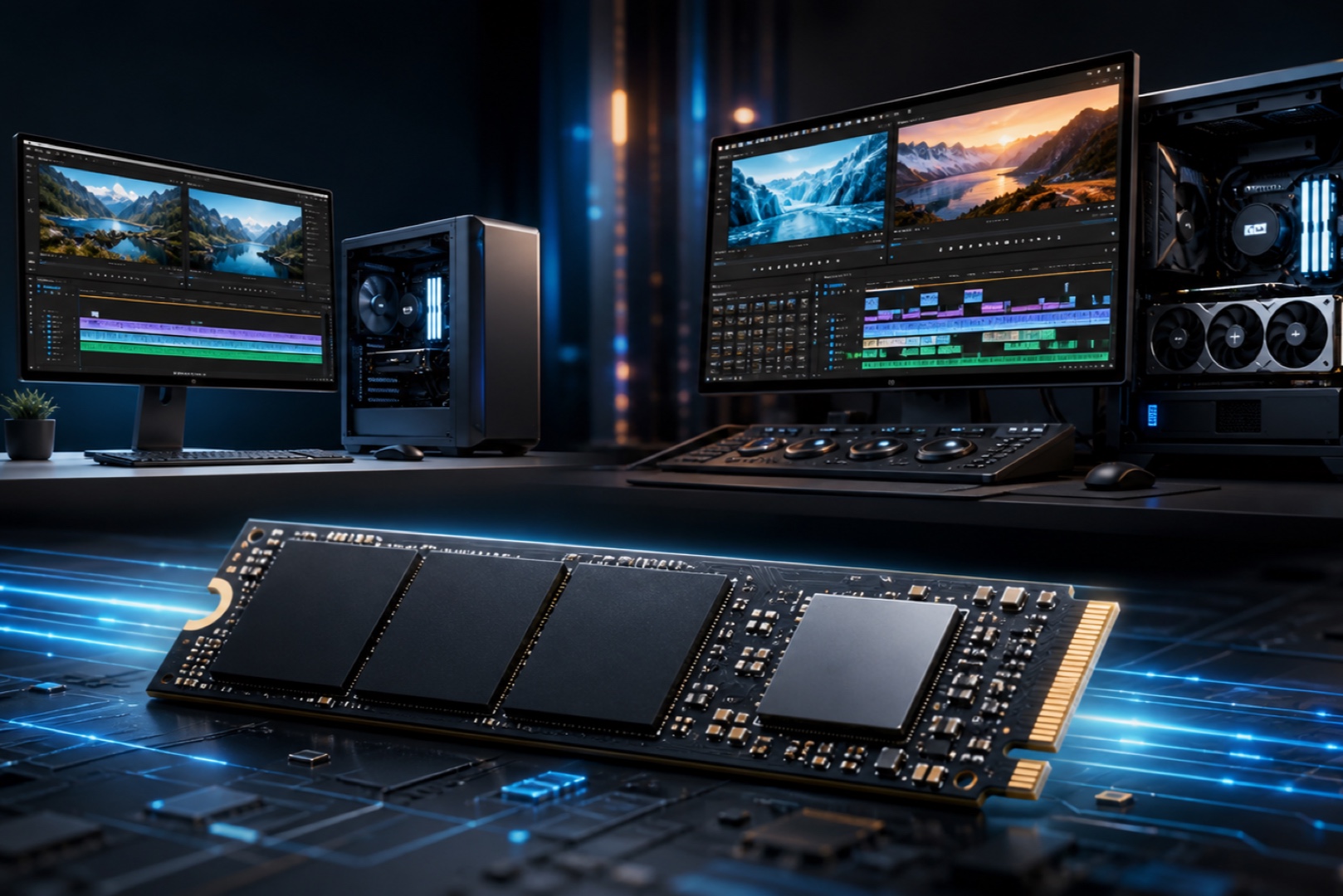
Storage is often underestimated, but it is critical for video editing. 4K and 8K source files contain huge amounts of data that must be read and written quickly, making an NVMe SSD essential. A practical setup uses several drives: one for the operating system and applications, and another fast drive for projects and cache. Proxy editing complements this setup: you work with lighter copies for a smooth timeline, and Premiere uses the original files for the final export. Below are suggested configurations for different workloads; the final choice should account for the specific formats and codecs.
| Workload | Processor | Graphics Card | RAM | Storage |
|---|---|---|---|---|
| 1080p, basic 4K | 6–8 cores, mid-range | GPU with NVENC, 8 GB or more | 32 GB | NVMe SSD |
| Smooth 4K editing | 8–12 cores, high clock speed | Powerful GPU with NVENC, 12–16 GB | 32–64 GB | NVMe PCIe 4.0, dedicated project drive |
| 8K and demanding projects | 12–16+ cores | High-end GPU, 16+ GB | 64 GB or more | Fast NVMe, media storage array |
Frequently Asked Questions Here are the answers.
-
Which is more important for editing: CPU or GPU?
Both matter, but in different ways. The processor handles timeline responsiveness, decoding, and general processing, while the graphics card accelerates effects, colour grading, and export through its hardware encoder. Overinvesting in one while neglecting the other creates a bottleneck, so a Premiere workstation needs a balanced combination.
-
How much RAM is needed for 4K editing?
Adobe recommends at least 32 GB of RAM for smooth 4K editing. For demanding projects with many effects and workflows involving After Effects, 64 GB has become the professional standard. More tracks and higher resolutions require more memory.
-
How does NVENC help with exports?
NVENC is the hardware encoder built into NVIDIA graphics cards. It handles H.264 and H.265 encoding, freeing the processor and accelerating exports. Independent tests show that hardware acceleration can make exports 2–4 times faster, depending on the source codec, which is especially valuable for editors who export videos regularly.
Conclusion
Premiere Pro needs a well-balanced CPU and GPU with hardware encoding support, plenty of RAM, and fast NVMe storage for 4K editing. The processor and memory keep the workflow smooth, the graphics card and NVENC accelerate effects and exports, and proxy editing reduces the load in demanding projects. You can configure a video editing workstation or choose a ready-made solution from the HYPERPC catalogue.
Build for your workload: Video Editing Workstations.
Recommended

 Arabic
  English