We are ready to help
PC Repair: Common Failures and How to Know It Is Time for Service
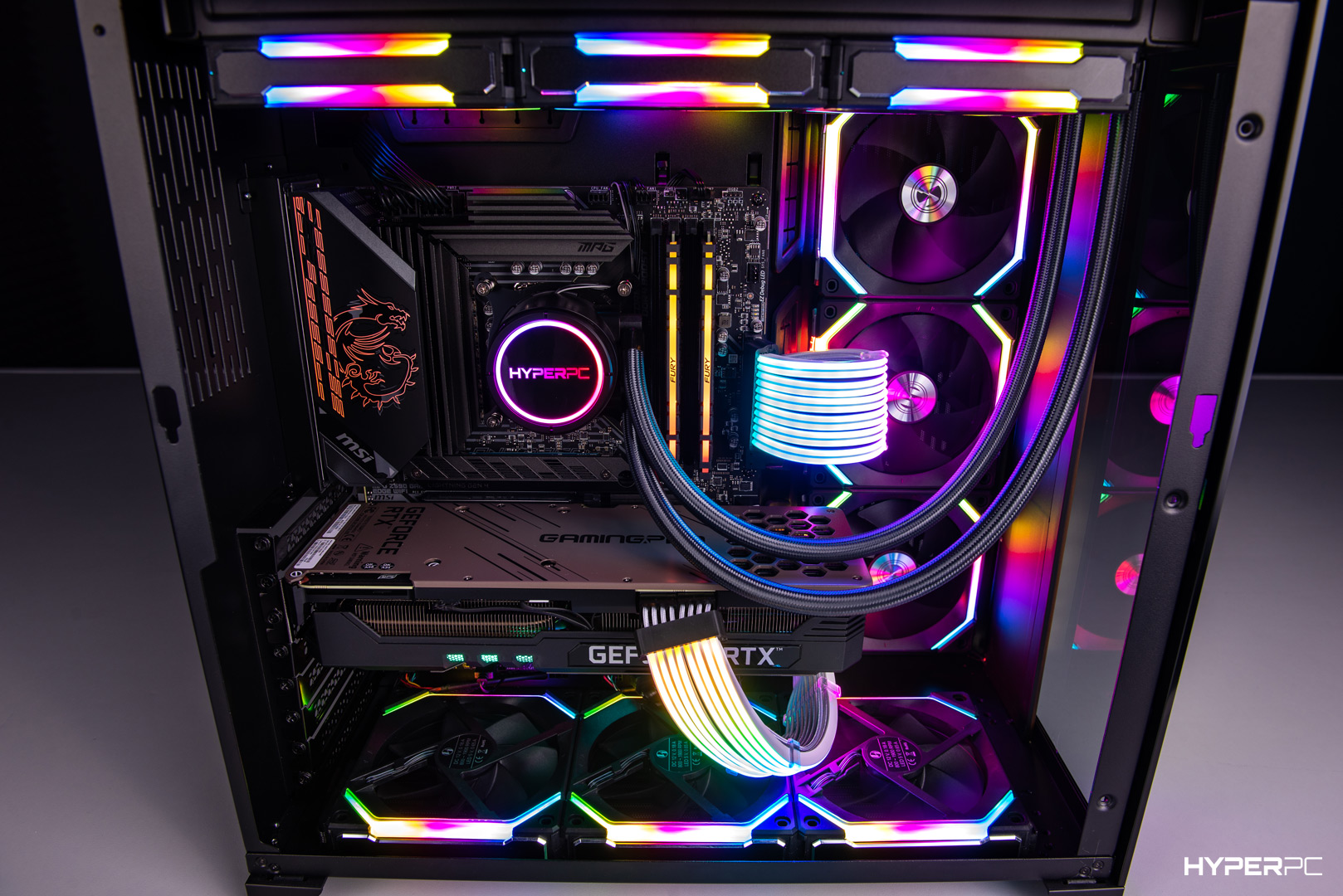
A computer is a complex system where dozens of components work together. Any of them can fail, and a reboot does not always solve the problem. Some faults can be fixed at home, but there are warning signs when PC repair is better left to professionals.
How to tell something is wrong with a PC
A computer rarely fails instantly. There are usually warning signs that an experienced user can notice early. If ignored, a minor fault can turn into an expensive repair.
- Overheating and constant noise. Fans run at maximum speed even at idle, the case gets hot, and the system shuts down or restarts under load.
- Sudden restarts and shutdowns. The computer powers off without warning, often because of the power supply or CPU overheating.
- Blue Screen of Death. Regular BSODs with different codes may point to RAM, drivers, or damaged system files.
- Screen artifacts. Lines, flicker, and distorted colors before the OS loads often indicate a graphics card fault.
- Unusual sounds. Clicking, grinding, humming, or whistling from the system unit is especially dangerous when it comes from a drive or fan.
- The computer will not turn on. Pressing the power button does nothing: fans do not spin and indicators stay off.
If you notice even one symptom, do not wait for complete failure. Early diagnostics are almost always cheaper than replacing several components.
Common failures and their causes
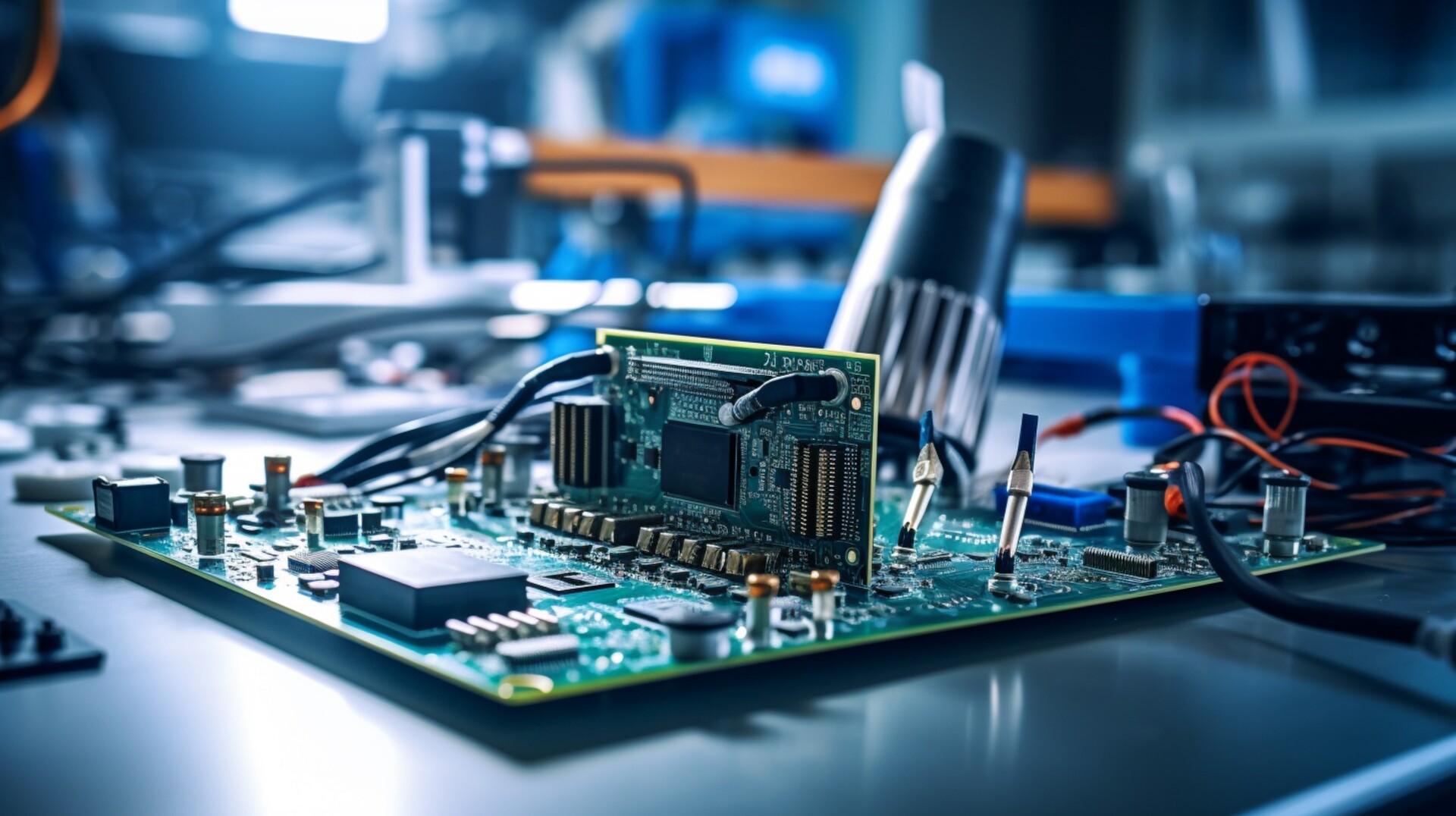
Most PC faults can be grouped by component. Cooling, storage, power supply, and motherboard issues are the most common.
Overheating and cooling problems
Overheating is one of the most common causes of instability. Dust clogs the heatsink and turns it into insulation, hot air stays inside the case, and dried thermal paste stops transferring heat from the chip to the cooler.
Modern CPUs do not instantly burn out above 100 °C because they have TjMax protection. The chip lowers clock speed and voltage, and the motherboard shuts the system down at the critical threshold. Long operation in this state still reduces the lifespan of the board, fans, and nearby components.
Unqualified thermal paste replacement is also risky: a user can chip an exposed GPU die while removing the cooler or bend fragile pins in an LGA motherboard socket.
HDD/SSD storage
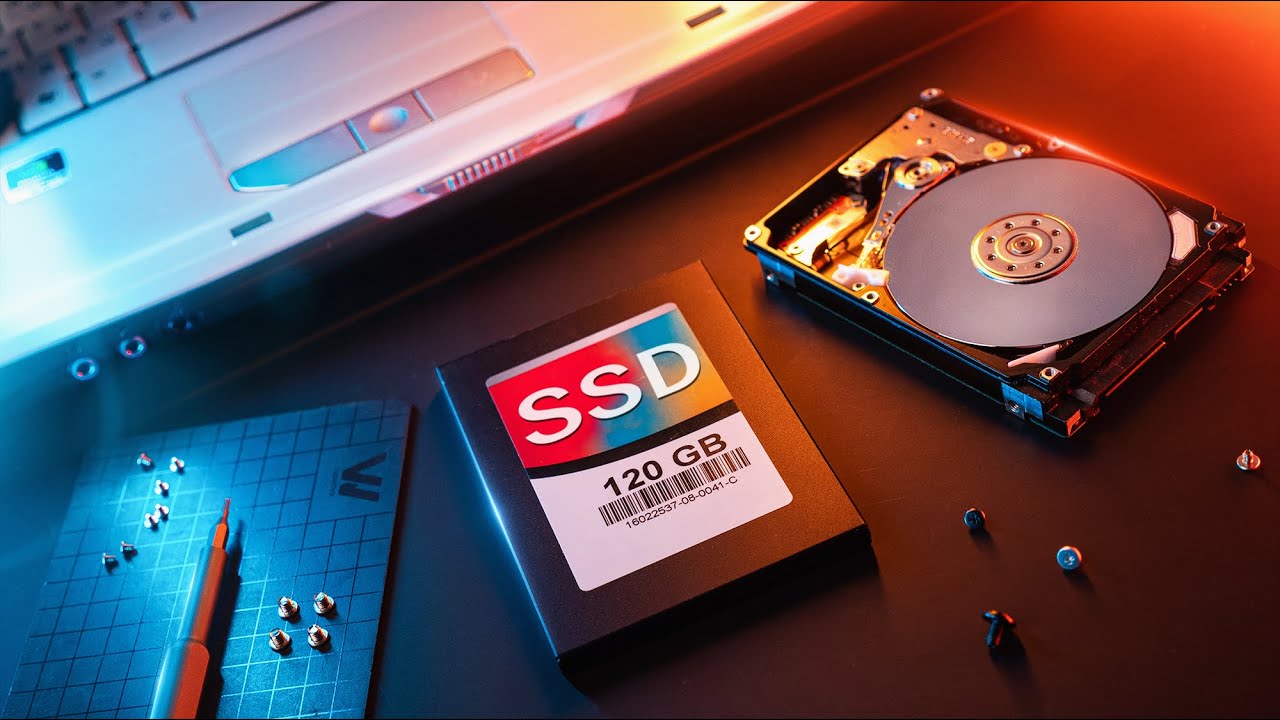
Drive failure is dangerous because data can be lost together with the disk. HDD warning signs include clicking, grinding, long OS boot, freezes when opening files, read/write errors, and frequent CHKDSK runs. SSD warning signs include sudden speed drops, disappearing from BIOS, save errors, and OS failure messages.
If a drive makes physical sounds, freezes, or disappears, do not run stress tests or deep sector scans in Victoria. Every minute of load on worn HDD heads can physically damage the platter and destroy data permanently.
Power supply and motherboard
A power supply loses capacity over time as capacitors age. Electrolyte evaporates under heat, ESR rises, ripple appears, and voltages sag under load. This causes random restarts, and a complete PSU failure prevents the PC from turning on.
On the motherboard, capacitor and VRM degradation can appear as no display at startup, failed USB ports or audio, and freezes on POST codes. A board with swollen capacitors is dangerous to use because unstable VRM power can damage the processor.
What you can do yourself and what you should not
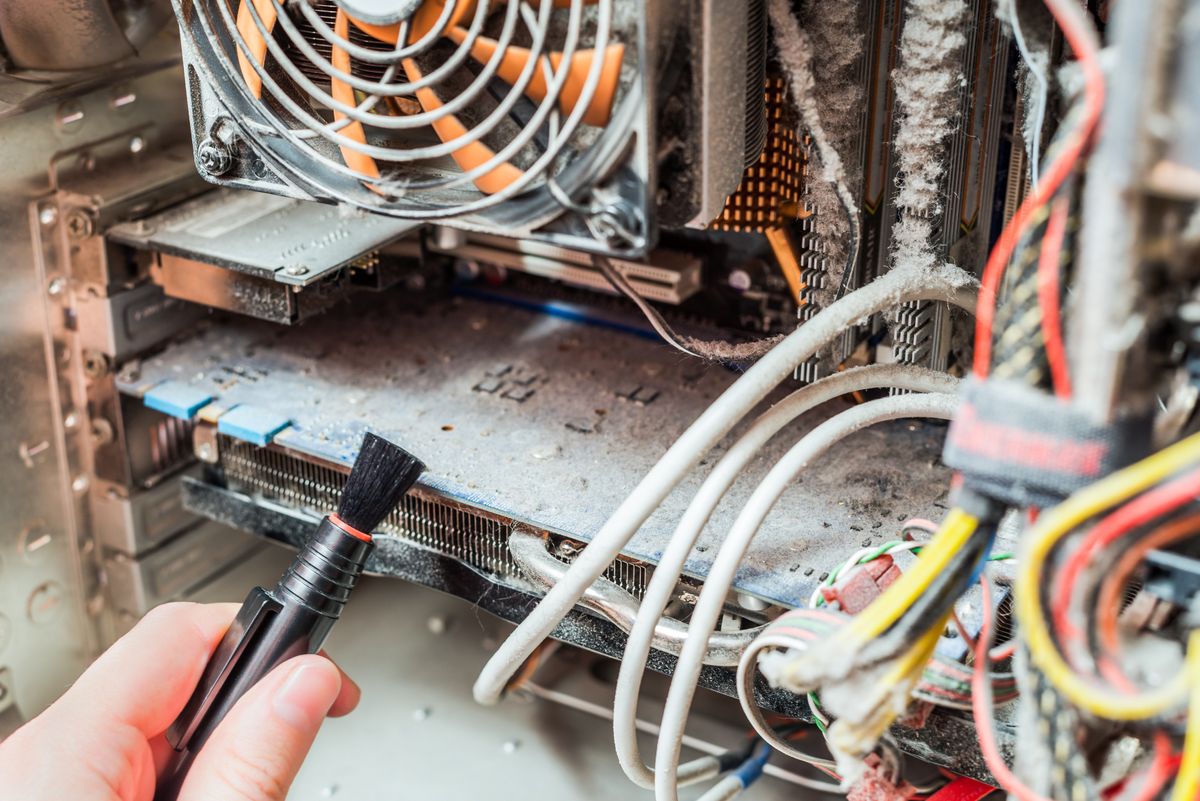
Not every PC fault requires a service center. Some issues can be solved at home, but it is important to know where DIY repair becomes dangerous.
What you can do yourself
- Dust cleaning: unplug the PC, open the case, and carefully blow dust from heatsinks with compressed air.
- Thermal paste replacement: only if you have experience removing coolers and are not using electrically conductive compounds.
- Driver reinstall: a clean install of fresh official software often solves software issues.
- OS reinstall: useful when Windows is slow and hardware tests show no component defects.
- Cable check: make sure SATA and PSU power cables are firmly seated.
What you should not do yourself
- Open the power supply: the primary circuit contains high-voltage capacitors that can hold up to 400 V even after the PC is unplugged.
- Solder or replace capacitors without equipment: this requires a professional station, board preheater, proper flux, and experience.
- Attempt BGA soldering or chip replacement: replacing a GPU chip or socket at home is technically unrealistic.
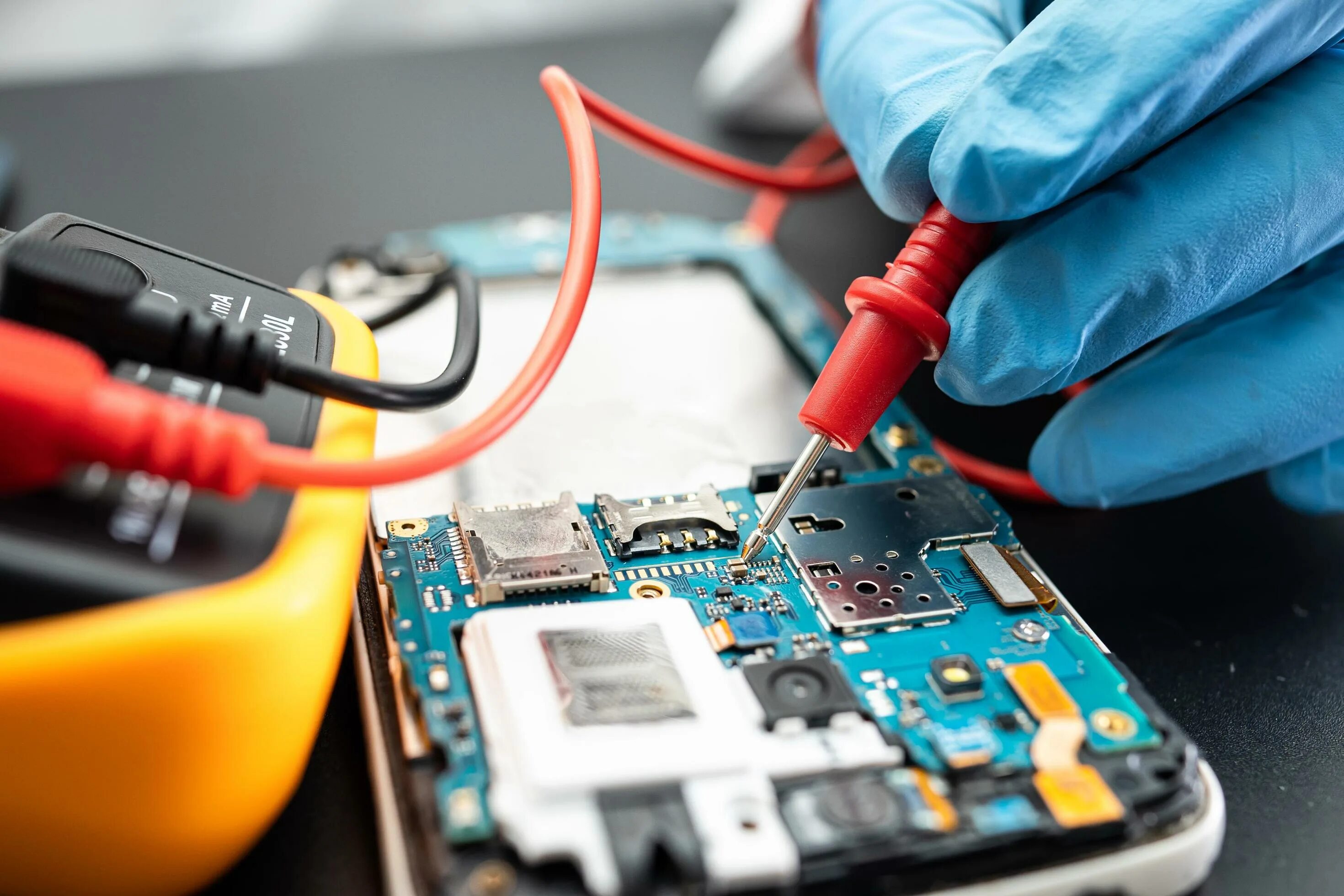
- Diagnose complex faults without POST cards, an oscilloscope, and testers: this can waste time and make the fault worse.
Summary table: symptom, cause, and fix
| Symptom | Likely cause | What to do |
|---|---|---|
| Shuts down under load | CPU thermal throttling, VRM overheating, PSU voltage sag | Check temperatures in AIDA64, clean heatsinks, replace PSU |
| BSODs with different codes | RAM addressing errors, driver conflict | Run MemTest86 and update drivers |
| Freezes or boots slowly | HDD bad blocks, SSD cell degradation | Check S.M.A.R.T. in Victoria, back up, replace drive |
| Screen artifacts | GPU chip failure, GDDR memory defect | Remove GPU and test integrated graphics |
| Does not power on, fans stopped | Standby PSU failure, short on motherboard | Check power cable, test with known-good PSU |
| Clicking or grinding sounds | Mechanical HDD damage | Shut down PC, remove drive, send it for service cloning |
When to go to a service center urgently
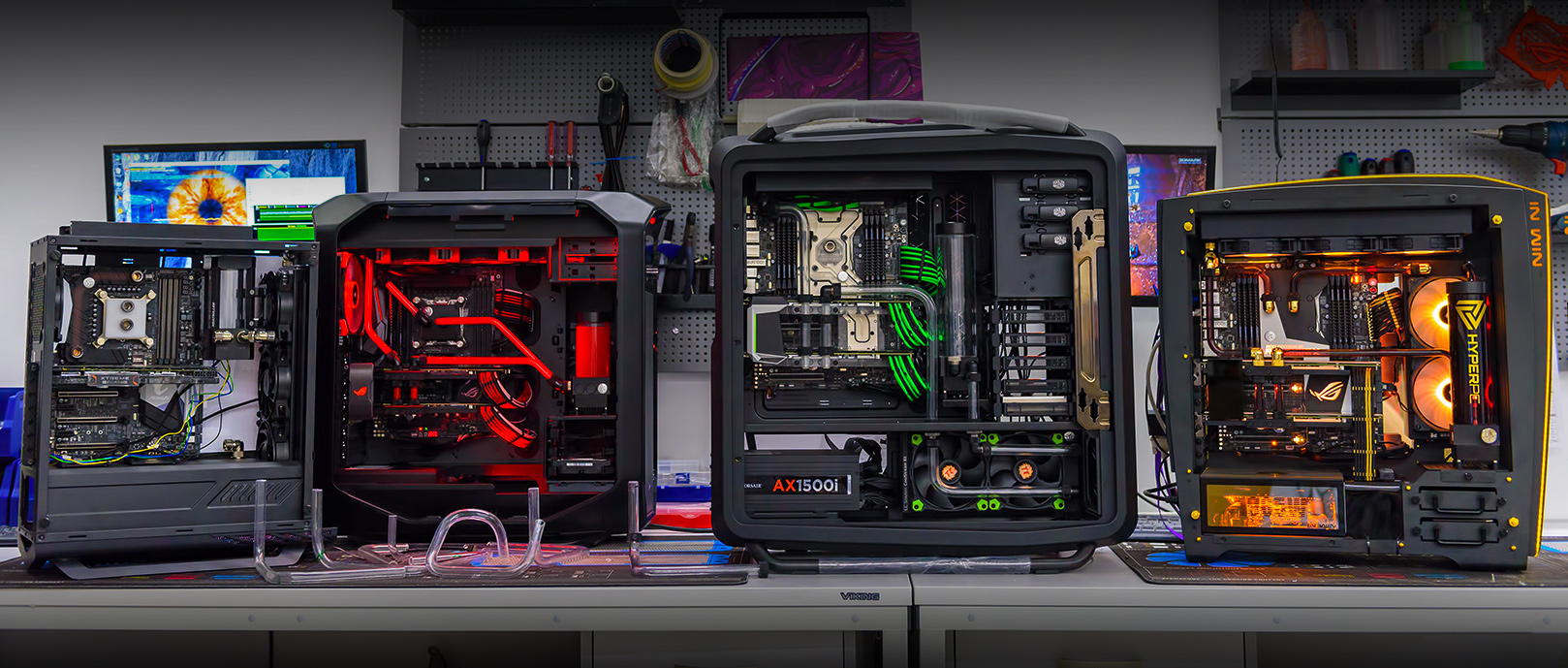
Some situations make continued use dangerous. In these cases, do not postpone service diagnostics.
- Burning smell or melted plastic. Unplug the PC immediately: another start can break through the VRM and damage the processor.
- Power protection trips. If a breaker or RCD trips when the PC turns on, the PSU primary circuit may be shorted.
- Critical BSOD 0x7B. INACCESSIBLE_BOOT_DEVICE often appears after moving a drive to another board with different AHCI/RAID/VMD settings.
- Data loss. If an important drive disappears or asks for formatting, self-repair attempts can overwrite partition tables permanently.
How professional PC repair works
A certified service center follows a standardized and transparent process.
- Audit and diagnostics. Memory is tested with MemTest86, drives with Victoria, GPUs with FurMark, and overall stability with AIDA64 Extreme.
- Fault isolation. An engineer identifies the faulty node and separates software symptoms from physical defects.
- Approval. The customer receives the list of required work, replacement parts, and a fixed service cost.
- Repair and maintenance. The fault is fixed, the case is deep-cleaned, thermal interfaces are replaced, and custom liquid cooling loops are serviced.
- Stress testing. The repaired PC runs load tests for 4–12 hours. Installed components are covered for up to 1 year, and repair work for up to 3 months.
How to avoid common failures
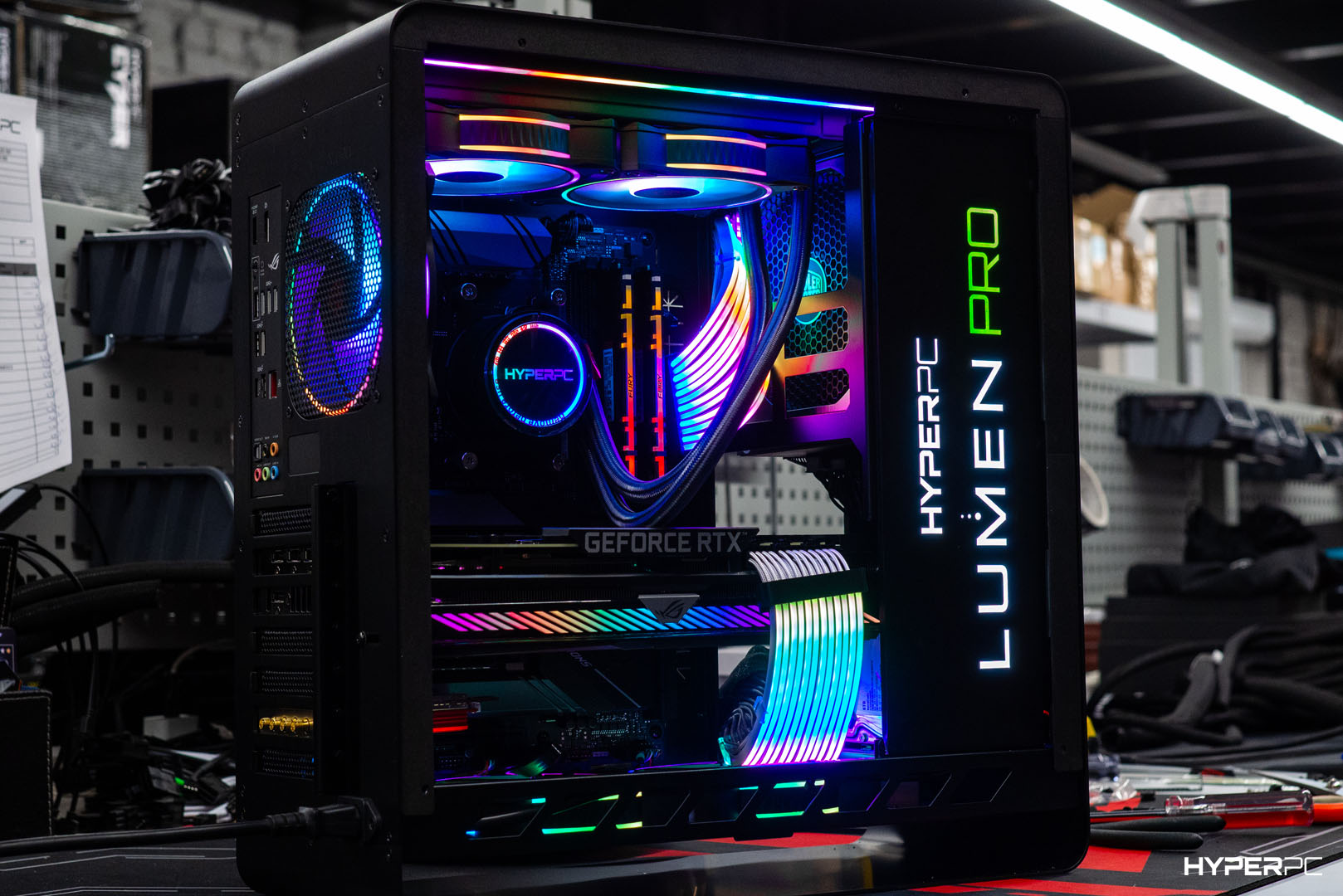
The best way to avoid expensive repair is regular maintenance. Clean a desktop PC from dust every six months and a laptop once a year. Replace thermal paste on time, usually every 2–3 years, and monitor component temperatures in HWMonitor.
Do not save on the power supply: a quality PSU with surge protections helps protect the whole system. Use a good surge protector or UPS, back up data regularly, and download software only from trusted sources.
Conclusion
PC repair can become expensive if warning signs are ignored. Most problems come not from natural silicon aging, but from neglected maintenance: dust, dried thermal paste, and unstable power are easy to fix early.
The key signs not to ignore are burning smell, protection trips, blue screens, artifacts, and failure to start. If you face them, do not repair the PC yourself without precise diagnostics.
If your computer shows warning signs or you want preventive maintenance, contact the HYPERPC service center. Specialists will run professional diagnostics and identify faults. If the current PC is outdated and repair is not practical, HYPERPC offers ready-made systems for different tasks, including the LUMEN line.

 Arabic
  English