How to Stream Properly: Hardware for Lag-Free Streaming
How to Start Streaming on YouTube and Twitch
Streaming, or conducting live broadcasts in real time, has become a powerful tool for communication, entertainment, and even career building. The popularity of this format is growing every day, covering a wide variety of areas—from video games and musical performances to educational lectures and audience interaction. If you want to share your experience, creativity, or gameplay with the world, it's time to figure out how to properly organize your first stream.
What is Streaming and Its Popularity
Streaming is based on the technology of streaming video and audio data over the internet. Unlike pre-recorded videos, everything happens "here and now," creating a unique sense of involvement and live communication between the streamer and viewers. It is this interactivity, the ability to instantly receive feedback through chat and engage the audience in the process, that has made the format so in demand. Today, millions of people worldwide launch broadcasts daily, and the audience numbers in billions of viewing hours.
What You Need for Streaming
A successful stream is not just pressing the "Start Broadcast" button. It is the result of preparation that includes two key components: proper equipment and specialized software.
Equipment
The heart of any streaming setup is a computer. A powerful PC for streaming is the key to stability and high picture quality. Key components to pay attention to:
- Processor (CPU): Performs many tasks, especially if you use software encoder (x264). For comfortable streaming without lags, a modern multi-core processor is recommended.
- Graphics Card (GPU): Critically important for gamers. Modern NVIDIA and AMD graphics cards have hardware encoders (NVENC, VCE) that take on the video encoding load, significantly offloading the central processor and preventing FPS drops in games.
- RAM: 16 GB is the modern standard for simultaneous operation of games, OBS, and other background applications. Insufficient memory can lead to stuttering and crashes.
- Storage: Installing games and recording streams on a fast SSD or NVMe drive will speed up loading and prevent stuttering due to slow data reading.
In addition to hardware, take care of a good internet connection. For streaming at 1080p and 60 FPS, a stable upload speed of at least 6-8 Mbps is recommended. You will also need a quality microphone for clean sound and a webcam (preferably with HD support) so viewers can see you.
Software
Special software is used to capture screen images, mix audio, and send the stream to the platform. The undisputed leader in this area is OBS Studio—a powerful, flexible, and completely free open-source program. It supports Windows, macOS, and Linux, allows managing multiple video sources (game, camera, browser), creating scenes, and applying filters. For beginners, it may seem complex, but its capabilities are virtually limitless. Alternatives may include Streamlabs Desktop (a more user-friendly interface based on OBS), XSplit, or built-in tools such as Nvidia ShadowPlay for GeForce graphics card owners.
Platform Selection for Streaming
The choice of platform for broadcasting largely depends on your content and target audience. The two largest players in the market are YouTube and Twitch.
YouTube
YouTube is a giant with an audience of billions of users. Its main advantages:
- Huge reach: Your broadcast can be found through YouTube or Google search.
- Content flexibility: The platform is excellent not only for games but also for vlogs, reviews, master classes, and any other live content.
- Powerful monetization: Revenue is generated through advertising, sponsorships, paid subscriptions (YouTube Channel Memberships), and super chats.
Twitch
Twitch is initially focused on gaming and community building. Its strengths:
- Strong community: The platform encourages direct, live interaction between streamer and viewers through chat. It's easier to create a loyal, "homey" community here.
- Direct support paths: Monetization is built around channel subscriptions (with monthly subscription fees) and direct donations (Bits), which often creates a closer connection between the author and audience.
- Gaming culture: It's easier to find an audience interested specifically in gaming broadcasts here.
Other Platforms
Don't discount other platforms such as VK Live, Trovo, or social networks (Facebook, Instagram). They can be an excellent addition or starting point, especially if your audience is already concentrated there.
How to Stream from PC
After preparing equipment and choosing a platform, the key stage comes—configuring software for broadcasting.
OBS Studio Setup
OBS is the most popular choice among streamers. Here are the basic steps to get started:
- Sources: Add necessary sources to the scene—"Game Capture" or "Display Capture" to demonstrate gameplay, "Video Capture Device" for webcam, "Audio Output" for system sound, and "Audio Input" for microphone.
- Platform connection: Go to "Settings" → "Stream". Select the service (for example, Twitch or YouTube). For authorization, you can use the built-in system or manually enter the "Stream Key" found in your channel settings on the selected platform.
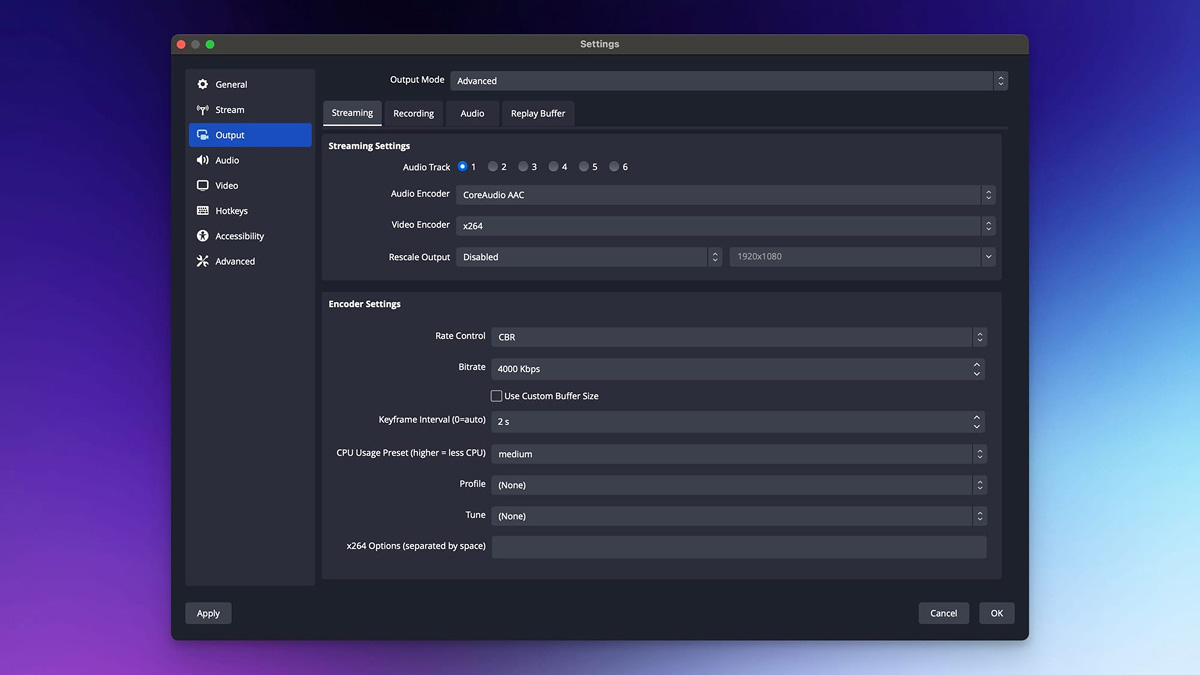
- Key parameters: In the "Output" section, set critically important parameters:
- Bitrate: Determines video quality and smoothness. For streaming at 1080p and 60 FPS, a bitrate of 6000 Kbps is recommended.
- Encoder: If you have an NVIDIA graphics card, choose NVENC. This will ensure high quality with low CPU load. For AMD cards, choose the similar hardware encoder.
- Frame rate (FPS): Set 60 for dynamic games or 30 for more static content.
- Audio setup: In the audio mixer, adjust microphone volume so your voice is clear. Add filters to the microphone: "Noise Suppression" and "Compressor" for professional sound.
Setting Up Other Programs
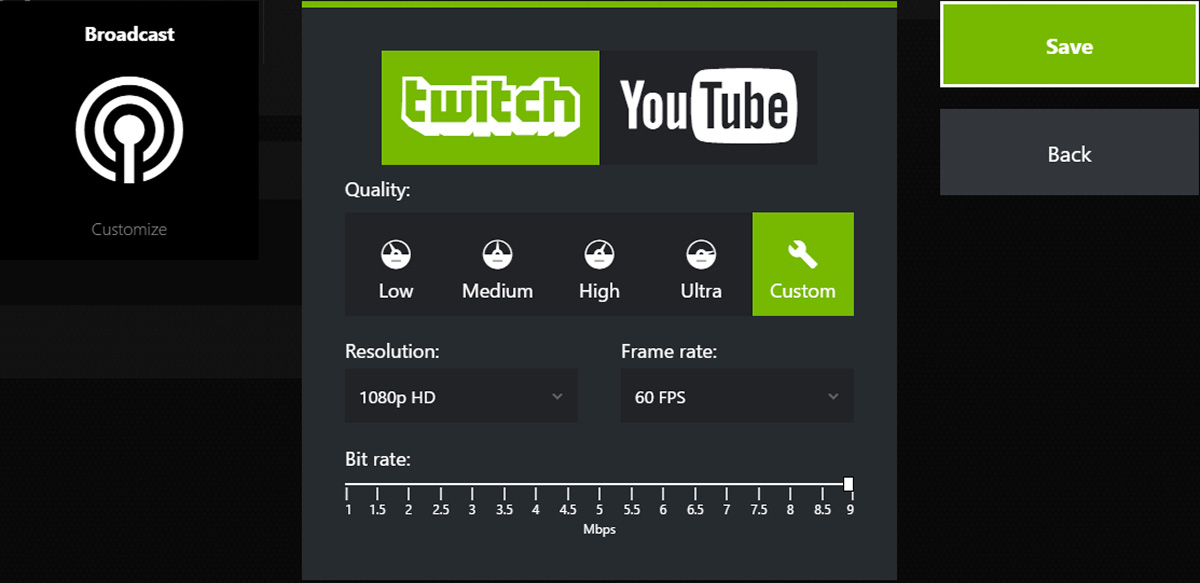
If OBS seems complex, you can start with simpler solutions. Twitch Studio offers step-by-step setup tailored specifically for this platform. Nvidia ShadowPlay (included in GeForce Experience) is ideal for quick start of gaming streams with minimal settings but has modest functionality.
How to Stream from Phone
Mobile streaming is an excellent alternative if you don't have a powerful computer or want to conduct broadcasts "on the go." For this, a smartphone with a good camera and stable internet (preferably Wi-Fi) is sufficient. You can launch a stream directly from official Twitch or YouTube apps using your phone's camera. For more flexibility, third-party apps (for example, Larix Broadcaster) exist that allow transmitting the stream to OBS on a computer or streaming directly, configuring quality and bitrate.
Stream Quality Settings
The balance between clear picture and broadcast stability is the foundation of a good stream.
Resolution and FPS
- Resolution: 720p (1280x720) is an excellent choice for starting, it's less demanding on internet and hardware. 1080p (1920x1080) is the standard for spectacular content but requires a more powerful PC and connection.
- Frame rate (FPS): 60 FPS makes fast gameplay (shooters, racing) smooth. 30 FPS is sufficient for strategies, card games, or conversational formats.
Bitrate and HDR
- Bitrate: This is the amount of data transmitted per second. Too low bitrate will cause "soapy" picture and artifacts, too high may lead to lags with unstable internet. For 1080p/60FPS, stick to values of 4500-6000 Kbps.
- Codec and hardware acceleration: Always prefer hardware codecs (NVENC from NVIDIA, Quick Sync from Intel, AMF from AMD)—they provide better quality with lower system load.
Fighting Lags on Stream
FPS drops, stuttering in games, or picture breaking into cubes for viewers—these are the main enemies of a streamer. Here's how to fight them.
What to Check to Improve Quality
- Component load: Open Task Manager during gameplay and streaming. If CPU or GPU load is constantly close to 100%, this is the cause of lags. Solution: reduce graphics settings in the game or stream resolution.
- Encoding parameters: Make sure OBS uses hardware encoder (NVENC, Quick Sync). This radically reduces load.
- Internet stability: Check upload speed using speedtest.net. For reliability, use wired Ethernet connection instead of Wi-Fi.
- Temperature and background processes: Monitor component overheating. Close unnecessary programs, especially browser with many tabs.
Audience Interaction
The power of live broadcast is in interactivity. Don't ignore chat, greet new viewers, answer questions, conduct polls, or simply comment on what's happening. This turns passive viewers into an active community.
Monetization and Channel Promotion
When you have a regular audience, you can think about monetization.
Connecting Donations and Subscriptions
On Twitch, this is done through partner or affiliate program settings (subscriptions, Bits). For direct donations, services like DonationAlerts or Streamlabs are popular. On YouTube, you can connect Channel Memberships (paid subscriptions) and Super Chats/Super Stickers. To accept donations on both platforms, add a "Browser" source in OBS with a link to the service widget.
Promotion Through Social Networks
Announce your streams on Telegram, Discord, Twitter, VK. Create short, bright teasers from the best moments of past broadcasts (clips) and post them on platforms. Regularity and recognizable style are the keys to growth.
Frequently Asked Questions
Can I stream to YouTube and Twitch simultaneously?
Yes, this is called multistreaming. For this, you need software that supports this function (for example, OBS Studio with certain settings or special services), which allows increasing audience reach.
What to do if the stream lags but the internet is fast?
Most likely, the problem is CPU or graphics card load. Switch to hardware encoder (NVENC/AMF) and reduce graphics settings in the game.
Is 8 GB of RAM enough for streaming?
For modern games combined with OBS, this may be insufficient, leading to stuttering. 16 GB RAM is recommended.
Do I need a very expensive camera and microphone to start?
No. Start with what you have. Sound quality is more important than image quality. Even an inexpensive lapel microphone will give much better results than built-in headphones or webcam microphones.
Summary and Recommendations
Anyone can start streaming. The key to success is not in the most expensive hardware, but in understanding the basics: proper OBS setup, choosing adequate parameters (bitrate, codec) for your PC and internet, and willingness to communicate with the audience. Start simple: set up a basic scene, conduct your first test broadcast for friends, analyze the result. Gradually improve picture and sound quality, add graphics, experiment with formats. Most importantly—enjoy the process, and your enthusiasm will definitely find a response from viewers.

 Arabic
  English