We are ready to help
DDU: A Clean Graphics Driver Reinstall
DDU (Display Driver Uninstaller) is a Wagnardsoft utility that thoroughly removes NVIDIA, AMD, and Intel graphics drivers, including files, services, and registry entries that a standard uninstall may leave behind. These remnants can sometimes conflict with a new driver. DDU is useful when troubleshooting visual artifacts, crashes, or performance drops after a driver update, as well as when switching to a GPU from another manufacturer. Below, we explain when to use DDU, how to prepare, and how to remove and reinstall a graphics driver safely.
When You Need DDU
- Artifacts, crashes, a black screen, or an FPS drop right after a driver update.
- Replacing the GPU, especially when switching between AMD, NVIDIA, and Intel, because components from the previous driver package may cause conflicts.
- A standard driver reinstall did not resolve the issue because remnants of the previous package may still be present.
If the visual corruption is caused by overheating or a hardware fault in the GPU itself, DDU will not help. In that case, the graphics card requires hardware diagnostics rather than driver cleanup.
What to Prepare Before Uninstalling
- Download the required driver in advance from the official NVIDIA, AMD, or Intel website and save the installer locally. After DDU removes the existing package, Windows will temporarily use its basic display driver until the new one is installed.
- Disconnect from the internet or prevent Windows Update from automatically installing drivers so that Windows does not install a different version immediately after the restart.
- Boot Windows into Safe Mode. The DDU developer recommends this because most graphics-driver services and processes are not running there, allowing for a more thorough removal.
- If BitLocker is enabled on the drive, keep the recovery key handy: the system may ask for it when you enter Safe Mode.
Step-by-Step Guide
- Download DDU from the official Wagnardsoft site and extract the archive to a separate folder.
- Boot Windows into Safe Mode.
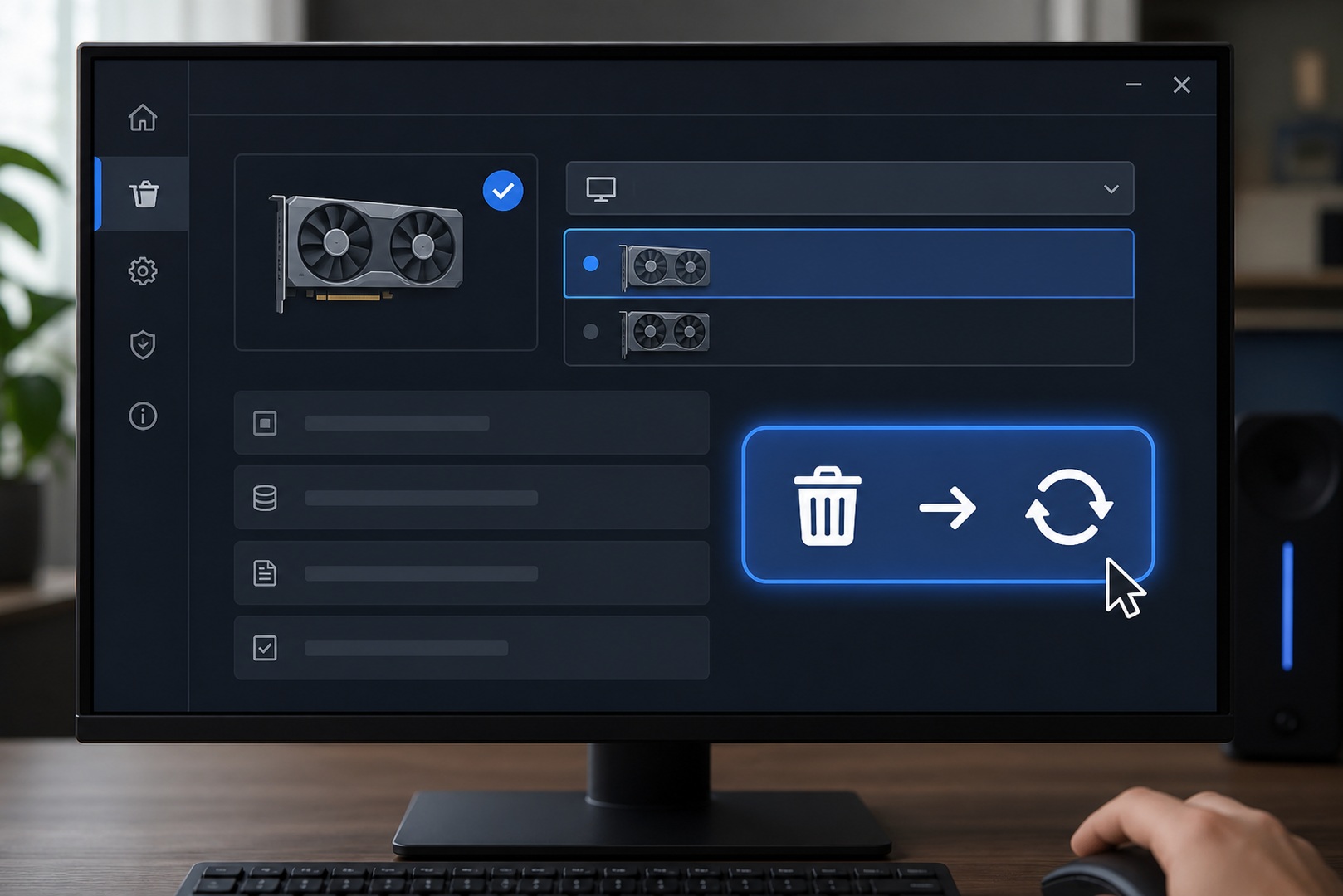
- Launch DDU, select GPU as the device type, and then choose the manufacturer of the currently installed driver: NVIDIA, AMD, or Intel.
- In DDU’s options, enable the setting that prevents Windows Update from automatically downloading graphics drivers.
- Click “Clean and restart”. DDU will remove the selected driver package and its remaining components, then restart the PC.
- After Windows restarts, run the installer you downloaded earlier. For NVIDIA, select Custom installation and, if needed, Perform a clean installation. For AMD, use the standard AMD Software: Adrenalin Edition installer. Select only the components you need.
- Restart the PC once more and test the system. Run a game or benchmark, confirm that the artifacts or crashes are gone, and check that the resolution and refresh rate are configured correctly.
| Step | Action |
|---|---|
| 1 | Download DDU from the Wagnardsoft site and extract it; separately download a fresh graphics driver |
| 2 | Disconnect the internet (unplug the cable or turn off Wi-Fi) so Windows does not install a driver on its own |
| 3 | Boot Windows into Safe Mode |
| 4 | Launch DDU, select the device type (GPU) and vendor (NVIDIA, AMD, or Intel) |
| 5 | Click “Clean and restart” |
| 6 | After reboot, install the driver you downloaded in advance |
Common Mistakes
A common mistake is remaining connected to the internet: Windows Update may install a driver before you can install the intended version, potentially reintroducing the problem. Keep the PC offline until the manual installation is complete. Another mistake is running DDU in normal mode when Safe Mode is available; active driver processes can prevent some components from being removed.
If artifacts or crashes persist after a clean installation of the latest suitable driver, the problem may be hardware-related. Check the GPU temperature and have the card diagnosed if necessary.
Vendor Specifics
The installation process differs slightly by manufacturer. With NVIDIA, select Custom installation and use Perform a clean installation if you also want to reset NVIDIA driver profiles and settings. AMD Software: Adrenalin Edition may offer a Factory Reset option, depending on the installer version. DDU also supports Intel graphics drivers, including Intel Arc. However, DDU is not necessary for every routine update: the manufacturer’s standard installer is usually sufficient unless you are troubleshooting a problem or changing graphics cards.
Frequently Asked Questions We prepared the answers.
-
When should you use DDU?
Use DDU when artifacts, crashes, or performance problems appear after a driver update, or when changing GPUs—especially when switching manufacturers. For a routine update on a stable system, the manufacturer’s standard installer is usually sufficient.
-
Does DDU have to be run in Safe Mode?
Safe Mode is not strictly required, but the developer strongly recommends it. In normal mode, graphics-driver processes and services may remain active and prevent DDU from removing some components.
-
Does DDU help with artifacts?
It can help if the artifacts are caused by a driver conflict or remnants of a previous version. If they are caused by overheating, unstable hardware, or a failing GPU, DDU will not resolve them and the graphics card will require diagnostics.
Conclusion
DDU thoroughly removes graphics-driver packages and their remaining components, which can resolve software conflicts after an update or GPU replacement. Prepare before starting: download the correct driver, disconnect from the internet, and use Safe Mode where possible. If visual problems remain after a clean driver installation, the GPU itself may require diagnostics. If replacement is necessary, you can choose a suitable system from the HYPERPC catalog.
Choose your system: HYPERPC gaming PCs · PC configurator.

 Arabic
  English