We are ready to help
AMD FreeSync: Smooth Gameplay Without Screen Tearing
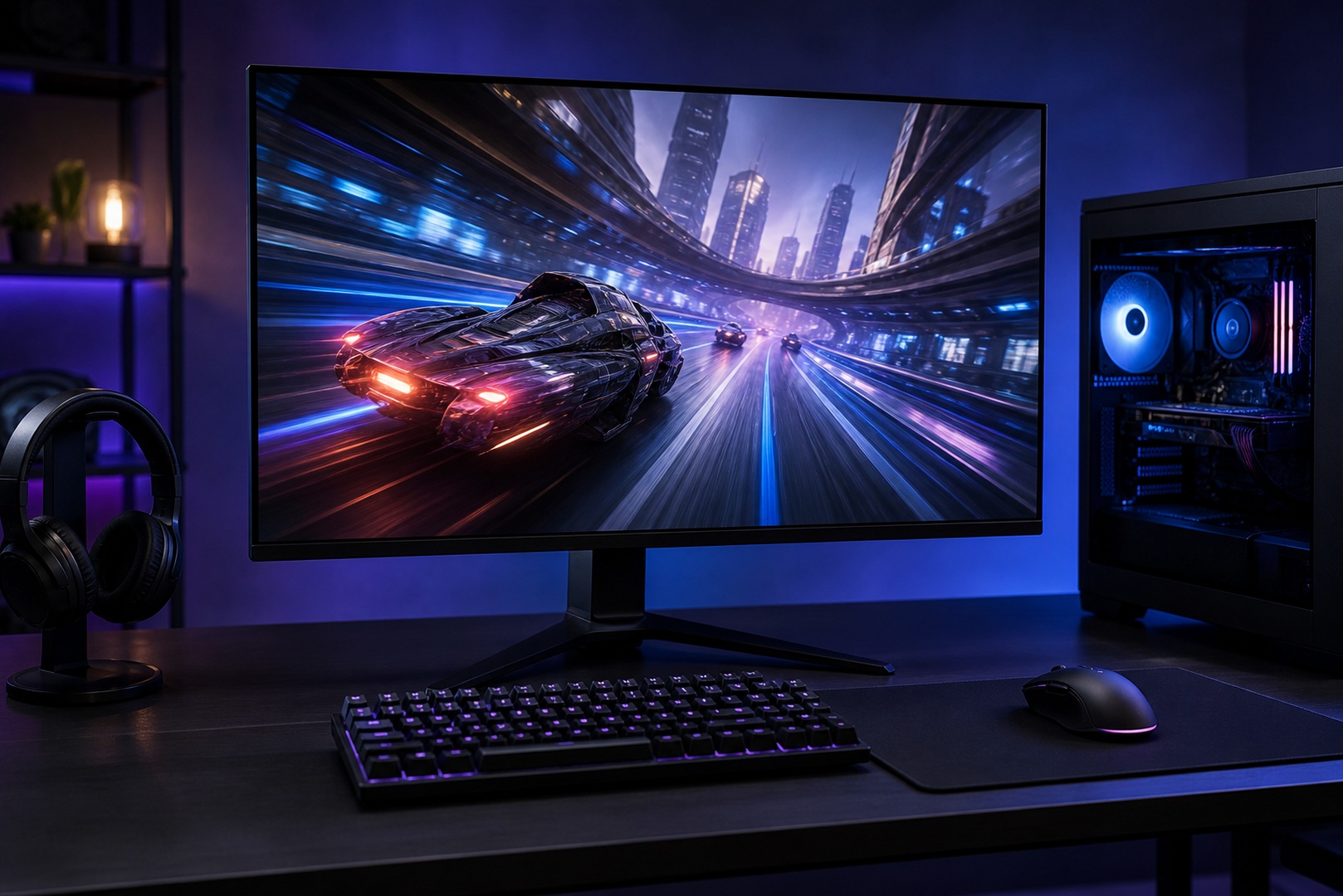
FreeSync is AMD’s adaptive-sync technology, which matches the monitor’s refresh rate to the GPU’s frame rate. This eliminates screen tearing and keeps motion smooth without introducing the input lag associated with traditional V-Sync. Below, we explain how FreeSync differs from G-Sync, what each certification tier offers, which hardware is compatible, and how to enable it in just a few minutes.
What FreeSync Is
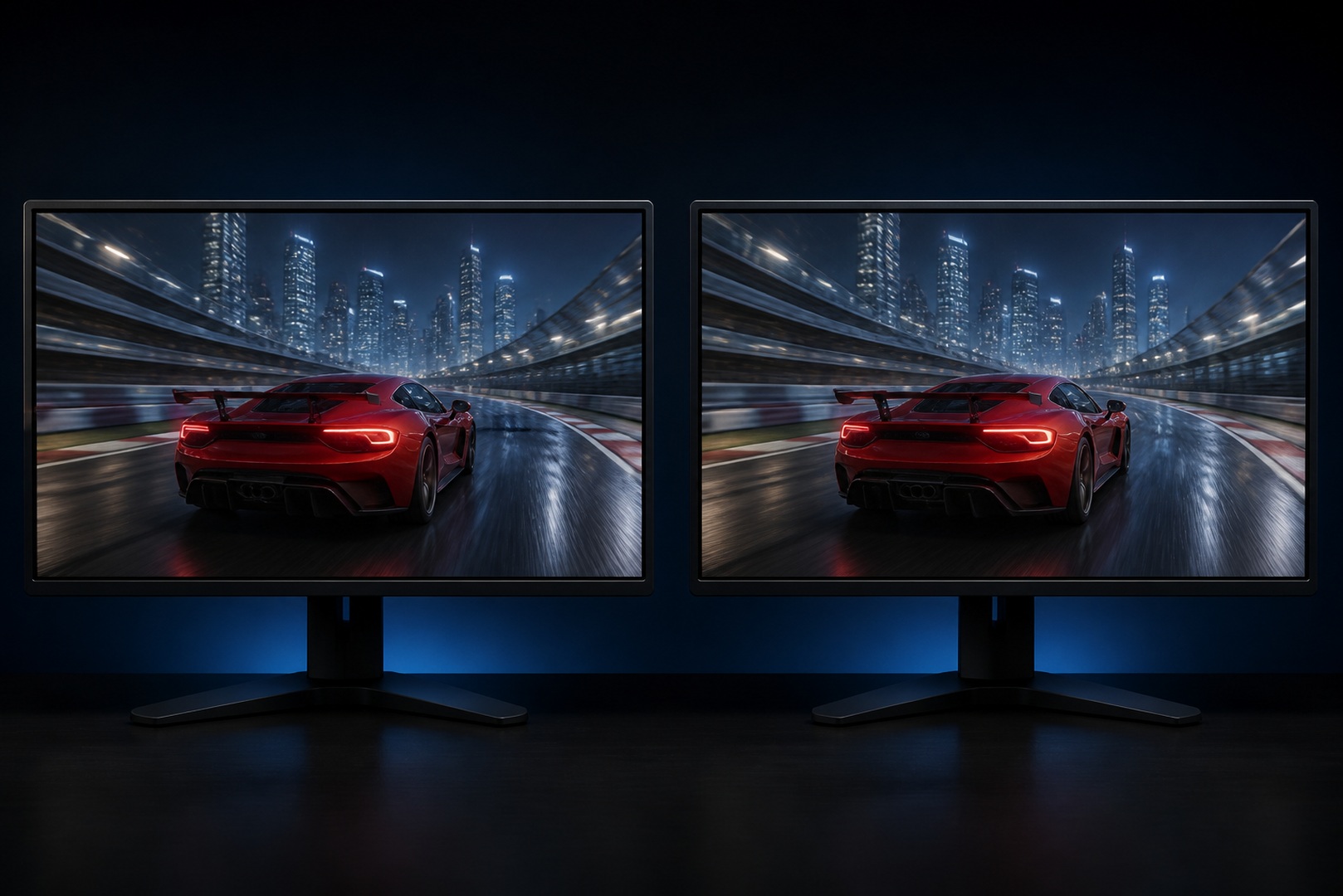
AMD Adaptive Sync
A conventional monitor refreshes the image at a fixed rate—for example, 60 or 144 times per second. A GPU, however, renders frames at a rate that varies with the workload: it may produce 90 FPS one moment and 50 FPS the next. When the frame rate and refresh rate fall out of sync, parts of two frames can appear on screen at once, causing visible tearing. FreeSync solves this by refreshing the display only when a new frame is ready. Unlike vertical sync (V-Sync), which can queue frames and increase input lag, FreeSync eliminates tearing while keeping controls responsive.
How It Differs from G-Sync
G-Sync is NVIDIA’s competing variable-refresh-rate technology. Traditional G-Sync monitors use a dedicated hardware module, which can increase their price. FreeSync is based on the open VESA Adaptive-Sync standard and requires no proprietary module, making compatible monitors generally more affordable. With a properly supported monitor, both technologies deliver a similarly smooth gaming experience.
FreeSync Tiers
AMD offers three FreeSync certification tiers. Standard FreeSync provides variable refresh rate within the range supported by the monitor. FreeSync Premium requires a refresh rate of at least 120 Hz at Full HD resolution and adds Low Framerate Compensation (LFC). FreeSync Premium Pro also certifies the display’s HDR performance and low-latency HDR gaming with variable refresh rate enabled.
The most important addition in the higher tiers is Low Framerate Compensation (LFC). If the frame rate falls below the monitor’s minimum variable-refresh-rate threshold, the display repeats frames at a multiple of the original rate to keep adaptive sync active. Without LFC, tearing or stutter may return during demanding scenes, making Premium particularly useful when frame rates fluctuate widely.
| Tier | What is required | Who it suits |
|---|---|---|
| FreeSync | Adaptive sync within the monitor’s refresh range | Tear-free gaming at supported frame rates |
| FreeSync Premium | At least 120 Hz at Full HD and Low Framerate Compensation (LFC) | Fast-paced games and high-refresh-rate displays |
| FreeSync Premium Pro | Everything in Premium plus AMD-certified HDR performance | HDR gaming with variable refresh rate |
Compatibility
FreeSync was originally developed for AMD Radeon GPUs, but many FreeSync monitors also work with NVIDIA graphics cards in G-SYNC Compatible mode. This generally requires a GeForce GTX 10-series GPU or newer and driver version 417.71 or later; DisplayPort is the standard connection for this setup. Adaptive sync operates only within the monitor’s specified variable-refresh-rate range—for example, 48–144 Hz. A wider range allows the feature to remain active across more frame rates, while LFC on Premium displays handles drops below the minimum threshold.
How to Enable
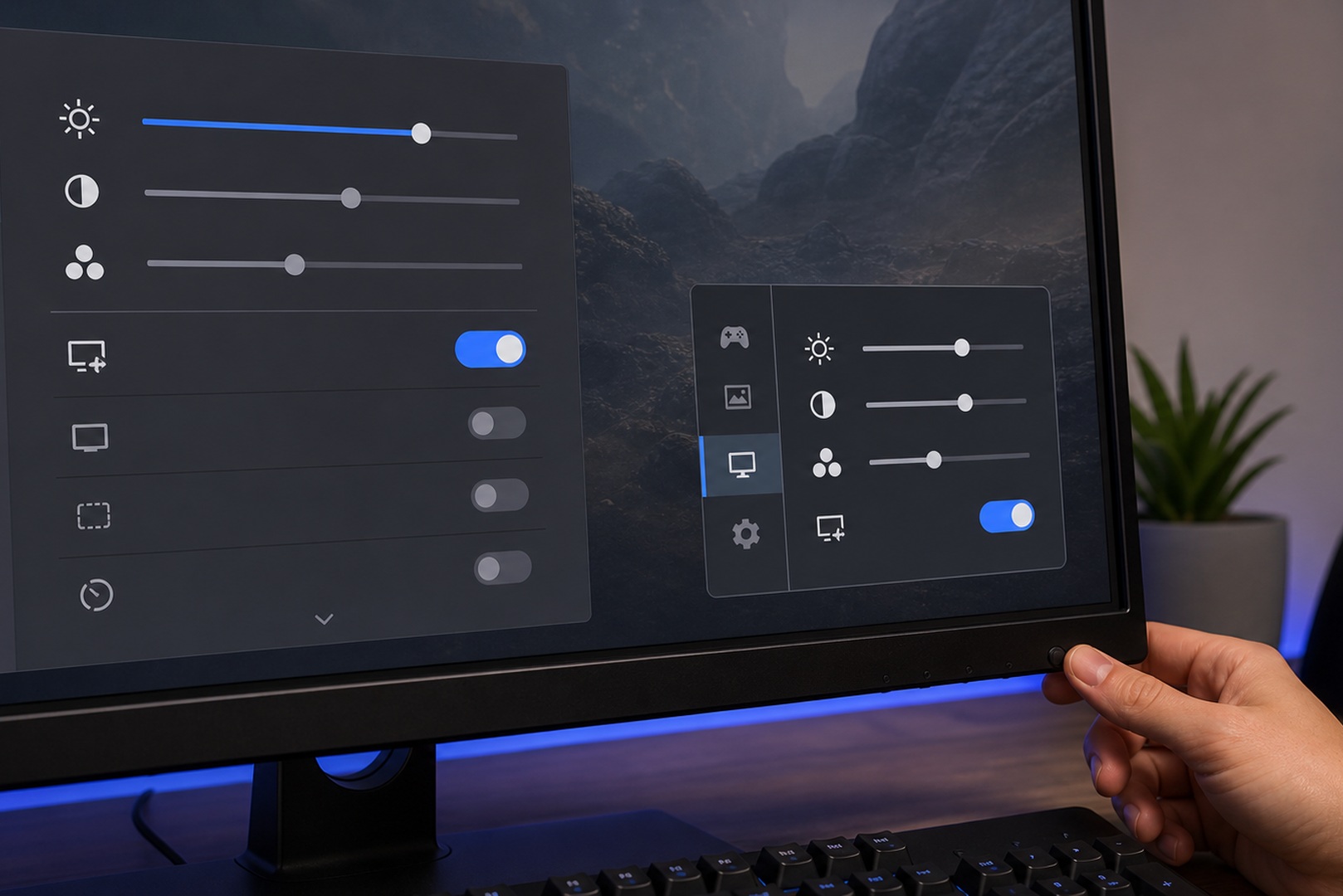
- Enable FreeSync (or Adaptive-Sync, VRR) in the monitor’s own menu (OSD), setting the option to On.
- Enable adaptive sync in the graphics driver. For AMD, open Radeon Software and select Display → AMD FreeSync. For NVIDIA, open NVIDIA Control Panel and select Set up G-SYNC.
- Connect the monitor over DisplayPort. On monitors that support VRR over HDMI, an HDMI cable also works.
- Verify that it is working using the refresh-rate counter in the monitor’s OSD. As the game’s frame rate changes, the displayed refresh rate should change with it.
If FreeSync does not appear to work, the feature may still be disabled in the monitor’s OSD, or the display may be connected through an adapter that does not support variable refresh rate. Check the OSD setting and cable connection before reinstalling the graphics driver.
Frequently Asked Questions We prepared the answers.
-
Does FreeSync work with NVIDIA GPUs?
Yes. With GeForce GTX 10-series GPUs and newer, FreeSync monitors work in G-Sync Compatible mode. Enable FreeSync in the monitor menu and allow sync in the NVIDIA control panel, connecting the monitor over DisplayPort.
-
How does FreeSync Premium differ from the base version?
FreeSync Premium requires at least 120 Hz at Full HD resolution and adds Low Framerate Compensation (LFC), which keeps adaptive sync active when the frame rate drops below the monitor’s normal VRR range. Premium Pro also includes AMD-certified HDR performance.
-
How do I enable FreeSync?
Enable FreeSync or Adaptive-Sync in the monitor menu, then turn on sync in the driver: on AMD in Radeon Software (Display section), on NVIDIA in the control panel (Set up G-SYNC). A DisplayPort connection is preferred.
Conclusion
FreeSync is an affordable way to eliminate screen tearing without the additional input lag associated with traditional V-Sync. Because it is based on an open standard, compatible monitors do not require a costly proprietary hardware module, and many models also work with NVIDIA GPUs. For consistently smooth gaming, choose a monitor with a wide variable-refresh-rate range and a GPU capable of keeping frame rates within it. You can create a suitable configuration in the HYPERPC gaming PC configurator or choose a prebuilt system from our catalog.
Choose your system: HYPERPC gaming PCs · PC configurator.

 Arabic
  English