We are ready to help
G-Sync and VRR: Smooth Gameplay Without Screen Tearing
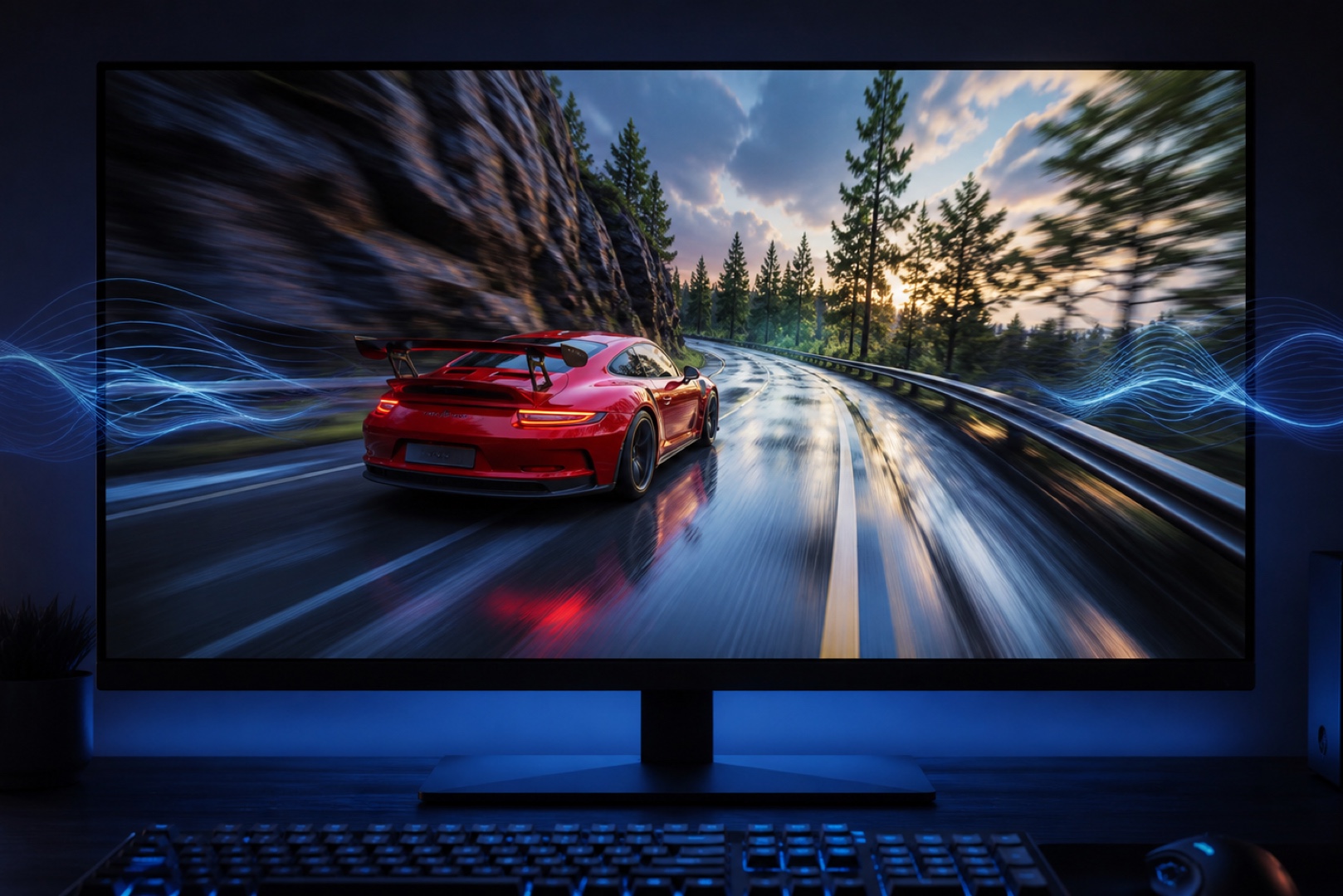
Adaptive sync, also known as Variable Refresh Rate (VRR), allows a monitor to adjust its refresh rate to match the frame rate produced by the graphics card. This eliminates screen tearing and stutter while keeping motion smooth and responsive. G-Sync and FreeSync are the two main VRR implementations from NVIDIA and AMD. Below, we explain what causes tearing, how VRR works, what hardware it requires, and how to enable it correctly.
What Causes Screen Tearing
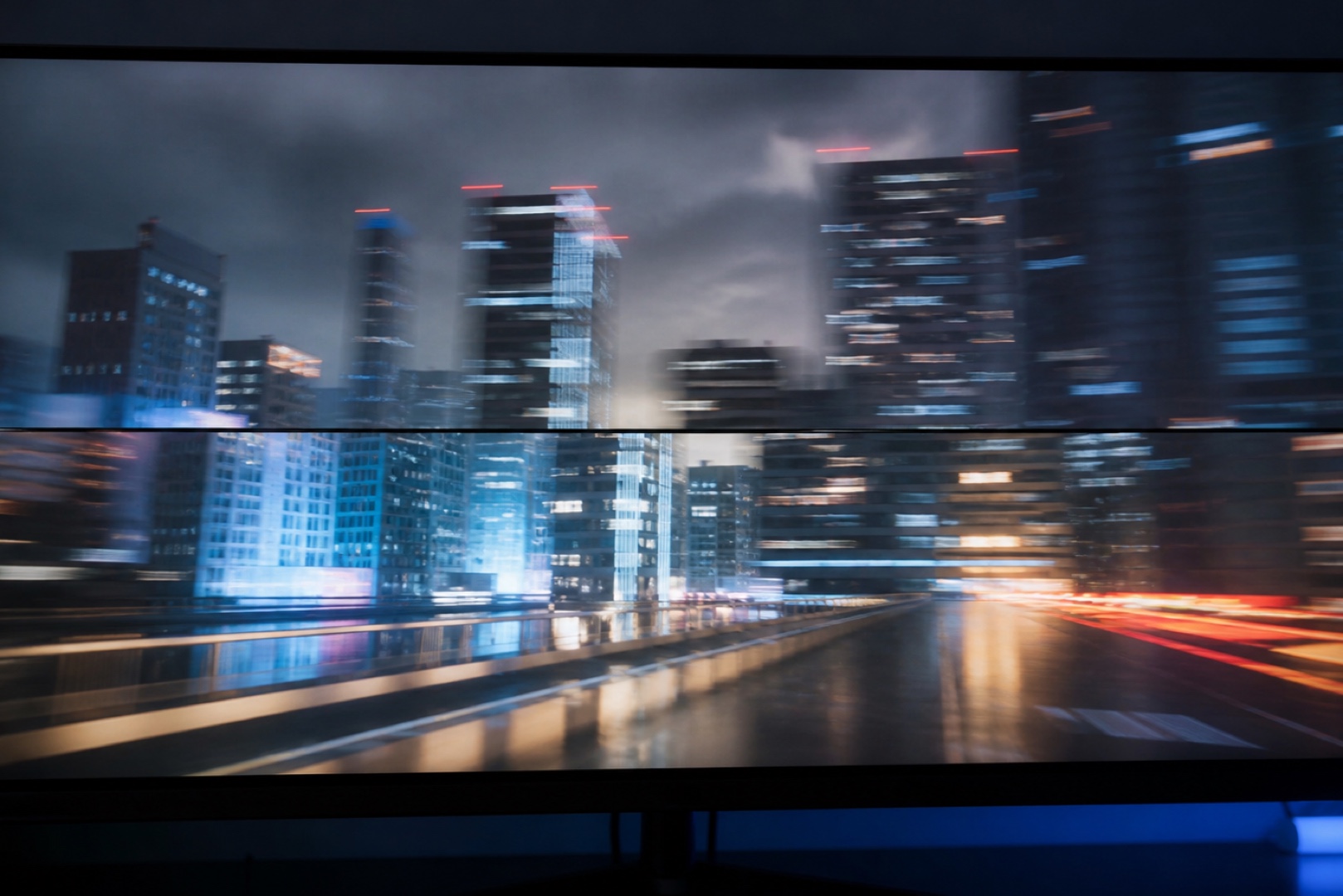
Frame Rate and Refresh Rate Mismatch
A monitor without adaptive sync refreshes the image at a fixed rate, such as 60, 144, or 240 times per second. A graphics card, however, renders frames at an uneven pace, so its frame rate constantly fluctuates. If a new frame arrives while the monitor is still drawing the previous one, a horizontal seam appears: the upper and lower parts of the image come from different frames. This is screen tearing, and it is especially noticeable during rapid camera movement.
Limitations of Conventional Synchronisation
The traditional solution is vertical synchronisation (V-Sync), which makes the graphics card wait until the monitor is ready for the next frame. Tearing disappears, but there is a trade-off: noticeable input lag, while frame rates below the monitor’s refresh rate can cause stutter. This compromise is immediately apparent in fast-paced games, which is why V-Sync alone is no longer the best option.
How VRR Works
VRR reverses the usual approach: instead of the graphics card adapting to the monitor, the monitor adapts to the graphics card. The display refreshes as soon as a new frame is ready. If a game is running at 90 FPS, the monitor operates at 90 Hz; if the frame rate drops to 55 FPS, the monitor switches to 55 Hz. Tearing disappears because every frame is displayed in full, while input latency remains low. G-Sync is NVIDIA’s implementation of VRR, while FreeSync is AMD’s. NVIDIA originally used a dedicated hardware module in the monitor, whereas AMD relied on the open VESA Adaptive-Sync standard. Today, the distinction is less rigid, and NVIDIA graphics cards can work with FreeSync monitors.
| G-Sync Tier | Hardware Module | Key Features |
|---|---|---|
| G-Sync Compatible | No | NVIDIA-validated monitor with VESA Adaptive-Sync (essentially FreeSync) |
| G-Sync | Yes | Proprietary module, variable overdrive, stable VRR range |
| G-Sync Ultimate | Yes | All G-Sync features, plus HDR and high refresh rates |
Requirements
Adaptive sync works only when both the monitor and the graphics card support it. Modern NVIDIA GeForce and AMD Radeon graphics cards are compatible with the vast majority of VRR monitors. DisplayPort is generally the preferred connection, while TVs and monitors with HDMI 2.1 can also use VRR over HDMI, which is important for large displays and game consoles. VRR operates within a defined range, such as 48–144 Hz. A wider range provides a smoother experience, and monitors with dedicated G-Sync hardware usually offer a wider, more consistent operating range.
How to Enable It
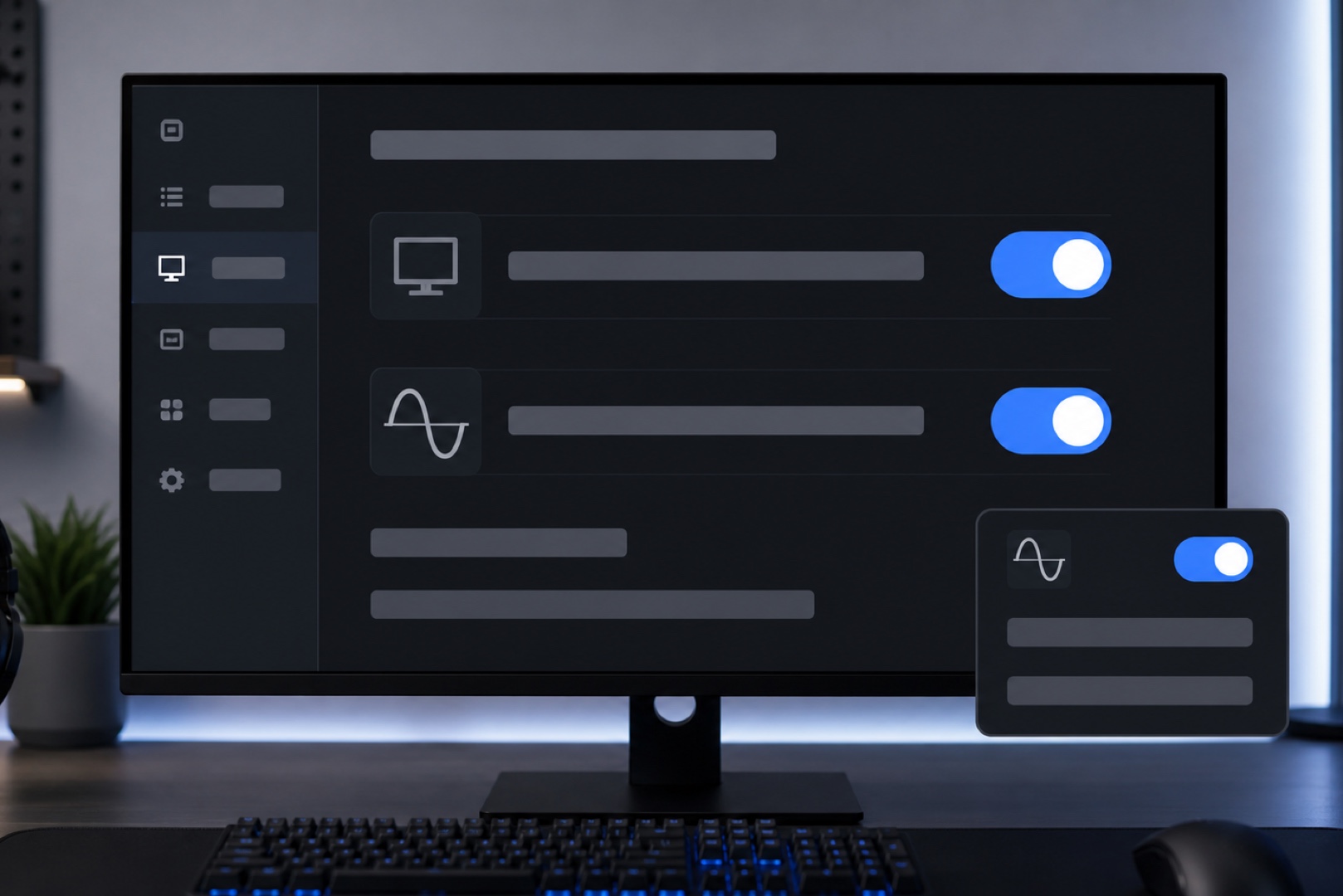
- Enable VRR in the monitor’s on-screen display (OSD) by setting G-Sync, FreeSync, Adaptive-Sync, or VRR to On.
- Enable adaptive sync in the graphics driver. For NVIDIA, open the NVIDIA Control Panel, select Set up G-SYNC, and enable it for full-screen and windowed modes. For AMD, open Radeon Software, go to Display, and enable AMD FreeSync.
- Connect the monitor via DisplayPort. HDMI is also suitable when both devices support HDMI 2.1.
- For the lowest latency, enable G-Sync and vertical sync in the NVIDIA Control Panel, then cap the frame rate about 3 FPS below the monitor’s maximum refresh rate so the graphics card does not remain at 100% load.
The easiest way to verify that adaptive sync is working is to use the refresh-rate counter in the monitor menu. As the game’s frame rate changes, the displayed refresh rate should follow it smoothly.
Frequently Asked Questions Here are the answers.
-
What Is the Difference Between G-Sync and FreeSync?
Both technologies implement VRR and solve the same problem. Historically, G-Sync required a proprietary hardware module in the monitor, which made those models more expensive, while FreeSync used an open standard without a dedicated chip. NVIDIA graphics cards now work with FreeSync monitors in G-Sync Compatible mode, so the practical difference is small for most players.
-
Is VRR Useful for Casual Gaming?
VRR is not essential for story-driven or slower-paced games, but it noticeably improves the experience by eliminating tearing and stutter. It is especially useful in fast-paced and competitive games because it preserves smooth motion without the input lag associated with conventional V-Sync.
-
Does G-Sync Increase Input Lag?
G-Sync does not add noticeable latency by itself. In fact, it feels more responsive than conventional V-Sync. For the lowest latency, use G-Sync together with vertical sync in the driver and cap the frame rate slightly below the monitor’s maximum refresh rate.
Conclusion
Adaptive sync eliminates screen tearing and makes motion smoother without sacrificing responsiveness. Both the monitor and the graphics card must support the technology, and the monitor needs a suitable VRR range. When planning a system for smooth gaming, pair a VRR gaming monitor with a graphics card that has enough performance headroom. You can build this configuration with the gaming PC configurator or choose a ready-made system from the HYPERPC catalogue.
Choose a system for your needs: HYPERPC Gaming PCs · configurator.

 Arabic
  English