We are ready to help you
PC Technical Maintenance: When, Why, and How to Do It Right
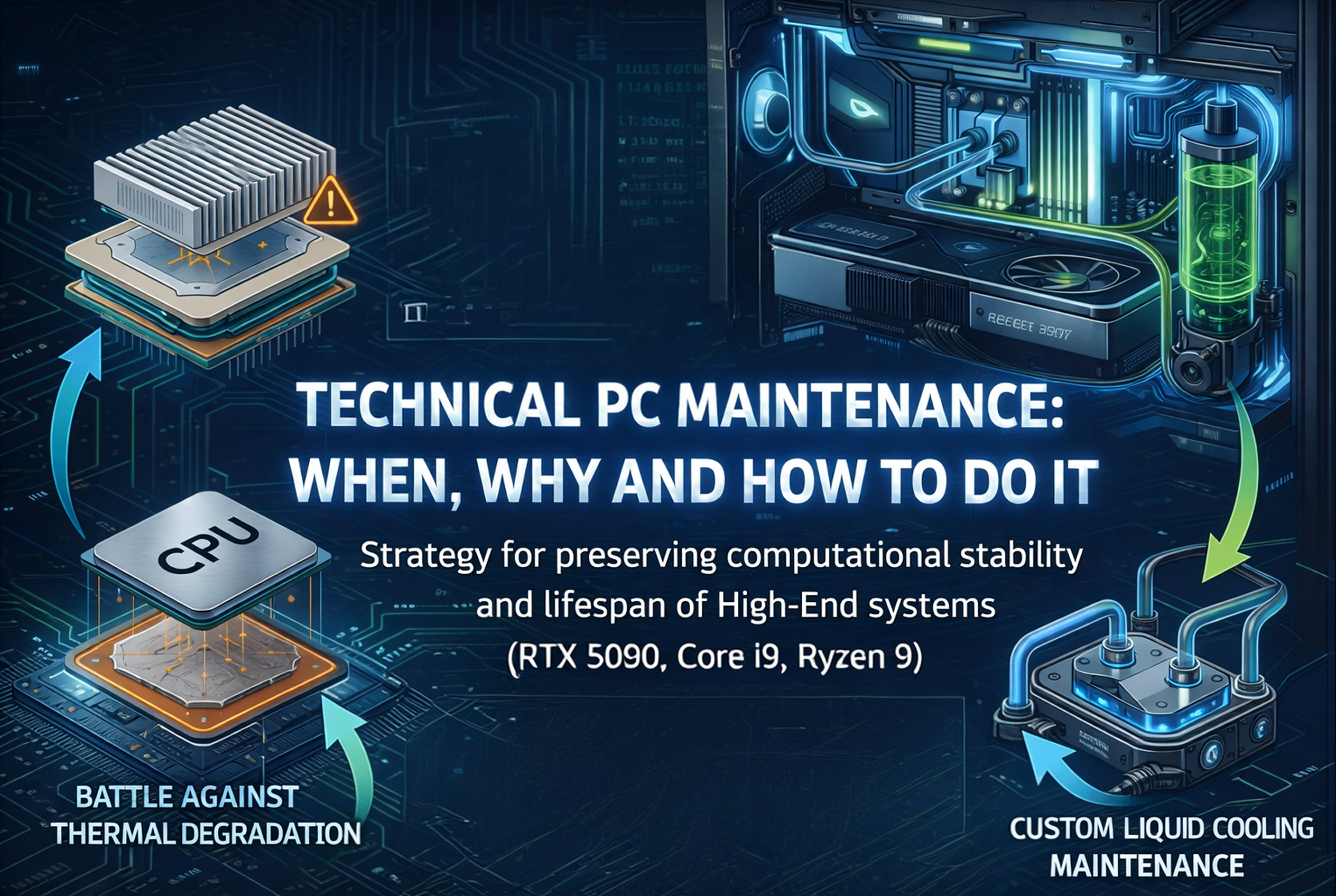
In the world of high-performance hardware, a computer is a highly complex engineering ecosystem. For systems based on flagship solutions (RTX 5090, 5080, Core i9, Ryzen 9) and custom liquid-cooling loops, technical maintenance is not just hygiene, but a strategy to preserve computational stability and the lifespan of expensive components.
Why Does a High-End System Need Regular Service?
Owners of top-tier systems often assume that component headroom makes them invulnerable. In reality, the higher the heat density, the more critical cooling system integrity becomes.
1. Fighting Thermal Degradation
Modern processors use protection mechanisms such as throttling (frequency reduction when critical temperatures are reached). However, constant operation at the limit (90-100C) accelerates diffusion in the silicon die, which over time leads to system instability even at stock frequencies. Regular replacement of thermal interface material keeps heating in a safe zone.
2. Maintenance of Custom Liquid-Cooling Systems
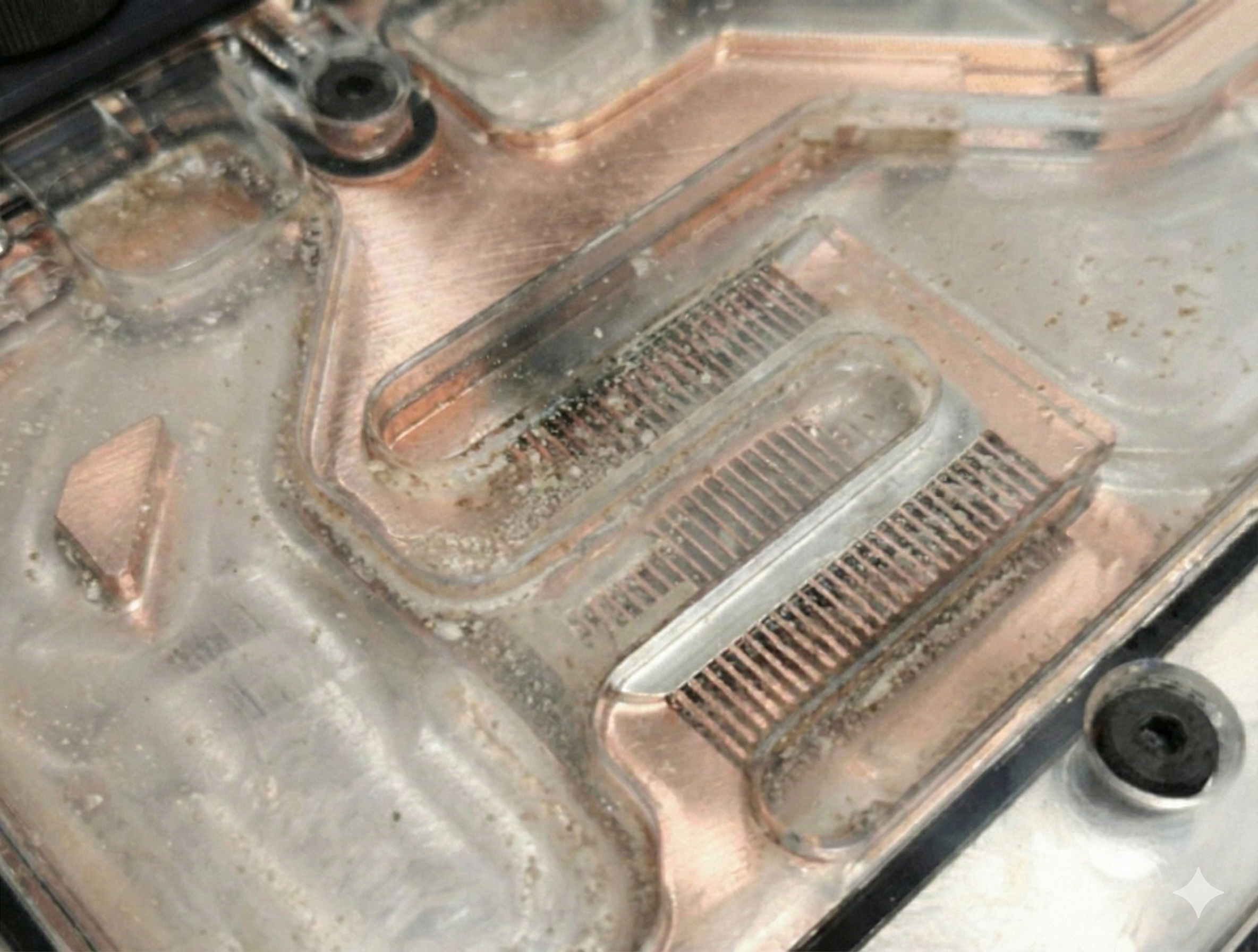
The coolant in a loop is a complex chemical blend with anti-corrosion additives and biocides. Over time, additives are depleted, causing sediment to appear in waterblock microchannels. Important: According to EKWB operating guidelines, full loop flushing and coolant replacement are recommended every 12 months to prevent corrosion.
3. VRAM Protection
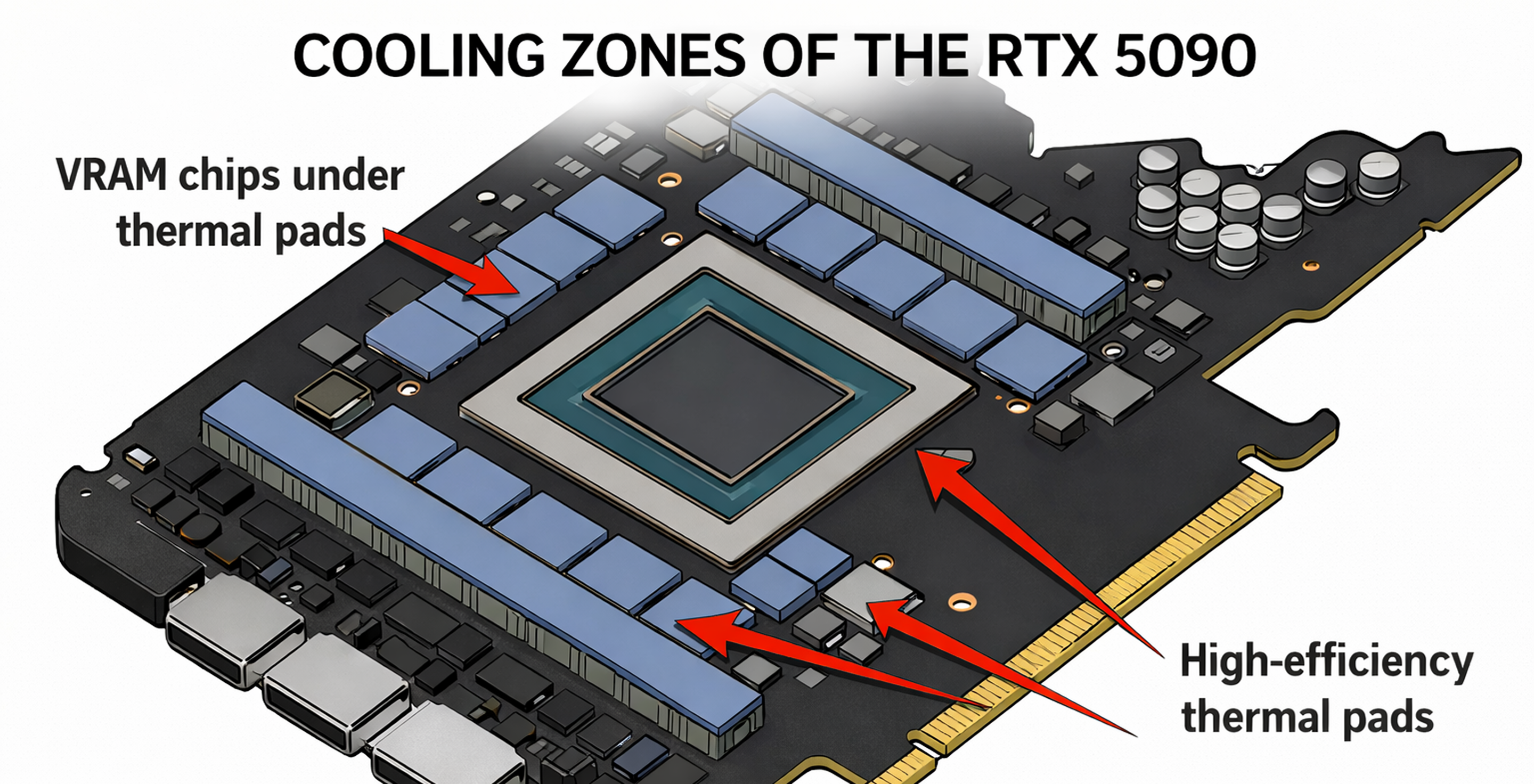
In modern graphics cards (RTX 40/50 series), memory chips often run hotter than the GPU core. Thermal pads play a key role here. Their degradation or incorrect thickness selection (with an error as small as 0.1 mm) can lead to memory overheating and chip failure.
Service Types
| Service Type | Frequency | What We Check |
|---|---|---|
| Basic | Every 6 months | Dust filter cleaning, temperature monitoring under load. |
| Full Maintenance | Every 12-18 months | Thermal paste replacement, liquid-cooling pump check, BIOS update. |
| Emergency | When symptoms appear | Sudden fan noise, FPS drops, blue screens (BSOD). |
Risks of DIY Intervention
DIY maintenance without proper preparation can cost more than a new PC.
- Static electricity: Without an anti-static wrist strap or mat, the risk of component damage remains high. Learn more in the iFixit ESD guide.
- BIOS update errors: A power interruption can brick the motherboard. Tip: choose motherboards with BIOS Flashback technology, allowing firmware recovery even without a processor.
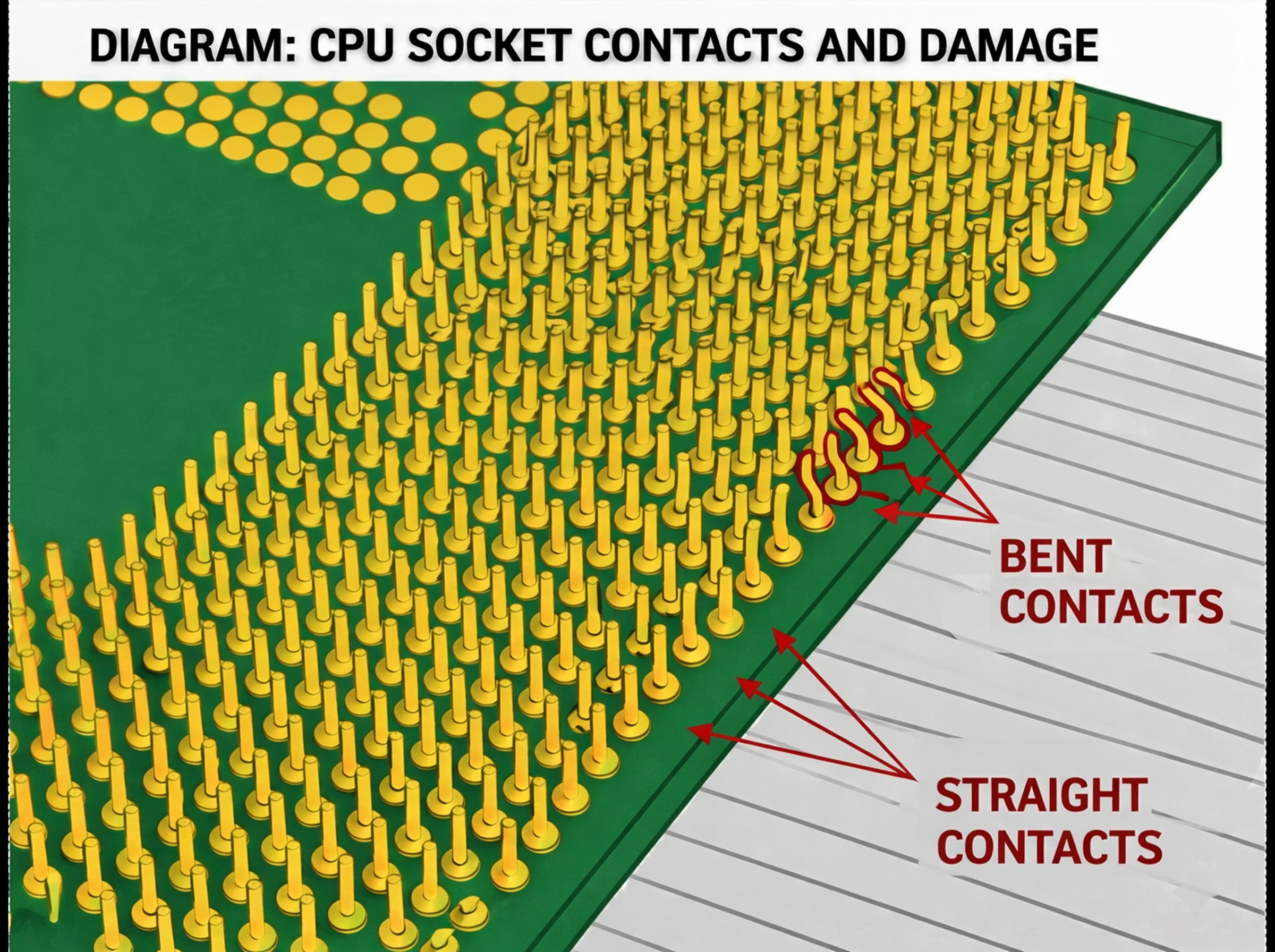
- Mechanical damage: Excessive cooler mounting pressure or incorrect CPU installation in the socket (especially LGA 1700/1851) often leads to bent contacts.
What Professional Maintenance Includes
Quality service is not just a can of compressed air. It is a set of comprehensive measures.
- Deep cleaning: Using anti-static brushes and compressors. A regular household vacuum cleaner is dangerous due to generation of strong electrostatic discharge (ESD), which can damage chips.
- Chemical cleaning: Removing old paste residue with high-purity isopropyl alcohol (99%).
- Thermal interface refresh: Applying high thermal conductivity pastes or phase-change materials.
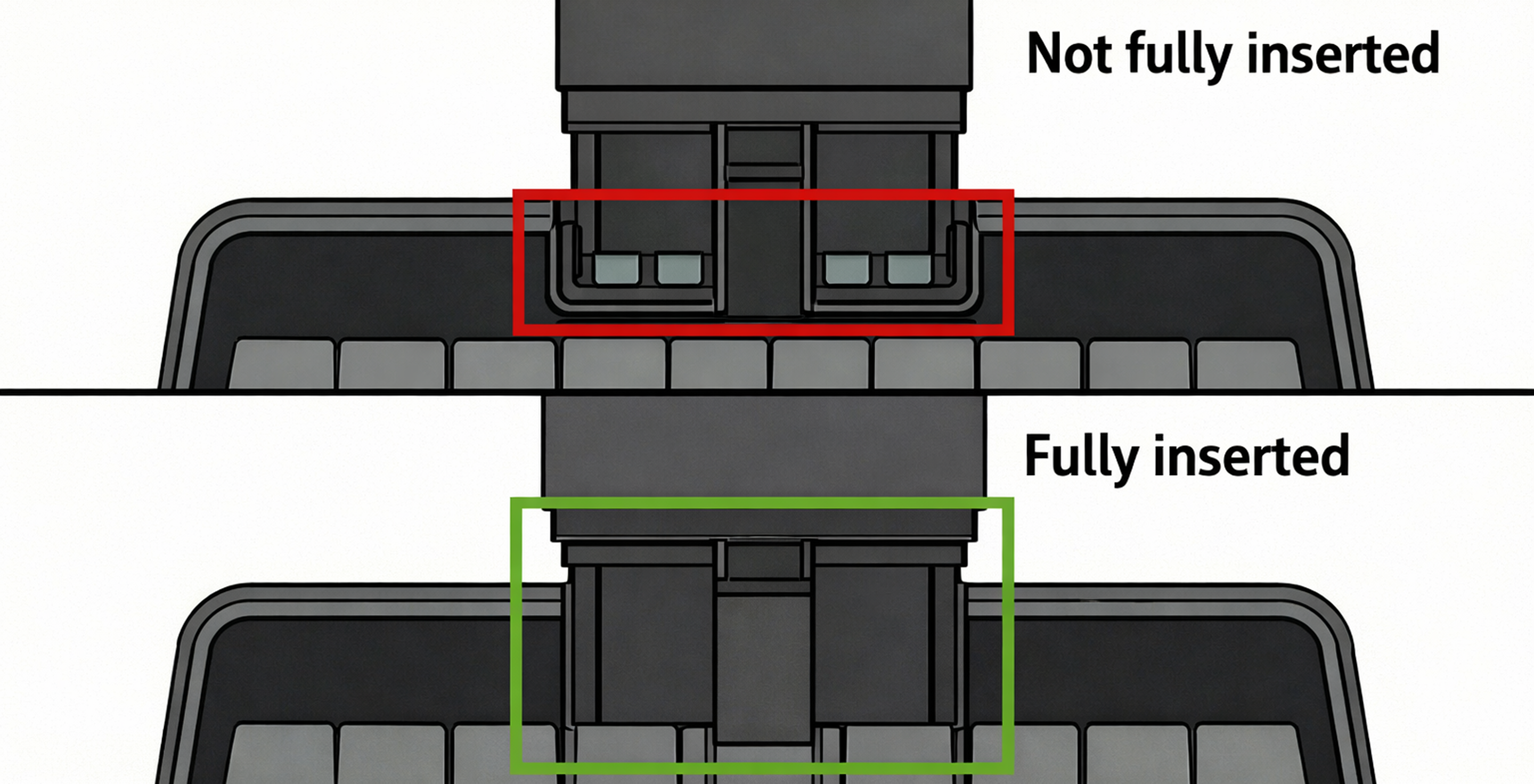
- Electrical circuit check: Verifying proper seating of 12VHPWR connectors (relevant for new NVIDIA cards) to avoid melting.
Reference CPU and GPU Temperature Ranges (2026)
Architectures covered here: Intel Nova Lake / Arrow Lake, AMD Zen 5 / Zen 6, and NVIDIA Blackwell (RTX 50-series).
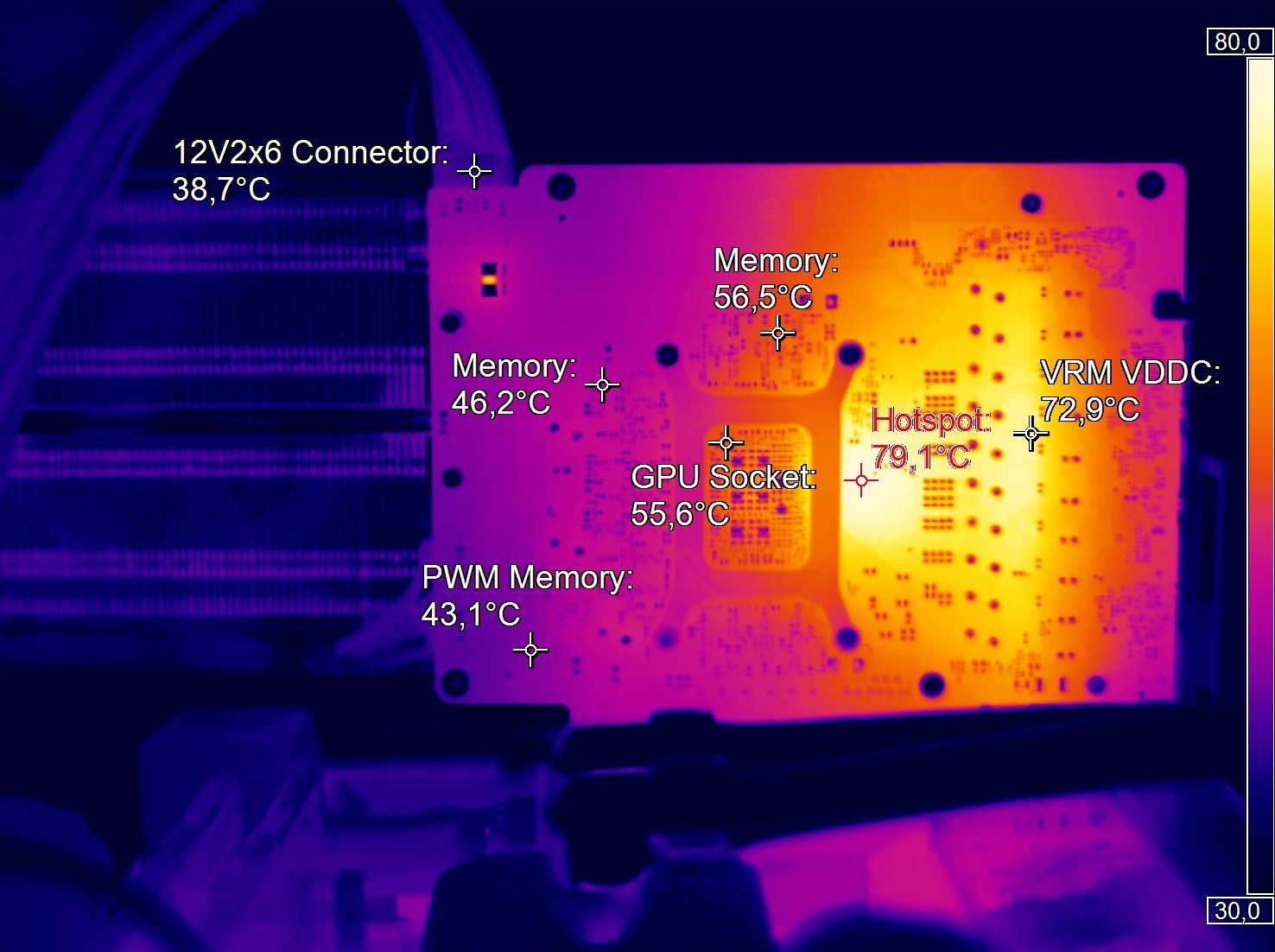
Approximate temperature ranges for idle, gaming, and stress-load modes, as well as throttling limits for current processors and graphics cards. Below the table are summarized data for CPU, GPU, and video memory.
| PROCESSORS (CPU) | ||||
|---|---|---|---|---|
| Component (2025-2026 Generations) | Idle | Gaming (High/Ultra) | Render/Stress | Limit (Throttling) |
| Intel Core Ultra 9 285K / 385K | 38°C – 48°C | 82°C – 95°C | 96°C – 102°C | 105°C |
| Intel Core Ultra 7 265K / 365K | 35°C – 45°C | 75°C – 88°C | 90°C – 95°C | 105°C |
| AMD Ryzen 9 10950X / 10900X3D | 42°C – 52°C | 78°C – 90°C | 92°C – 95°C | 95°C |
| AMD Ryzen 7 10700X / 10800X3D | 40°C – 48°C | 70°C – 82°C | 85°C – 90°C | 95°C |
| Intel Core i9-14900KS (Legacy Top) | 45°C – 55°C | 85°C – 98°C | 100°C | 100°C |
| GRAPHICS CARDS (GPU Core) | ||||
| Component (2025-2026 Generations) | Idle | Gaming (High/Ultra) | Render/Stress | Limit (Throttling) |
| NVIDIA RTX 5090 (32GB GDDR7) | 35°C – 45°C | 72°C – 82°C | 85°C – 88°C | 90°C |
| NVIDIA RTX 5080 (16GB/24GB) | 32°C – 42°C | 68°C – 78°C | 82°C – 85°C | 90°C |
| NVIDIA RTX 5070 Ti / 5070 | 30°C – 40°C | 62°C – 72°C | 75°C – 80°C | 90°C |
| AMD Radeon RX 9900 XTX | 40°C – 48°C | 75°C – 85°C | 88°C – 92°C | 95°C |
| GRAPHICS MEMORY (VRAM) | ||||
| Component (2025-2026 Generations) | Idle | Gaming (High/Ultra) | Render/Stress | Limit (Throttling) |
| GDDR7 (RTX 5090 / 5080) | 45°C – 55°C | 88°C – 98°C | 100°C – 104°C | 110°C |
| GDDR6X (RTX 4090 / 4080) | 40°C – 50°C | 82°C – 94°C | 96°C – 102°C | 110°C |
Conclusion
Regular maintenance turns a computer from a consumable into a long-term asset. A professional approach guarantees that your workstation or gaming machine delivers 100% of its declared power without sudden failures.

 Arabic
  English