We are ready to help you
Where to start upgrading a computer in 2026?
Sooner or later, every user notices that their faithful electronic assistant is no longer handling modern tasks. When a favorite game starts to stutter noticeably and work programs take a long time to open, it becomes clear that it is time for a computer upgrade. This process is a partial or full pc upgrade aimed at significantly improving system performance. Proper modernization lets you greatly boost speed without buying a new expensive machine.
Before rushing to the store for new parts, it is important to understand that upgrade is not just chaotic replacement of parts. To upgrade a device properly, you need to know exactly which hardware is pulling the system down. A clear guide and step-by-step plan will help save budget and get maximum benefit.
Your main goal is to make sure every ruble invested actually improves work comfort or frames per second. A phased approach and preliminary testing will prevent compatibility errors.
Identifying the "weak link"
The first step is deep diagnostics. To understand why the system started lagging, you need to find the so-called bottleneck. This term means a narrow point where one outdated component limits the potential of the entire build. For example, a powerful graphics card will not perform fully if held back by a weak processor. It is best to check system condition under load. Use a stress test or built-in Windows monitoring tools to see which component is at 100% while others are idle. Free utilities like MSI Afterburner or HWMonitor are perfect for this, showing real-time load of each core and graphics chip.
Processor socket
Start your review with the foundation. A socket is the connector on a motherboard where the central processing unit (cpu) is installed. It determines whether you can install a new, more powerful processor in the future. If your socket is hopelessly outdated, then the upgrade will affect the board too. In Moscow and other large cities, an old pc is often easier to replace via trade-in if the platform does not support modern cpus. Careful spec checking through CPU-Z is the key to successful modernization and avoiding a part that physically will not fit.
Motherboard chipset
Chipset defines functionality: overclocking support, number of PCIe lanes, and USB ports. Even if the socket fits, chipset must understand the microarchitecture of the new chip. If a major performance increase is planned, make sure motherboard power circuits (VRM) can handle the load. The board manual usually includes a list of compatible models (CPU Support List). Remember that a computer upgrade often depends on motherboard capabilities, so replacing it is sometimes the only correct start for those who want a modern pc.
Type of RAM
Memory type (DDR4 or DDR5) is tightly bound to the platform. You cannot upgrade by simply inserting new modules into incompatible slots. RAM is critically important for heavy applications. If the computer starts lagging when many tabs are open, it is time to check for free slots to expand capacity. Sufficient RAM is an important sign of stable operation for any modern system, especially if you use integrated graphics that takes part of memory for its needs.
Power supply wattage
The power supply is the energy heart that must provide current to all units inside the case. Before upgrading, be sure to check its rating on the sticker inside the case. A modern graphics card or top processor consumes much more power than older equivalents. If wattage is insufficient, pc may shut down under load or even burn out and damage other components. Quality power delivery is the foundation of any serious performance improvement, so always keep a 100-150 watt margin above calculated consumption.
Other factors
Do not forget the details. Storage speed directly affects how fast the system boots. A regular hard drive often causes interface lag. Also check the PCIe version for your graphics adapter. All these nuances form the overall process called upgrading. Even a small upgrade like installing an SSD can breathe life into an old pc and make it much more pleasant to use. If your budget is limited, start with replacing the system drive; this is the most visible result for minimal money.
Choosing what to upgrade
When diagnostics are complete and the narrow bottleneck is found, it is time for action. Component choice depends on your goals: gaming, video editing, or office work. Upgrade in stages, prioritizing the most problematic areas. Remember that upgrades can continue endlessly, so it is important to stop in time and assess whether investments into a specific computer are worthwhile. Sometimes the cost of all new parts exceeds the price of a ready modern entry-level system unit.
- Set a budget for new components and add 10% for unexpected expenses.
- Study the market and current prices in Moscow stores to find the best offer.
- Review tests (testing) of selected models on YouTube and compare them with your current hardware.
- Make sure of physical compatibility (whether the case has enough length for a new graphics card).
- Check availability of up-to-date drivers and support for your current OS version.
Processor, motherboard
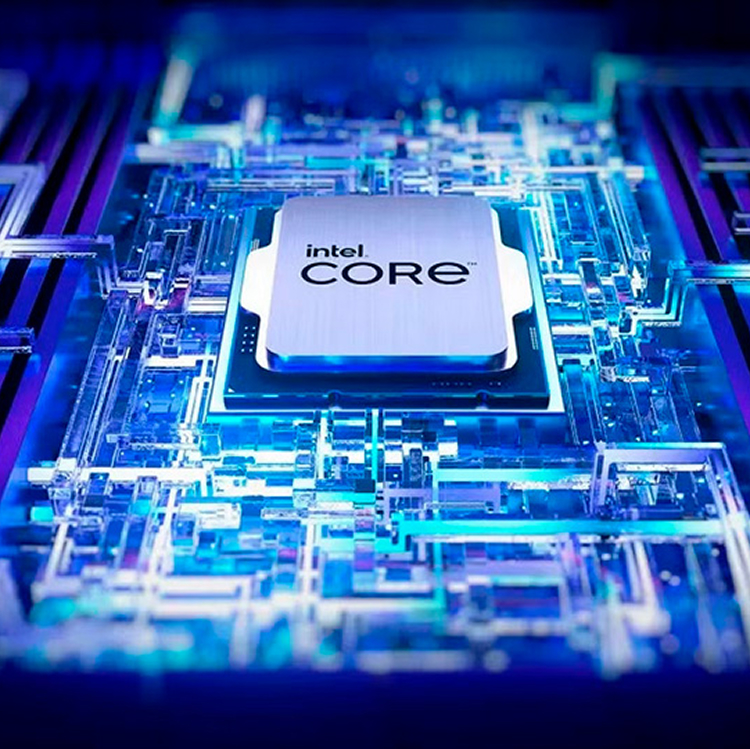
The combination of CPU and motherboard is the foundation. If your processor no longer handles computations, replacing it gives the most noticeable gain in work tasks. However, the platform often needs replacement too. A new generation of central processing units requires current chipsets. This is the most expensive type of upgrade and effectively turns an old system unit into an almost new machine. But after such a procedure, performance increases multiple times, and you can forget about lack of power for another three to four years.
RAM
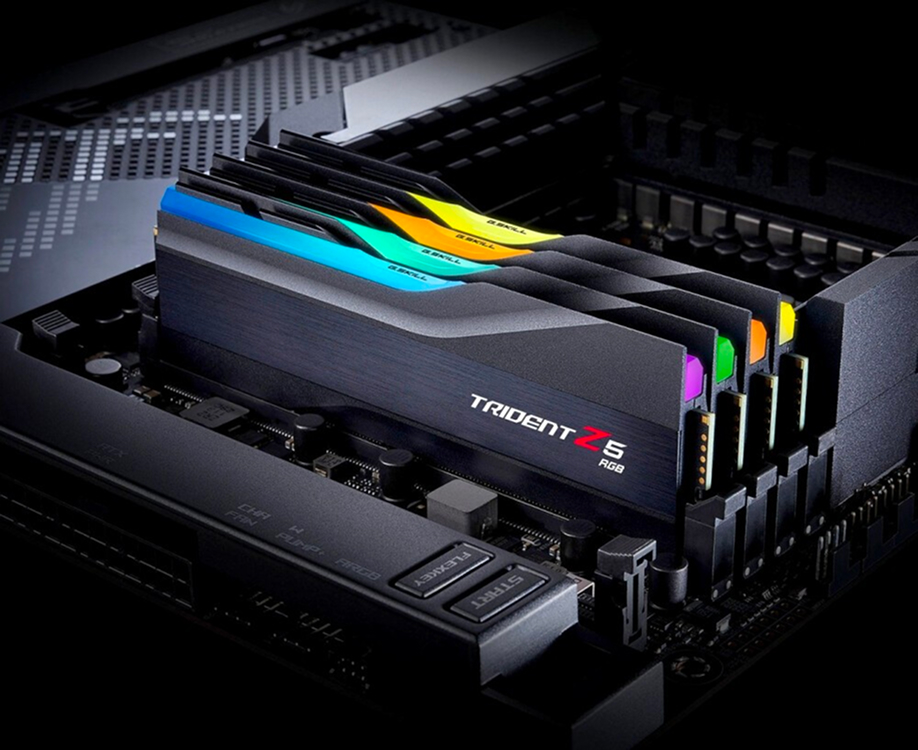
If your system starts slowing down when switching between windows, you need additional memory. This is the easiest way to upgrade. Adding a second module for dual-channel mode not only increases capacity but also bandwidth. For a modern gaming pc, 16-32 GB is considered the standard. This is a case where a small investment gives an immediate result visible in everyday use. The key is to select modules with matching timings and frequency for stable operation.
Graphics card
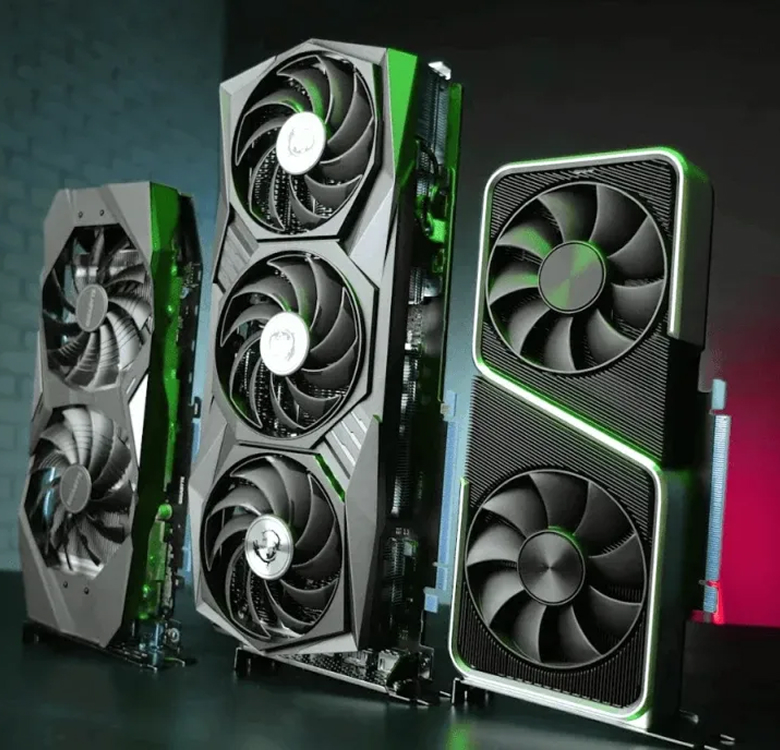
For gamers, the graphics card is component number one. The graphics processing unit (gpu) handles frame rendering. If your favorite games start showing low FPS or the image becomes stuttery (lag), then it is time to update the graphics accelerator. A good graphics card requires not only space in the case but also a powerful PSU. Choose models with VRAM headroom for several years ahead so you do not repeat the process too soon. Remember that the PCIe interface is backward compatible, but on older boards speed may be slightly lower.
Storage drives
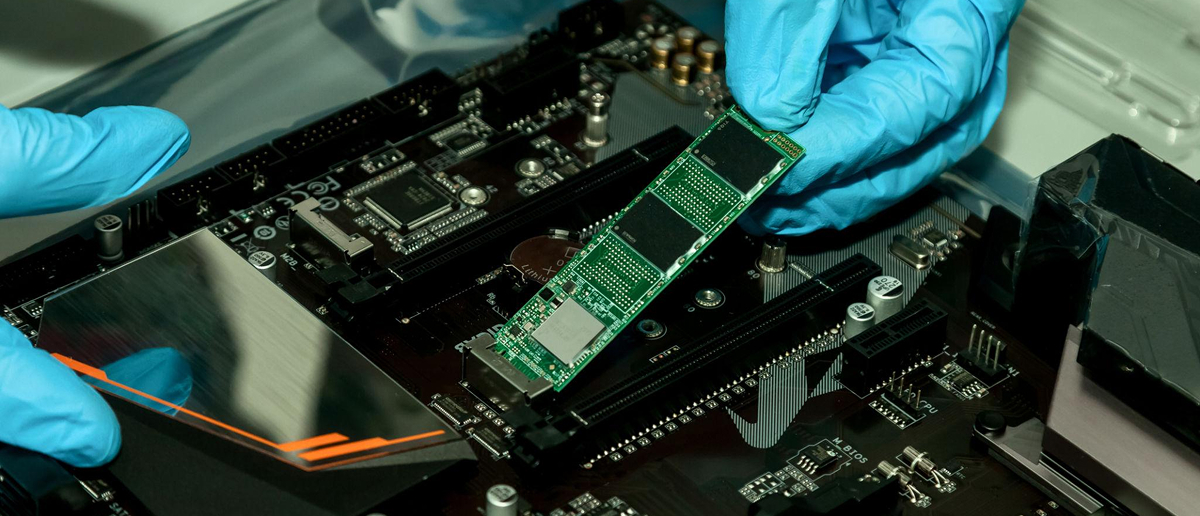
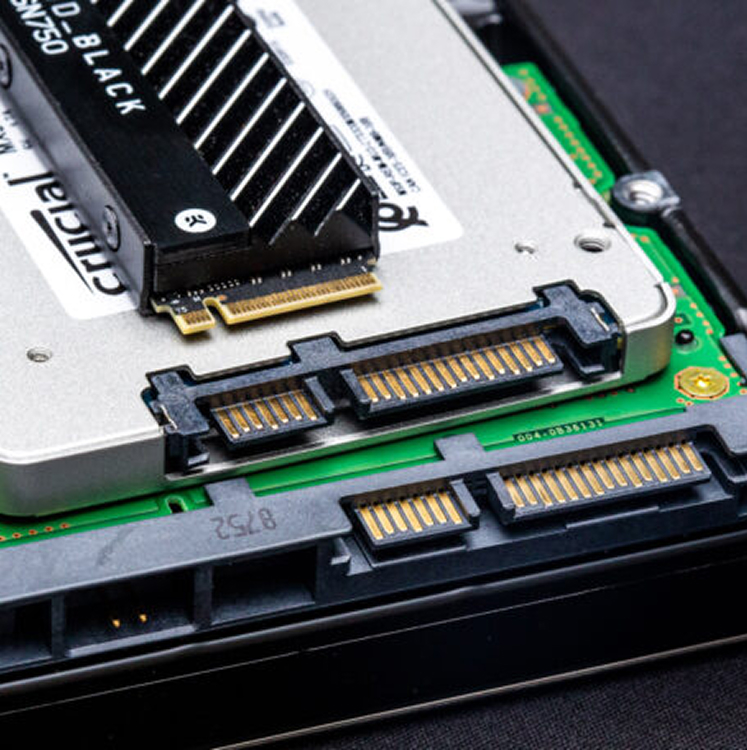
Replacing HDD with SSD is the best recommendation for owners of old systems. System responsiveness increases dramatically: Windows boots in seconds, and programs respond instantly. If your board has an M.2 slot with NVMe support, be sure to use it. This is the most effective way to modernize a device with minimal cost. Even the cheapest SSD will be faster than any mechanical disk, eliminating annoying freezes when the system accesses files.
Cooling
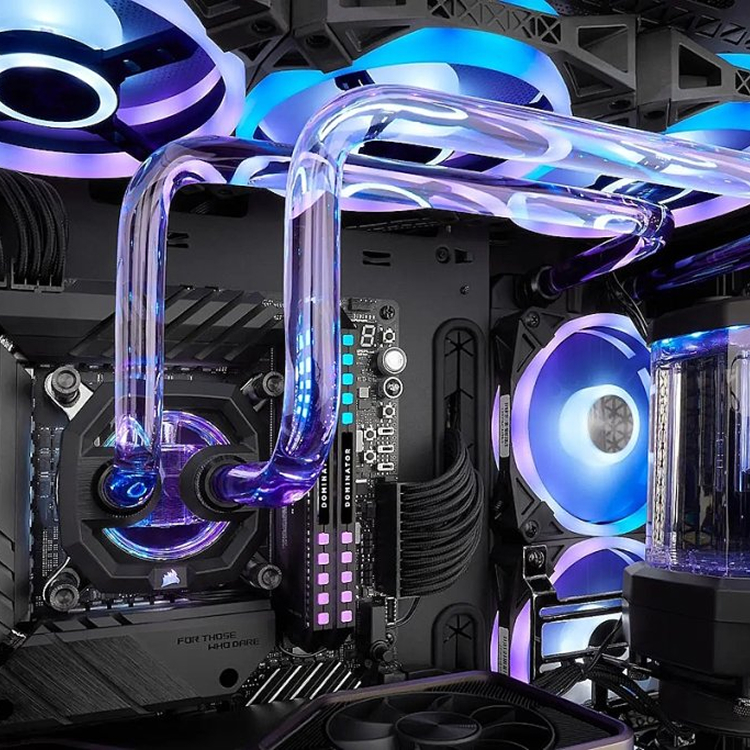
Higher power always leads to higher heat output. If you decide to upgrade to a more powerful processor, the old cooler may not cope. Overheating makes components throttle, causing the computer to slow down at the worst possible moment. Installing a quality tower cooler or liquid cooling system ensures stable operation under load. Lower noise in the room will also be a nice bonus, since modern fans are much quieter than older models.
Power supply
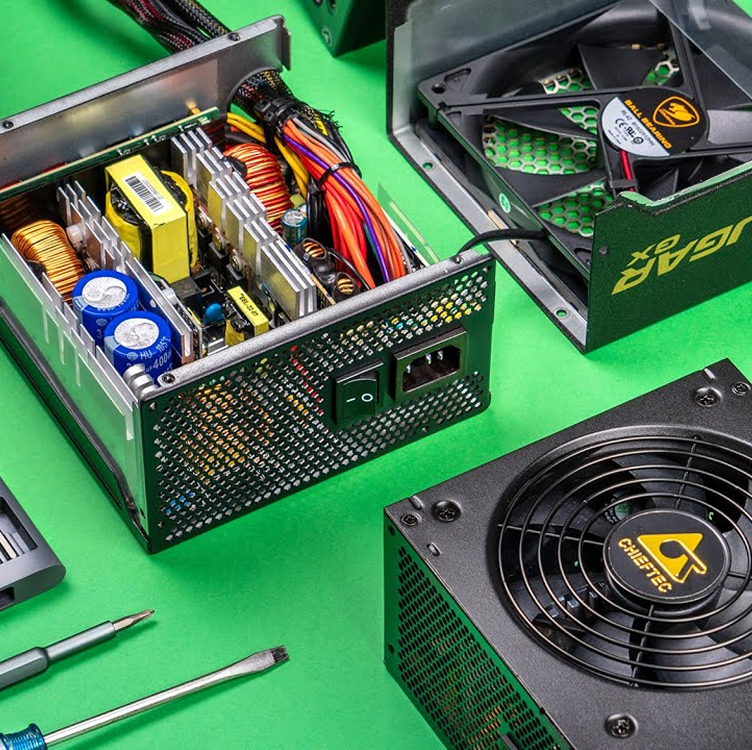
As mentioned above, a power supply must have headroom. When choosing a new PSU, use 80 PLUS (Bronze, Gold) certifications as guidance. This guarantees high efficiency and reliability. A good power supply survives multiple upgrades, so this is not where to save money. It will protect your expensive gpus and cpus from voltage spikes and ensure stable system operation for many years. Always calculate total system consumption on the 12V rail, as this is the key real power metric.
Case
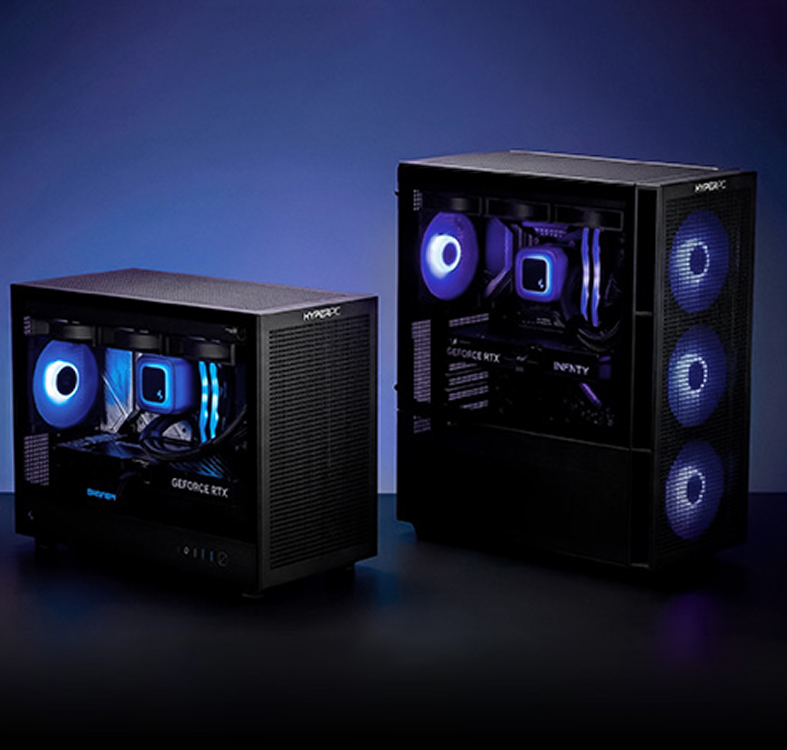
New components may simply not fit in an old case. A long graphics card or tall cooler requires space. In addition, a modern case provides proper airflow circulation. If your old box has no front air intake openings, replacing it becomes an important step. Good ventilation prevents overheating and extends the life of all system components, while dust filters make future cleaning and maintenance much easier.
Customization
It is not only about power but also about appearance. Adding RGB lighting, vertical graphics card mounting, or cable sleeving makes your pc unique. Customization lets you express the owner's individuality. Although it does not directly affect performance, aesthetic pleasure from using a beautiful device is an important part of the overall upgrade. Modern controllers allow synchronized lighting across all parts, creating a harmonious and stylish look for your workspace.
Modernization
The term modernization is often understood as a comprehensive approach. It may include replacing peripherals, monitor, or even a chair. A full work or gaming setup should be ergonomic. Sometimes replacing an old monitor with a high refresh rate model gives more excitement than an extra 10% of processor power. Consider your system as a single organism where every detail matters. Only a balanced build allows full potential of all installed components.
- Clean the case from accumulated dust before installing new parts.
- Replace thermal paste on processor and graphics card if they remain in the system.
- Optimize the startup list in the operating system to speed up boot.
- Update motherboard BIOS to the latest version for support of new chips.
- Remove unused programs and temporary files to free disk space.
Maintenance
Any upgrade should be accompanied by regular maintenance. Even the most powerful hardware will lag if clogged with dust or running at critical temperatures. Before starting installation of new parts, make sure the system is clean. After all work is completed, run a final performance test in benchmarks (for example, Cinebench or 3DMark) to verify stability. Proper care and periodic temperature checks will allow your upgraded computer to keep delivering high speed for a long time.
Not sure where to start? Trust the upgrade to professionals!
Independent component selection can lead to compatibility errors or unnecessary expenses. Our experts will perform professional diagnostics of your PC, identify real bottlenecks, and offer an optimal modernization plan for your budget.
We will help you:
- Accurately determine processor model and motherboard capabilities.
- Select a graphics card that your current processor can fully utilize.
- Professionally install parts and replace thermal paste.
Upgrade Center
Here, our specialists with many years of experience will give
new life to your faithful steel friend.
They will improve its technical characteristics and also make it stylish and stand out according to your wishes!
Go to Upgrade Center

 Arabic
  English