We are ready to help you
Rust Errors and Issues: Complete Troubleshooting Guide from HYPERPC

Encountering errors in Rust can be frustrating. The game displays various errors that interfere with launching, stable connection, or comfortable gameplay. This guide will help you understand how to fix Rust errors and provide step-by-step solutions for the most common problems. We have collected proven methods that allow you to eliminate malfunctions related to Steam, Easy Anti-Cheat (EAC), network connections, and performance.
Launch and Loading Errors
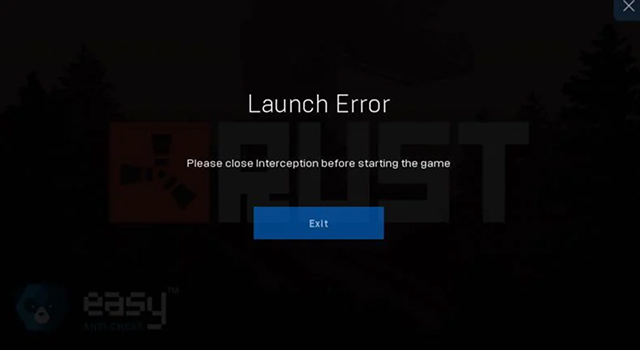
Rust Loading Error / Launch Error
Problem:The game freezes during loading, during infinite shader initialization, or displays a black screen.
Solution:First, close the game and Steam client. If that doesn't help, update your graphics card drivers and make sure all necessary Microsoft redistributable packages are installed on your system, such as Visual C++ and .NET Framework. To fix the black screen, you can also try running the game as administrator.
Steam Error in Rust / Steam Load Error
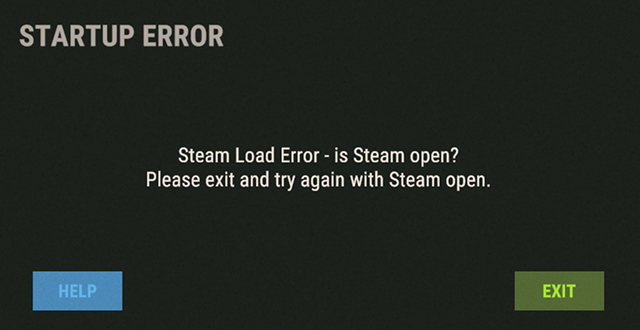
Problem:A message appears: "Steam not open?" or "Steam must be running to play this game".
Solution:Make sure you are not using a beta version of the Steam client. To check this, go to "Steam Settings" -> "Beta Participation" and select "NONE — Opt out of all beta programs". Then verify the game files integrity through Rust properties in the Steam library.
Settings JSON Not Found Error
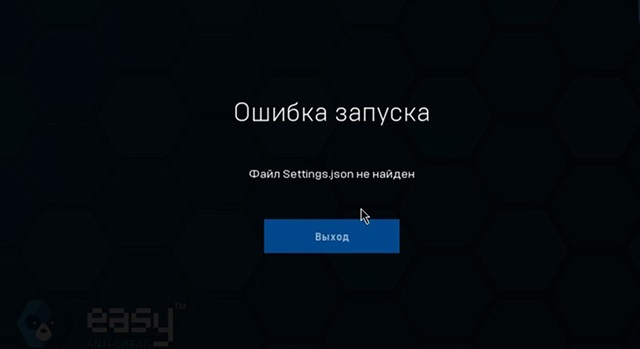
Problem:The game does not start due to a missing or corrupted configuration file settings.json.
Solution:This error is fixed by deleting the entire cfg folder in the game directory. After that, you need to verify the file integrity in Steam again, and the game will automatically create new, working configuration files.
Black Screen on Launch
Problem:After launching the game, the screen turns black and the game does not respond.
Solution:A common cause is a conflict with overlays from other applications. Disable overlays from Steam, Discord, and GeForce Experience. You should also update your graphics card driver and check the game for corrupted files, as described above.
EAC and Anti-Cheat Errors
EAC Authentication Timed Out Error
Problem:The authentication process takes too much time, after which you receive a timeout message. This can happen every time you join a server.
Solution:Check if your firewall or antivirus is blocking the game's internet connection. Try temporarily disabling them for testing. Also, clearing the DNS cache through the command line using the ipconfig /flushdns command helps.

Error 30005 / CreateService Failed
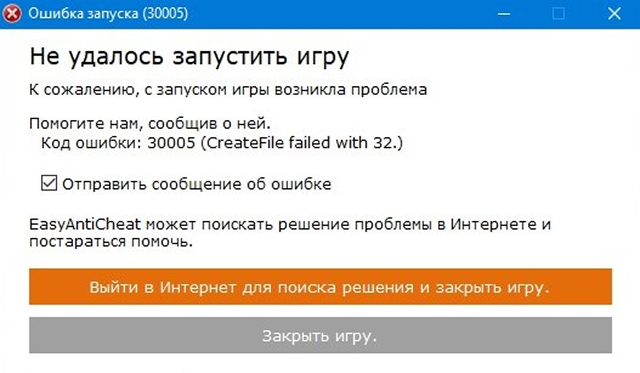
Problem:When launching the game, an error with code 30005 appears, and the game does not start.
Solution:You need to restore the anti-cheat functionality. To do this, go to the EasyAntiCheat folder in the Rust directory, run the EasyAntiCheat_EOS_Setup.exe file and select the "Repair" option. Also make sure your antivirus is not blocking EAC.
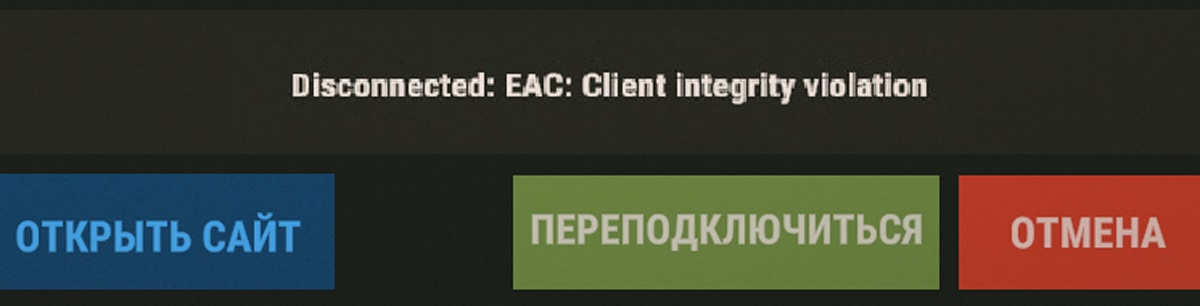
Client Integrity Violation Rust Error
Problem:The game kicks you from the server with a message about client integrity violation. This error is a type of anti-cheat rule violation.
Solution:Run a game file integrity check in Steam. If you have mods or custom files installed, they should be removed. Also add Rust and EAC to your antivirus exclusions.
Network Errors and Connection Issues
Unable to Connect to Rust Servers
Problem:The game cannot establish a connection with the server, or world loading is interrupted.
Solution:Make sure your internet connection is stable. If you are using Wi-Fi, switch to a wired connection. Check your firewall settings and make sure Rust has permission for both outgoing and incoming connections.
Reconnect Error No Address
Problem:When trying to reconnect to the server, the game loops in the "Reconnect" state with a "no address" message.
Solution:This is often a server-side issue. Remove the problematic server from your favorites list and add it again using a fresh IP address and port. Also, clearing the maps and temp folders in the game directory helps.
Invalid Packet Client Command Error
Problem:Unexpected disconnection from the server with a corresponding error.
Solution:Clear the map cache as indicated above, and verify the game files integrity again. The problem may be caused by an outdated client version, so make sure the game is updated.
Performance and Optimization Errors
Low FPS / Lagging / Stuttering
Problem:The game runs with low FPS, experiencing delays and stuttering.
Solution:Start by updating your graphics card drivers. Then lower the graphics settings in the game, especially demanding ones like draw distance, shadow quality, and anti-aliasing. Close resource-intensive background applications.
Need help with performance optimization? At the HYPERPC Upgrade Center we can help identify system bottlenecks and offer an optimal solution to increase FPS.
Asset Warmup Error
Problem:The game crashes during asset warmup (Asset Warmup).
Solution:Make sure your system meets the minimum game requirements, especially that you have a 64-bit OS and at least 8-10 GB of RAM. Increasing the page file (virtual memory) size in Windows system settings can help.
File and Library Errors
DLL Error / VCRUNTIME140.dll Missing
Problem:When launching, the game reports missing DLL files.
Solution:Install the latest version of the Visual C++ redistributable package from Microsoft. It can be downloaded for free from the official website. This is one of the key libraries required for many games and applications to work.
Unknown file version / Integrity error
Problem:The game or anti-cheat reports an unknown file version or integrity violation.
Solution:Run a game file integrity check through Steam. This will automatically replace corrupted or modified files with originals. Make sure there are no foreign files or mods in the game folder.
General Error Solutions
Verify Game File Integrity
This is the most universal way to fix many errors related to data corruption. In the Steam library, right-click on Rust, select "Properties" -> "Installed Files" and click "Verify integrity of game files". Steam will automatically check and replace problematic files.
Update Drivers and Software
Regularly update your graphics card driver (NVIDIA, AMD, or Intel), and also make sure all Windows system updates are installed. Specialized utilities can be used for automatic driver search.
Run as Administrator
Granting administrator rights can solve problems with the game accessing critical system resources or files. To do this, right-click on the Rust shortcut or RustClient.exe and select "Run as administrator".
Complete Game Reinstallation
If none of the methods helped, the last resort is a complete reinstallation. Delete Rust through Steam, then manually delete the game folder from the steamapps\common directory, and then install it again. This will guaranteed remove any deeply embedded file system errors.
Frequently Asked Questions (FAQ)
-
Why does the game constantly crash to desktop without an error?
The most likely causes are insufficient RAM, PC component overheating, or conflicts with background programs. Check CPU and GPU temperatures, close unnecessary applications, and make sure your system meets the game requirements.
-
What to do if the character doesn't wake up when entering the world?
Press F1 to open the console and enter the wakeup command. If that doesn't work, use the respawn command.
-
How to fix infinite loading when downloading the world (downloading world)?
The problem is often related to slow or unstable internet connection. Restart your router, switch to a wired connection if possible. You can also try connecting to another server with better ping.
-
Why does EAC error occur: unconnected?
Try launching the game not through Steam, but directly through RustClient.exe. If that doesn't help, reinstall Easy Anti-Cheat manually through the installer in the game folder.
Conclusion from HYPERPC
The HYPERPC team continues to support Rust players, ensuring stable system operation, high performance, and comfortable gameplay. We regularly analyze the most common errors related to launching, anti-cheat, network connections, and performance to provide users with accurate and working recommendations for their elimination.
Our experience in building gaming systems and optimizing equipment allows us to better understand the causes of malfunctions and help players return to the game faster. If you encounter complex errors, unstable client operation, or sudden FPS drops — HYPERPC specialists are always ready to help with diagnostics and solution selection.
Need help optimizing your system for Rust? Contact the HYPERPC Upgrade Center — we will help you choose the optimal configuration for comfortable gaming.
Upgrade Center
Here our specialists with years of experience will give
new "life" to your faithful steel friend.
They will improve its technical characteristics and make it stylish and distinctive according to your wishes!
Go to Upgrade Center

 Arabic
  English