We are ready to help you
How to increase RAM on a computer: complete guide
Key takeaways:
- Timely RAM upgrade is a basic improvement that restores PC performance.
- For basic tasks (text work), 8 GB RAM is enough.
- 32-bit Windows will not recognize more than 4 GB RAM.
- A proper RAM upgrade is the best way to revive a PC.
Introduction to RAM
Timely RAM upgrade is a basic improvement that restores PC responsiveness. When an old computer starts freezing, replacing RAM modules is often the real path to improvement. If you are deciding between replacing the whole PC or doing a local upgrade, the second option wins because the cost is lower. Every platform and motherboard has its own limits, but switching to higher-capacity modules and a proper move to dual channel delivers a major boost. Your work, any modern game, and rendering will get faster, and the "before vs after" comparison will pleasantly surprise you. Correct frequency, xmp support, and 100% compatibility are the key to success.
What RAM is and how it works
RAM is temporary data storage where the processor (cpu) places information for instant access. Fast PC operation is impossible without RAM. Each motherboard acts as a communication platform. High data exchange frequency guarantees speed growth. When a game or heavy program is running, the system actively uses RAM gigabytes. If you keep the same capacity and do not upgrade, the PC starts lagging. Generation changes (ddr) set new rules, and replacing modules plus enabling xmp profiles lets RAM run at full potential. At the same time, compatibility, component cost, and dual channel vs single channel directly affect final results and overall upgrade impact.
Defining needs, capacity, and compatibility
To avoid unnecessary spending, you need to understand current needs. Comparing your workloads with what new RAM can provide helps estimate cost. The platform must be ready: the motherboard must support the target GB capacity. Frequency matters too; replacing old modules with newer ones gives a boost when the upgrade is justified. Every game and work application has its own memory requirement. Upgrade consciously.
How to find out how much RAM your computer needs?
For basic tasks (text work), 8 GB RAM is enough. If your platform is a gaming station, upgrading to 16 or 32 GB is required. Any modern game or neural network needs resources. If you are choosing capacity, 32 GB pricing is currently optimal. Module replacement brings a boost. Motherboard and dual channel mode increase fps. Comparison "16 vs 32" shows the move to larger capacity is justified. Compatibility and xmp frequency matter.
OS bitness and capabilities of other components
32-bit Windows will not see more than 4 GB RAM. Moving to a 64-bit OS is the first step. Your motherboard and PC platform define maximum GB. Upgrade will not work if the processor (intel or amd) does not support newer frequencies. Comparison "old cpu vs new" proves compatibility is key. Components must be upgraded as a system; otherwise RAM replacement gives little benefit. Frequency, xmp, cost, and dual channel operation depend on the chipset. Staying on an outdated OS is a dead end.
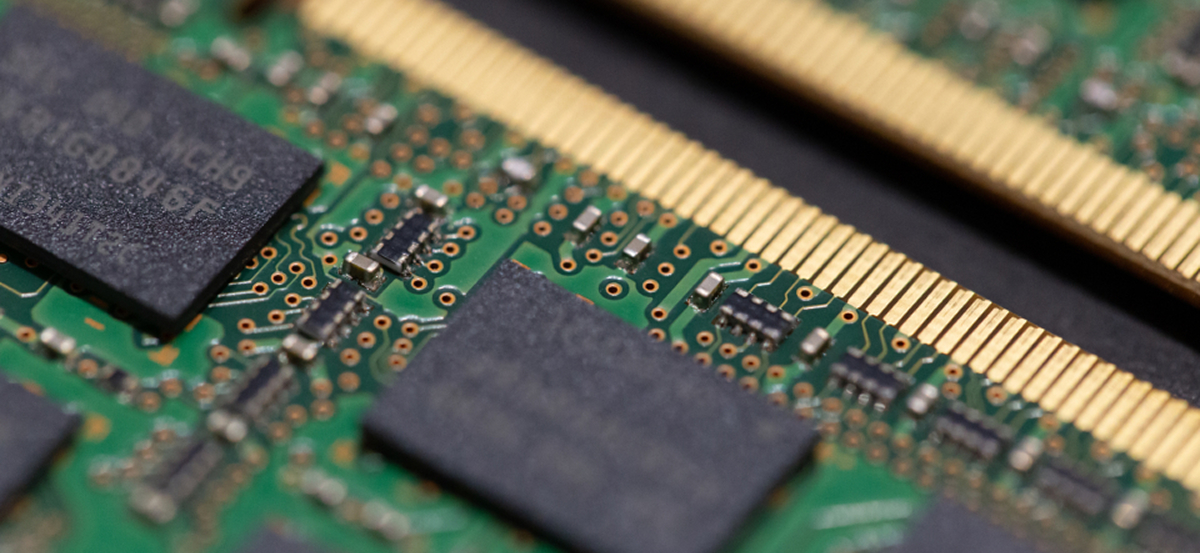
Scenario comparison: how much RAM is needed per task
| Scenario | RAM volume | Conditions and notes |
|---|---|---|
| For office | 8 GB | Minimum cost, base frequency, stable operation. |
| For gaming | 16-32 GB | Mandatory dual channel, xmp activation, high compatibility. |
| For rendering and neural network workloads | 64 GB | Maximum boost, top PC platform, cpu replacement may be required. |
Ways to increase RAM
Performance improvement is possible through software and hardware methods. First comes tuning, then physical replacement.
Optimizing usage of existing RAM
- Close background processes. This requires no spending. Your PC platform will feel more responsive.
Configuring page file (virtual memory)
- If RAM is not enough, PC uses the hard drive. Comparison "hdd vs ssd" shows that placing page file on ssd gives improvement. But physical replacement and larger GB memory are still better. Current RAM pricing makes upgrade practical. Frequency and dual channel cannot be replaced by page file. Motherboard works better with real expansion. xmp compatibility and migration to new modules should be the priority. Hardware upgrade is what stops games from crashing.
Installing additional modules or replacing existing ones
- RAM installation and replacement is the best upgrade. Motherboard has slots. Replacing old modules with larger GB ones or adding modules to those already installed in the PC is the foundation. Platform performance comes back. Transition to dual channel gives a strong gain. Frequency and compatibility must match. Enabling xmp increases speed. Comparison "one module vs two" always favors two. Cost is justified; work and gaming become smoother.
1. Installation preparation
- Power off the PC. Your platform must be disconnected. Replacement requires caution.
2. Static protection
- Touch an unpainted part of the PC case so static does not damage RAM. Motherboard is vulnerable.
3. Slot identification
- Find the long slots. If old modules are already installed, assess them. Slot comparison is important for dual channel.
4. Freeing slots (if needed)
- Carefully open the latches. Replacement may require removing old GB modules. Do it without force.
Using ReadyBoost
- The technology is outdated. Physical upgrade, where frequency, cost, compatibility, and xmp are considered, is many times more effective.
Installation, risks, and RAM selection
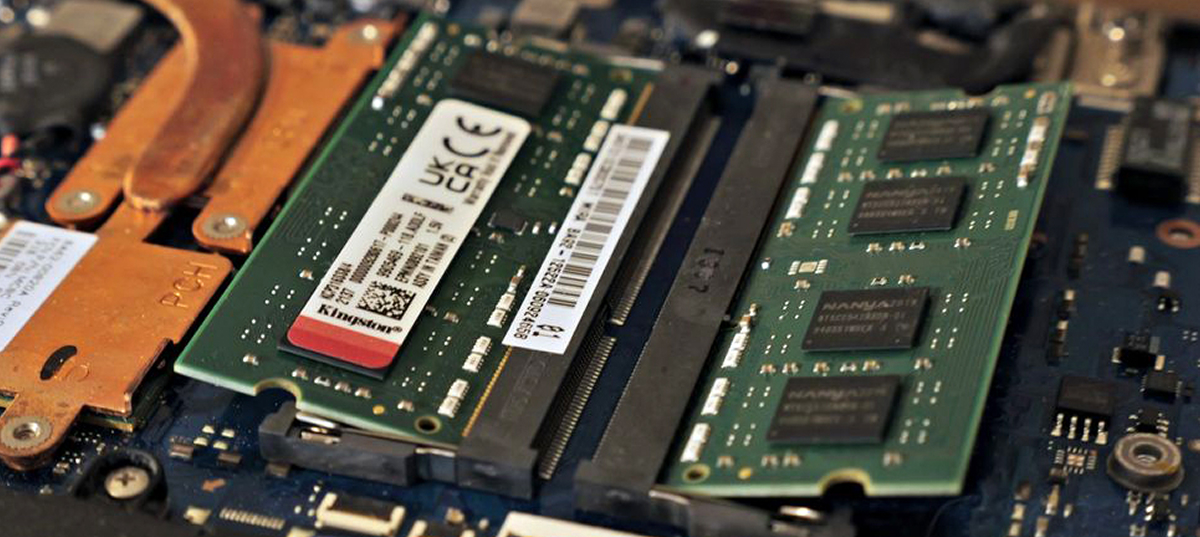
Installing RAM in a desktop computer
Motherboard has latches. Insert ram until a click. Platform accepts the module. Slot key compatibility is mandatory. Dual channel operation requires installation in slots 1-3 or 2-4. Then enter bios so xmp tuning delivers performance gain. Frequency comparison before and after will show results.
Installing RAM in a laptop
Laptop platform requires SO-DIMM format. Cost is slightly higher. Motherboard is compact. Upgrade and replacement are similar to PC. Increasing GB gives performance gain. Compatibility is critical. Frequency, xmp, dual channel vs single all influence result. Module replacement is harder due to the chassis and requires care.
Problems and warnings when increasing RAM
Incompatibility is the main enemy. Assembly mistakes can prevent PC from booting.
- What to do if memory is not recognized? Check whether RAM modules are correctly seated in slots. Motherboard may require bios reset. Platform must support target GB capacity. Frequency compatibility is mandatory. Swapping module positions sometimes helps. If dual channel does not work, check contacts. Comparison of working vs non-working sticks helps detect defects. xmp transition can sometimes cause failure; adjust settings carefully.
- RAM overclocking risks: Overclocking (overclocking) and enabling xmp (or expo for amd) gives gains, but platform may overheat. Cooling upgrades increase cost. Motherboard must handle voltage. Timing (latency) and frequency changes affect stability. Comparison "overclock vs stock" shows risk. System may crash with blue screen. Chip compatibility is important. Dual channel is sensitive to errors. Extreme settings can damage RAM, so voltage changes should be done carefully.
Choosing suitable RAM
Selection depends on installed motherboard and platform in your PC. Cost, frequency, GB, xmp, and compatibility are the main criteria. Option comparison is mandatory. Replacement should provide real gains. Work and gaming depend on RAM quality, and upgrade should be designed for years.
Clock frequency and timings
High frequency (mhz) and low timing (cl) are the ideal. Comparison of these parameters determines how fast the upgrade will be. Motherboard and PC platform define limits. Fast RAM costs more. Replacing modules with good xmp support gives gains. Dual channel improves responsiveness. GB also matters. Any game responds with higher fps.
Tips for choosing memory for gaming
For games, balance is key. Gaming PC platform requires stability.
- Capacity: minimum 16 GB, ideally 32 GB.
- Mode: dual channel only. Comparison "1 stick vs 2 sticks" always favors two.
- Technologies: xmp profile support. Frequency should be the maximum your motherboard and CPU compatibility allow.
Cost of gaming RAM kits is justified. Transition to them improves gameplay. Upgrade should be done as a complete kit.
Future of RAM
RAM evolution does not stop. PC platforms continue to evolve. Generation changes are inevitable. Replacing old formats with new ones is only a matter of time. Compatibility, frequency, GB, xmp, and dual channel will remain important. Work and gaming will require more resources.
RAM prices and forecasts
Price for ddr4 is declining. Cost of ddr5 is stabilizing. Comparison shows that PC upgrade is currently a cost-effective choice. RAM replacement will not heavily impact budget. Motherboard and compatibility define total spending.
New RAM technologies (DDR5 and others)
DDR5 is the new standard. PC platform and new motherboard support phenomenal speeds. Frequency has doubled. Comparison ddr4 vs ddr5 shows major performance gain. Cost is still higher. Compatibility is only with new cpu. Upgrade to ddr5 is an investment.
Conclusion
A proper RAM upgrade is the best way to revive a PC. Your platform, motherboard, and processor should work in harmony. Replacing RAM modules with sufficient GB capacity (16 or 32) ensures real gains. Focus on compatibility, xmp, and frequency. Dual channel mode is essential if speed matters. Upgrade cost is justified: work becomes faster and games stop freezing.
Additional materials and resources
Study the manual provided by your motherboard. Check benchmarks and online compatibility before upgrading and replacing RAM. PC platform loves precision. Frequency, cost, GB, xmp, replacement, dual channel, performance gain, and "before vs after" comparison should all be considered.

 Arabic
  English