We are ready to help you
CPU upgrade in 2026: how not to brick the board and squeeze out the maximum
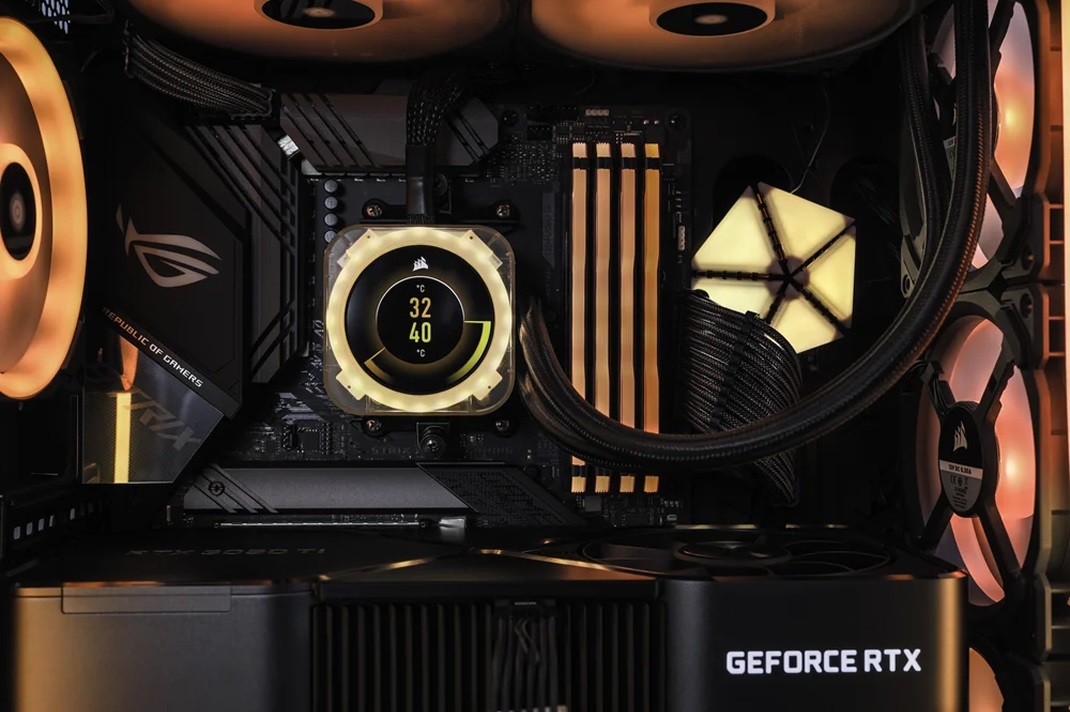
In 2026, replacing the CPU remains the most effective way to refresh your system. But while in the past we only looked at the socket, today architectural nuances are critical: power limits, firmware for hybrid cores, and the endurance of power delivery circuits (VRM).
Signs of a bottleneck (Bottleneck)
If in modern games or when working with AI models your graphics card (GPU) is only loaded by 60–70%, while the processor is constantly hitting 95–100%, this is a clear sign that it is time to retire your CPU.
Personal experience: Users often complain about micro-stutters with high FPS. This is a typical symptom of an old CPU lacking threads. In 2026, even for background tasks in Windows 11 and antivirus software, you need at least 4 efficient cores (E-cores) in addition to performance cores.
Checking compatibility: deeper than just the socket
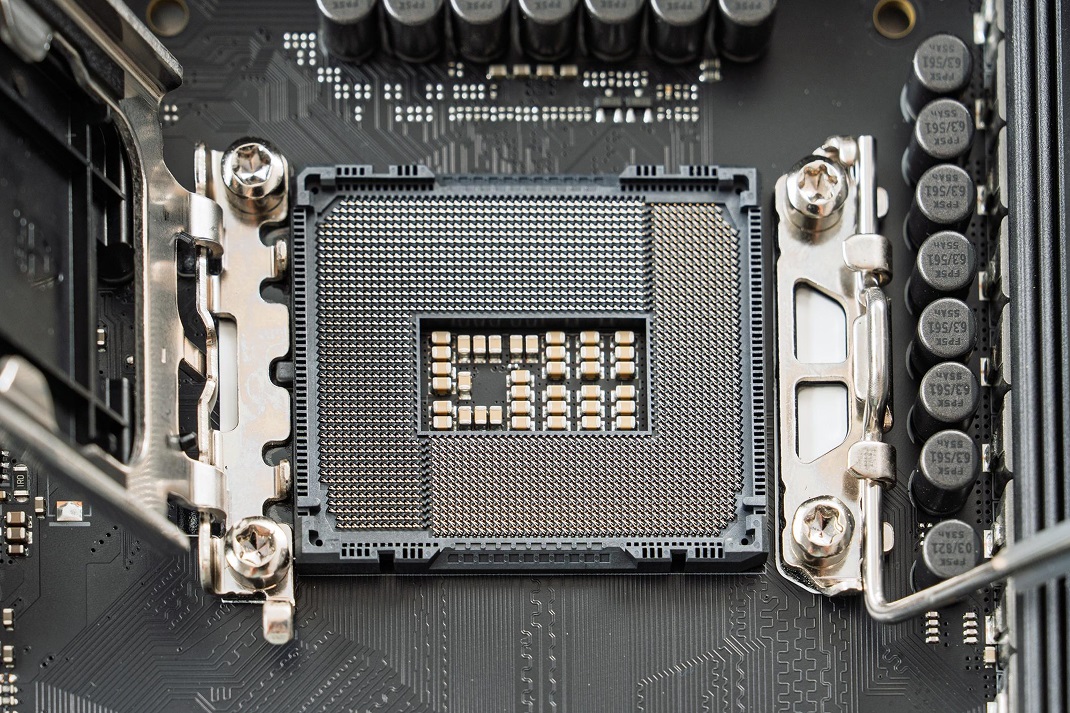
1. Socket and physical installation
In the 2026 market, three platforms dominate:
- Intel LGA1851: The newest standard. Note: the height of the integrated heat spreader (IHS) here differs from LGA1700. Older coolers may fit mechanically, but without a special contact frame you risk poor cooler contact and CPU overheating.
- AMD AM5: A long-lived platform. Supports Ryzen 7000, 8000 and 9000 series processors.
- AMD AM4: A legendary platform that in 2026 is still relevant for budget builds (for example, based on Ryzen 5000XT).
2. Chipset and CPU Support List
Never rely on similar names alone. Go to the manufacturer’s website (ASUS, MSI, Gigabyte) and find the Support / CPU Support tab.
- Board revision (Rev): The same model (for example, B650M-K) can have revision 1.0 and 2.0. Their supported CPU lists may differ.
- BIOS version: In the table you will see a “Since BIOS” column. If it says version F21 and you have F2 installed, the PC simply will not boot with the new CPU.
VRM power delivery: the invisible performance killer
The most common mistake is putting a top-end Core Ultra 9 or Ryzen 9 into a cheap motherboard. The VRM (Voltage Regulator Module) is the circuitry around the socket that converts 12V from the PSU into about 1.2V for the CPU.
VRM throttling. If the power stages are not covered by heatsinks, they can heat up to 105–110°C. The controller will then force the CPU frequency down to 800 MHz. You bought a powerful CPU but end up with calculator-level performance.
Tip. For CPUs with TDP > 125W choose boards with at least 12+2 power stages and large aluminium heatsinks on the VRM.
BIOS and UEFI: preparing for the “transplant”
Updating the firmware is an essential ritual. In 2026 this is done via USB BIOS Flashback (which lets you flash the board even without a CPU installed) or through the BIOS menu itself.
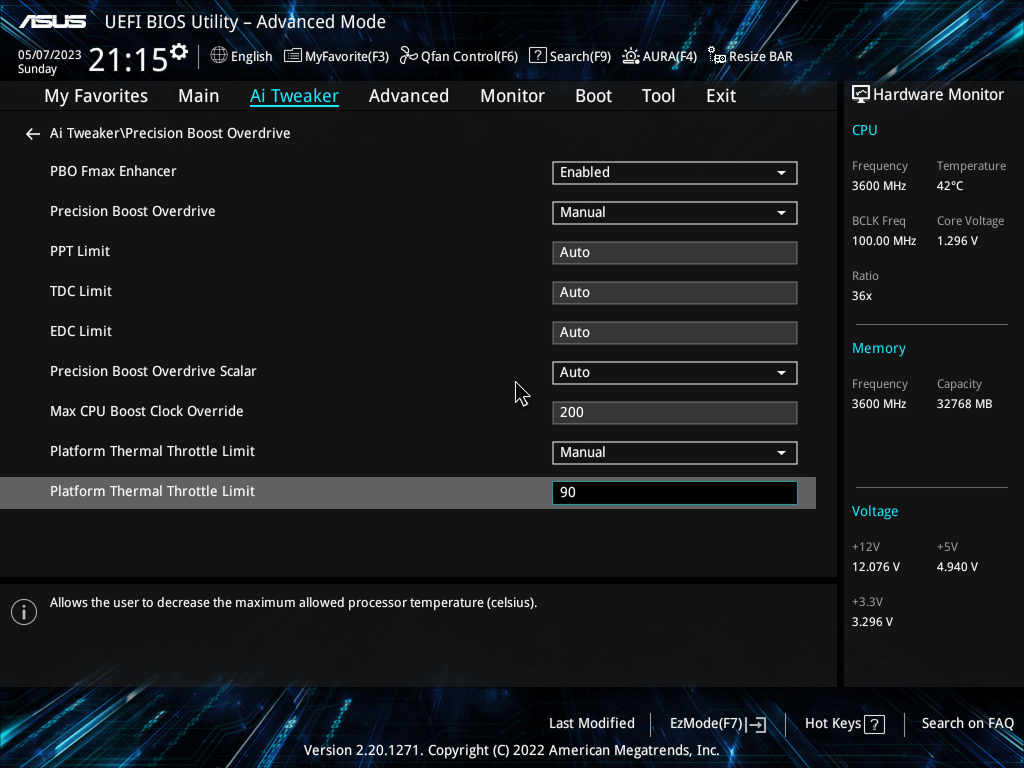
Important:
- Use only USB flash drives formatted as FAT32.
- If power in your region is unstable, be sure to use a UPS. Losing power during flashing will turn the board into a “brick” that can only be revived in a service center with a programmer.
Thermal budget and cooling
Forget the TDP numbers printed on the box. In reality, a CPU labeled “65W” can draw up to 150W in Turbo mode.
Air vs Water
For 6–8 core CPUs in 2026, a tower cooler with 6 heat pipes is sufficient. For 12+ cores, you need an AIO liquid cooler starting from 360 mm.
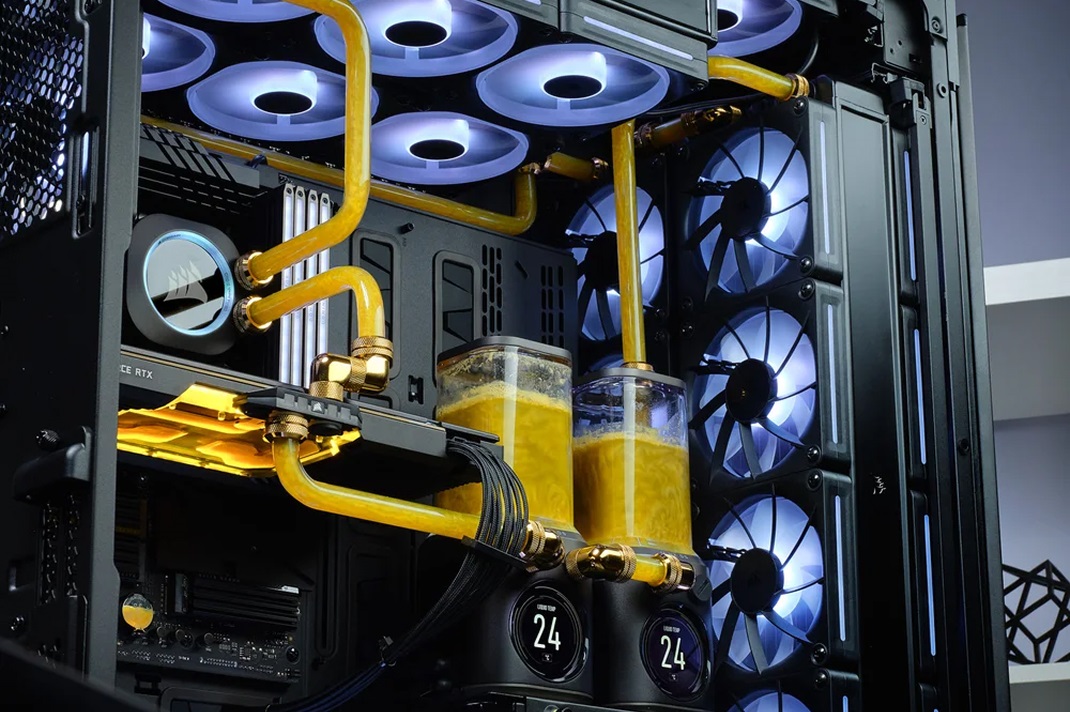
Thermal paste and phase-change materials
In 2026, phase-change pads (for example, Honeywell PTM7950) have become popular. They are more durable than conventional thermal paste and do not “squeeze out” from under the cooler at high Arrow Lake temperatures.
Step-by-step post-installation checklist
- CMOS reset. After replacing the CPU, remove the motherboard battery for 30 seconds or short the Clear CMOS pins. This forces the board to re-detect all hardware.
- Memory check. Make sure the XMP/EXPO profile is enabled. When changing the CPU, memory frequency settings often reset to defaults.
- Stress test. Run OCCT or Cinebench 2024 for 15 minutes. Monitor temperatures: CPU up to 90°C is normal at peak, VRM up to 90°C is excellent, above 100°C means you need additional airflow.
- Windows and drivers. If you switched from Intel to AMD (or vice versa), a clean Windows installation is mandatory. If you changed generations within one brand, updating the chipset driver is sufficient.
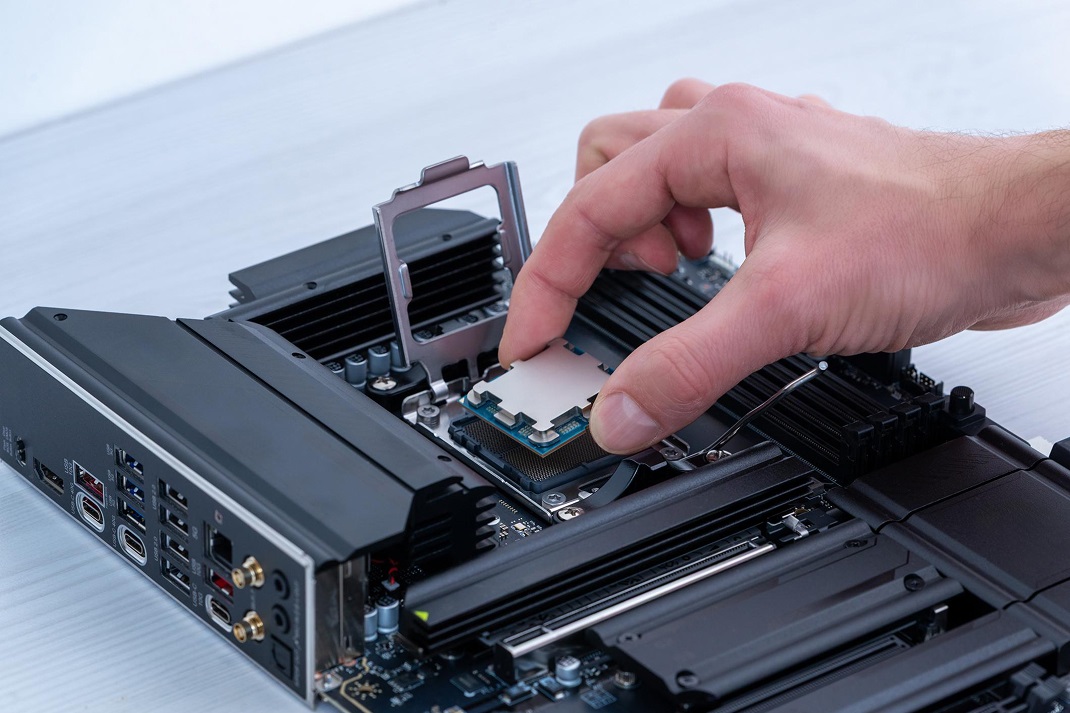
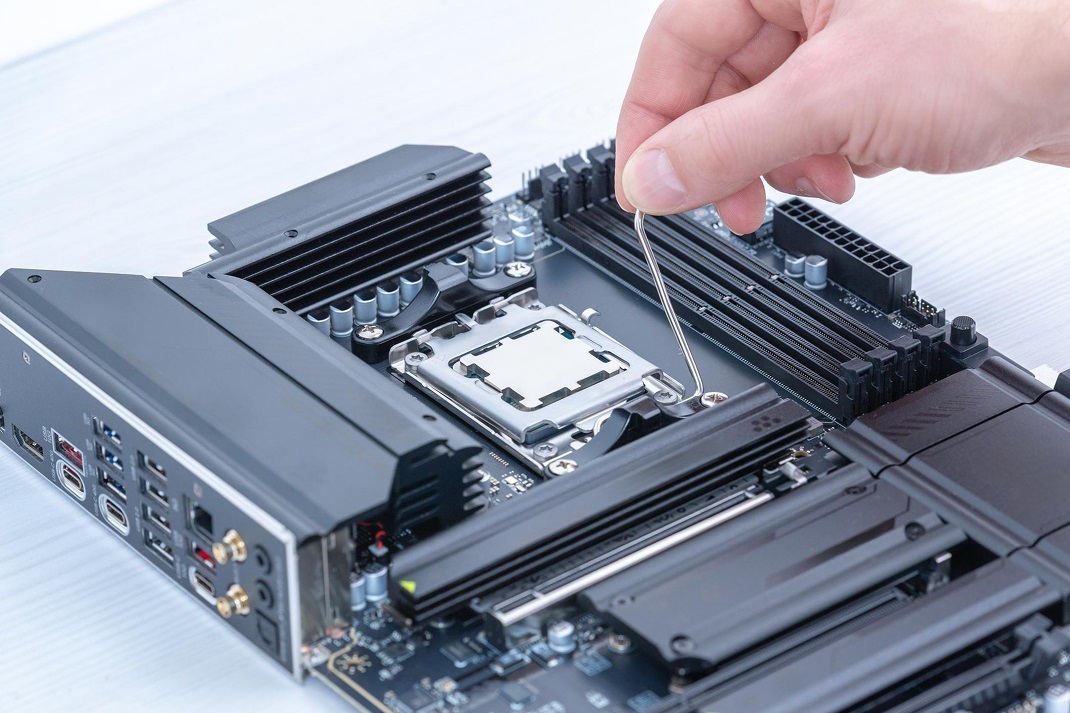
Relevant platforms in 2026: Recommended combinations (Performance & High-End)
When upgrading in 2026, it is important not just to match sockets, but to balance PCIe bus bandwidth and the endurance of the power delivery subsystem. Below are proven combinations for those who aim at maximum performance.
1. AMD AM5 platform: gaming and multithreading
AMD continues to lead in energy efficiency. In 2026, processors based on the Zen 5 architecture are the optimal choice.
Optimal choice (Gaming): Ryzen 7 9800X3D + B650E / X870 motherboard.
Why it works: 3D V-Cache technology is extremely sensitive to memory latency. Boards with the “E” (Extreme) index or the new 800-series chipsets support PCIe 5.0 for both the GPU and NVMe drives, eliminating bottlenecks when working with DirectStorage.
VRM requirements: For stable operation of 3D chips under load, look for boards with at least 14+2 power stages (for example, the ASRock Steel Legend or ASUS ROG Strix series).
Enthusiast level (Workstation): Ryzen 9 9950X + X870E motherboard.
Why it works: 16 cores require perfect current distribution. The X870E chipset offers improved support for high-frequency DDR5 memory (8000+ MHz), which is critical for neural networks and rendering.
2. Intel LGA1851 platform: technological vanguard
The transition to Arrow Lake (Core Ultra 200) in 2026 requires a complete overhaul of the power and cooling ecosystem.
Performance standard: Core Ultra 7 265K + Z890 motherboard.
Why it works: Core Ultra processors use a tiled design. The Z890 chipset is required for full control of power limits (PL1/PL2) and fine voltage tuning to avoid chip degradation under high loads.
Uncompromising power: Core Ultra 9 285K + flagship Z890 (High-End) motherboard.
Why it works: Peak consumption of the Core Ultra 9 can exceed 250–300 W. For such loads, only boards with 18–24 power stages and a massive backplate, which also helps cool the PCB around the socket, are suitable.
Summary component selection table
| Task | Recommended CPU | Chipset | Minimum VRM phases | Cooling type |
|---|---|---|---|---|
| Gaming / Streaming | Ryzen 7 9800X3D | B650E / X870 | 14+2 | Air tower (250W) |
| Gaming / Work | Core Ultra 7 265K | Z890 | 16+1+2 | 360 mm AIO |
| AI / Rendering / VFX | Core Ultra 9 285K | Z890 (High-End) | 20+ | 420 mm AIO |
| Heavy workload | Ryzen 9 9950X | X870E | 18+ | 360/420 mm AIO |
Professional monitoring toolkit
Forget about the simplest utilities if your goal is deep analysis. In 2026, the following stack is актуален:
- HWiNFO64 (Industrial Standard). The most powerful tool. It correctly shows specific sensors: GPU Hotspot, VRAM Junction Temperature for GDDR7 memory, and Power Reporting Deviation.
- MSI Afterburner + RivaTuner (RTSS). Irreplaceable for in-game overlays. Allows you to see frame time graphs and GPU temperature boost in real time without minimizing the application.
- GPU-Z. Important for checking PCIe version (whether the card has dropped to x8 instead of x16) and analyzing PerfCap Reason.
- Core Temp. Convenient for quick “on the fly” checks in the tray, but for deep diagnostics of Nova Lake/Zen 6 its capabilities are already limited.
- CrystalDiskInfo. A must-have for owners of NVMe Gen5/6 drives. Helps track critical heating of the SSD controller, which on new models can reach 85°C in seconds.
Algorithm of actions in case of critical overheating
If your CPU or GPU enters the throttling zone, act systematically, from simple to complex.
1. Airflow architecture (Airflow 2.0)
Just “lots of fans” means noise, not cooling.
- Pressure balance. Create positive pressure (intake slightly stronger than exhaust) so that dust is not sucked in through gaps in the case.
- Configuration. For high-end Blackwell GPUs, side intake directly onto the card or aquarium-style cases with bottom intake are актуален configurations.
- Cable management. Modern PSU cables have become thicker (ATX 3.1 standard). Poor cable routing can block up to 20% of useful airflow to the motherboard VRM.
2. Revision of thermal interfaces
- Thermal paste. For chips with high heat density (Nova Lake) conventional pastes “dry out” in six months. Use phase-change compounds or premium solutions such as Thermal Grizzly Kryonaut Extreme.
- Liquid metal. In 2026, liquid metal has become the standard for top gaming laptops. Never apply it directly to aluminium heatsinks yourself — it will cause chemical degradation.
- Thermal pads. When servicing RTX 50-series GPUs, use only pads with high thermal conductivity (from 12 W/mK) and precise thickness.
3. Cooling system upgrade
- AIO (liquid cooling). For an i9-16900K a 360 mm radiator is the bare minimum, 420 mm is the recommended standard.
- Undervolting. Reducing voltage by 0.05–0.1V via BIOS or MSI Afterburner can lower temperatures by 10–15°C without FPS loss, and often even increase FPS because of more stable frequencies.
FAQ
-
My CPU runs at 95–100°C. Is it dead?
For modern Intel CPUs — no, this is their normal “aggressive boost” mode. However, 24/7 operation in this mode accelerates electromigration in the die. Your goal is to keep gaming temperatures in the 80–85°C range.
-
Which way should the CPU cooler blow?
In 99% of cases — towards the rear panel (exhaust). On dual-tower coolers it is important that the fans do not pull hot air from the GPU backplate. Sometimes rotating the cooler by 180° or shifting the fan slightly higher helps drop temperatures by 3–5 degrees.
-
Do I need a laptop cooling pad in 2026?
Standard passive stands are useless. Only models with a sealed shroud and a powerful blower that forces air into the laptop’s cooling system are effective. In hot weather (above 30°C) without air conditioning, this is the only way to avoid throttling in heavy workloads.
Professional upgrade without risks
Self-replacing the CPU in 2026 carries risks: from accidentally bending pins in an LGA1851 socket to damaging traces when installing massive cooling systems. If you do not want to risk expensive hardware, entrust this task to professionals.
Visit our “Upgrade Center”! We will handle all the technical complexity:
- Guaranteed compatibility. We do not simply “plug in a part” — we perform an in-depth audit of your system. If your VRM cannot handle the chosen CPU, we will suggest a safe alternative.
- Safe BIOS flashing. We update microcode using programmers and uninterruptible power supplies, eliminating the risk of bricking the board.
- Professional thermal interface. We use only top phase-change pads and pastes (such as Honeywell PTM7950 and analogues) that retain their properties for years.
- Turnkey stress testing. You receive a PC with tuned power limits and fan curves, plus a report on temperatures under maximum load.
- Full warranty. We are responsible both for the work performed and for the safety of your components.
Summary
A competent upgrade requires a systematic approach. If your GPU and CPU are properly matched and the PSU has enough headroom, the system will serve you reliably for years. Maintain balance between CPU, GPU and VRM capabilities, closely monitor temperatures and do not forget about firmware updates. This way you will squeeze the maximum out of a modern platform and avoid the risk of bricking the motherboard.

 Arabic
  English